Delivery Manifests & Fulfillment
This guide covers the full workflow for picking, packing, and completing customer deliveries using delivery manifests in the Device Inventory module.
Overview
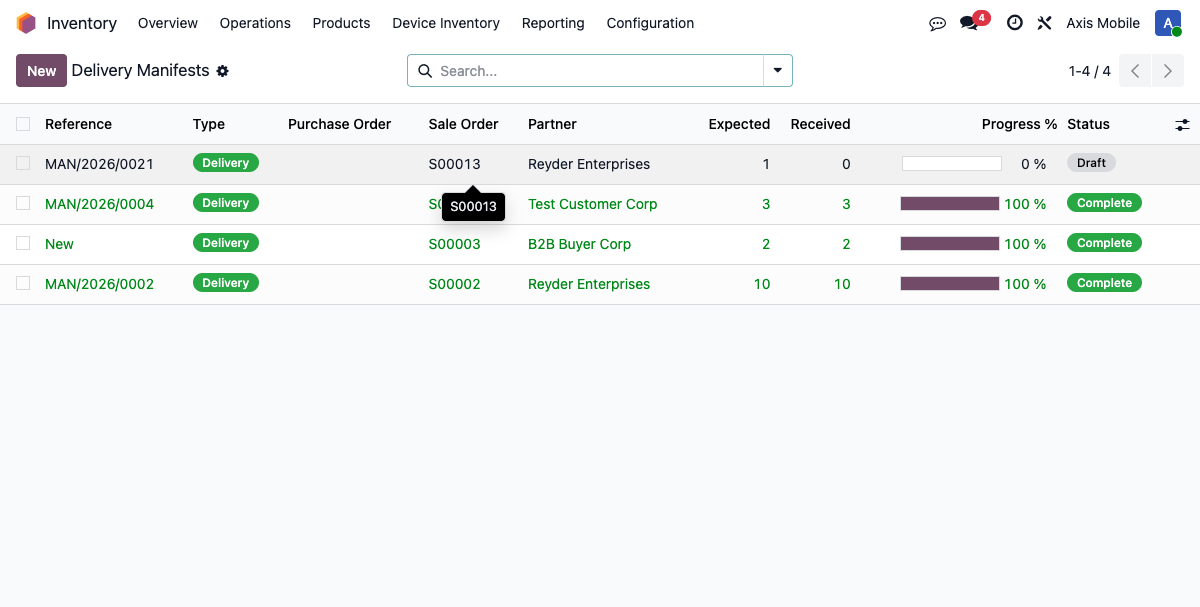
Delivery manifests track device-level picking and shipping for sales orders. Each manifest contains one line per allocated device (IMEI), and the manifest drives the full fulfillment chain: picking, optional packing, COGS accounting, customer invoicing, and settlement report generation.
Manifests are auto-created when a device-enabled SO is confirmed. Operators interact with them through barcode scanning or manual line updates, and marking a manifest complete triggers all downstream accounting and settlement steps automatically.
Auto-Creation on SO Confirmation
When a sales order with device allocations is confirmed (action_confirm() is called), the system automatically creates a delivery manifest of type 'delivery':
- One
device.manifestrecord is created and linked to the SO viasale_order_id. - One
device.manifest.linerecord is created for eachsale.order.line.deviceallocation, pre-filled with the device IMEI, product, and specs. - Manifest state starts at
draft.
After confirmation the SO status changes to Sales Order and the delivery manifest is immediately ready for picking.
Step 1: Pick Devices
Path: Open the delivery manifest from the SO smart button, or navigate to Inventory → Device Inventory → Sales → Delivery Manifests.
Barcode Scanning
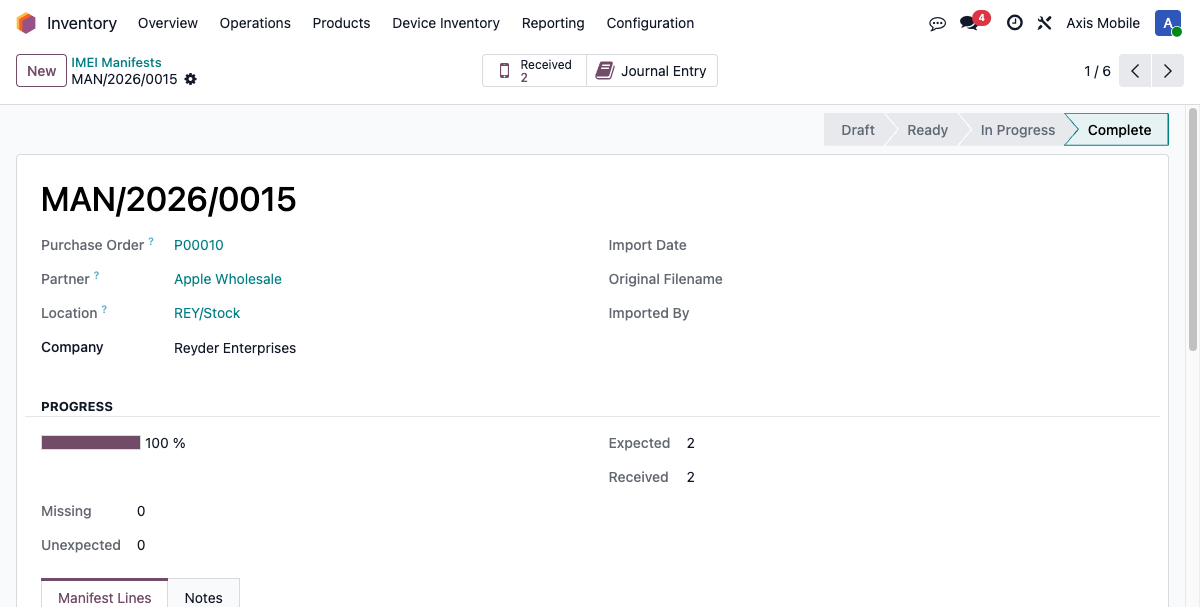
Each scan calls _quick_pick(lot) on the matching manifest line. The method validates:
- The scanned IMEI exists in the system as a
stock.lotrecord. - The device matches the IMEI expected on the manifest line.
- The device status is
availableorreserved— devices that were already picked cannot be re-scanned. - Owner/consignment authorization is confirmed (the device's owning company must match the consignment agreement on the SO).
On a successful scan:
- Manifest line status → 'received'
- stock_lot_id is linked on the manifest line
- received_count increments and progress_percent updates
Manual Picking
Manifest lines can also be matched manually by selecting the device from the stock_lot_id field on each line and saving. This has the same effect as a barcode scan.
Step 2: Pack Devices (Optional)
Path: Inventory → Device Inventory → Warehouse Operations → Packing Boxes
Packing boxes group physical devices into shipping containers before dispatch.
- Create a packing box and scan or assign devices into it.
- Box states:
draft→packing→ready→shipped - The box tracks device count, weight, and dimensions.
- Shipping labels with barcodes can be printed from the box form.
- The manifest's
packing_box_idssmart button shows the count of boxes associated with the order.
Packing is optional. Manifests can be marked complete without creating packing boxes.
Step 3: Mark Manifest Complete
Click Mark Complete on the manifest form when all devices have been picked.
action_mark_complete() runs the following sequence:
1. Validate Delivery Quantities
_validate_delivery_quantities() is called first. It compares the number of picked devices against the quantities on the SO lines and raises a UserError if picking exceeds what was ordered. This prevents over-delivery.
2. Process Customer Delivery
_process_customer_delivery() is the main processing method. It executes in order:
a. Mark devices as sold
Each picked device has action_mark_sold() called on it. This transitions the device's device_status from reserved → sold and records the sale date and sale order reference on the stock.lot record.
b. Create COGS GL entry
_create_cogs_accounting_entry() posts the cost-of-goods-sold journal entry (see Accounting section below). The resulting account.move is stored on cogs_move_id.
c. Create settlement reports (consignment only)
If the SO contains consignment devices (devices owned by Axis Mobile), _create_settlement_reports() is called. It creates two paired consignment.settlement.report records: one owner report (Axis Mobile's view) and one consignee report (Reyder's view). This method uses .sudo() internally to cross the company boundary when writing the owner-side report. Both reports are auto-confirmed. See Settlement Reports for full details.
d. Create customer invoice
_create_customer_invoice() calls Odoo's standard sale_order._create_invoices() method to generate an out_invoice with one line per SO product. The invoice is auto-posted. The resulting account.move is stored on customer_invoice_id.
3. Set State to Done
After successful processing, manifest state → 'done'.
Accounting on Delivery Complete
COGS Entry
- Amount: Sum of
purchase_costfor all picked devices - Journal: Device Stock Journal
- Auto-posted: Yes
- Stored on:
device.manifest.cogs_move_id - Skipped (idempotent) if
cogs_move_idis already set
Customer Invoice
- Uses standard Odoo
sale_order._create_invoices() - Creates
out_invoice(customer invoice) with one line per SO product - Price = sale price from the SO line
- Accounts = standard Odoo product revenue account + AR
- Auto-posted: Yes
- Stored on:
device.manifest.customer_invoice_id
Settlement Reports (consignment devices)
Two reports are created automatically: - Owner report (Axis Mobile): shows IMEI, model, storage, grade, commission rate, and owner amount. Customer name, SO number, and sale price are intentionally omitted. - Consignee report (Reyder): full details including customer, SO, and sale price.
Both reports are auto-confirmed, which triggers creation of a vendor bill for the owner amount. See Settlement Reports for report structure and data separation details.
Inter-Company Delivery
For inter-company transfers, delivery manifests operate slightly differently:
- When the manifest is marked complete,
_create_buyer_receiving_manifest()is called to auto-create a mirror receiving manifest in the buyer's (destination) company. - The COGS GL entry is created in the seller's company books.
- The customer invoice is created as an inter-company
out_invoicein the seller's company. Odoo's inter-company invoice mirroring then auto-creates a draftin_invoice(vendor bill) in the buyer's company.
Smart Buttons on Manifest
| Button | Description |
|---|---|
| Received Devices | Count of devices with status = 'received' on this manifest |
| Packing Boxes | Count of packing.box records linked to this manifest's SO |
| Journal Entries | GL entries created (COGS move and any related entries) |
| Sale Order | Link back to the originating sale.order |
| Purchase Order | Link to the originating purchase.order (if applicable) |
Key Fields Reference
| Field | Description |
|---|---|
manifest_type |
'delivery' for outbound customer shipments; 'receiving' for inbound |
sale_order_id |
Link to the originating sale order |
state |
draft → in_progress → done |
cogs_move_id |
Link to the COGS journal entry (account.move) created on completion |
customer_invoice_id |
Link to the customer invoice (account.move) created on completion |
account_move_id |
Link to the inventory receipt GL entry (used on receiving manifests) |
expected_count |
Number of devices expected based on SO allocation |
received_count |
Number of manifest lines with status = 'received' |
progress_percent |
received_count / expected_count × 100 — picking progress indicator |
Related Documentation
- Sales Orders & Device Allocation — how devices are allocated to an SO before the manifest is created
- Settlement Reports — paired owner/consignee reports generated on delivery completion
- Accounting Reference — full GL entry reference for all manifest-triggered entries
- Warehouse Operations — packing boxes and barcode scanning details
Last updated: 2026-03-04 | Module version: 19.0.2.14.0