Retail Operations
Who this is for
Sales ops and accounting handling Reyder's retail channel — devices sold through retail partners like AnyMobile rather than through standard wholesale sales orders.
What you'll accomplish: reserve devices for a retail partner, and record the sales as they happen (either one at a time or via a CSV import).
Retail vs. wholesale — which flow to use
| Situation | Use |
|---|---|
| Company-owned phones permanently handed to a store, with no sale reconciliation | Retail Hand-offs (below) |
| B2B customer placing a specific order ("I want these 3 IMEIs") | Sales Order |
| Retail partner holding your stock on consignment and selling whatever moves | Retail Reservation + Retail Sale (this doc) |
The retail flow is built around the reality that retail partners don't know in advance which specific IMEIs they'll sell. You reserve a batch first, they sell over time, and you record each sale back into the system.
A reservation is required — there's no direct retail-sale path
Retail sale lines have a domain requiring is_retail_reserved=True on the device, with the retail partner matching the sale header's partner. You cannot add a device to a retail sale line unless it was first reserved to that retail partner. If you need to record a one-off sale, create a quick reservation first, then the retail sale.
Company-owned retail hand-offs
Use Retail Hand-offs for the terminal hand-off flow, not a consignment reservation. After Hand Off Devices, each IMEI is Retail Handed Off, not Available. The status applies even if no retail location was specified. It is excluded from available-device selection and native stock reservation; ordinary status edits, stock transfers, and retail-sale imports cannot release it. Ownership and accounting do not change. Phones can still appear in the On-Hand Device Cost report under Retail Handed Off while their stock is in an internal retail location; on-hand ownership is not sale availability.
Find a hand-off from an IMEI
- Open All Devices and search the IMEI, or use Retail Handed Off to filter the inventory list.
- The IMEI displays a Retail Handed Off ribbon and an unavailable notice. Retail Custody links to the active hand-off and partner.
- Click Retail Hand-offs or open Retail Hand-off History for the dated hand-off and return events, partner, locations, and source document link.
- The standard Traceability report and its PDF also include those events, including earlier executed hand-offs without native stock move lines. Missing historical locations are labelled Location not recorded, never guessed. Company permissions apply to both the screen and export.
Return a handed-off phone
Use the original hand-off's per-device Return or Return All action only when the phones physically return. Cancel on an executed hand-off also returns the remaining phones to its configured storage location. Returned IMEIs become Available again (normal QC, correction-hold, and other sale checks still apply). Partial returns leave the remaining phones unavailable.
Executed documents cannot be reset or edited to erase custody history. Create a new hand-off for a later trip to the store. If the system reports a custody mismatch, have a manager reconcile it instead of editing flags manually.
Part 1 — Retail reservations
A reservation pins a set of devices to a specific retail partner. While active, those devices can't be allocated to other orders.
Step 1 — Open Reserve/Release Devices
Go to Device Ops → Devices → Reserve/Release Devices.
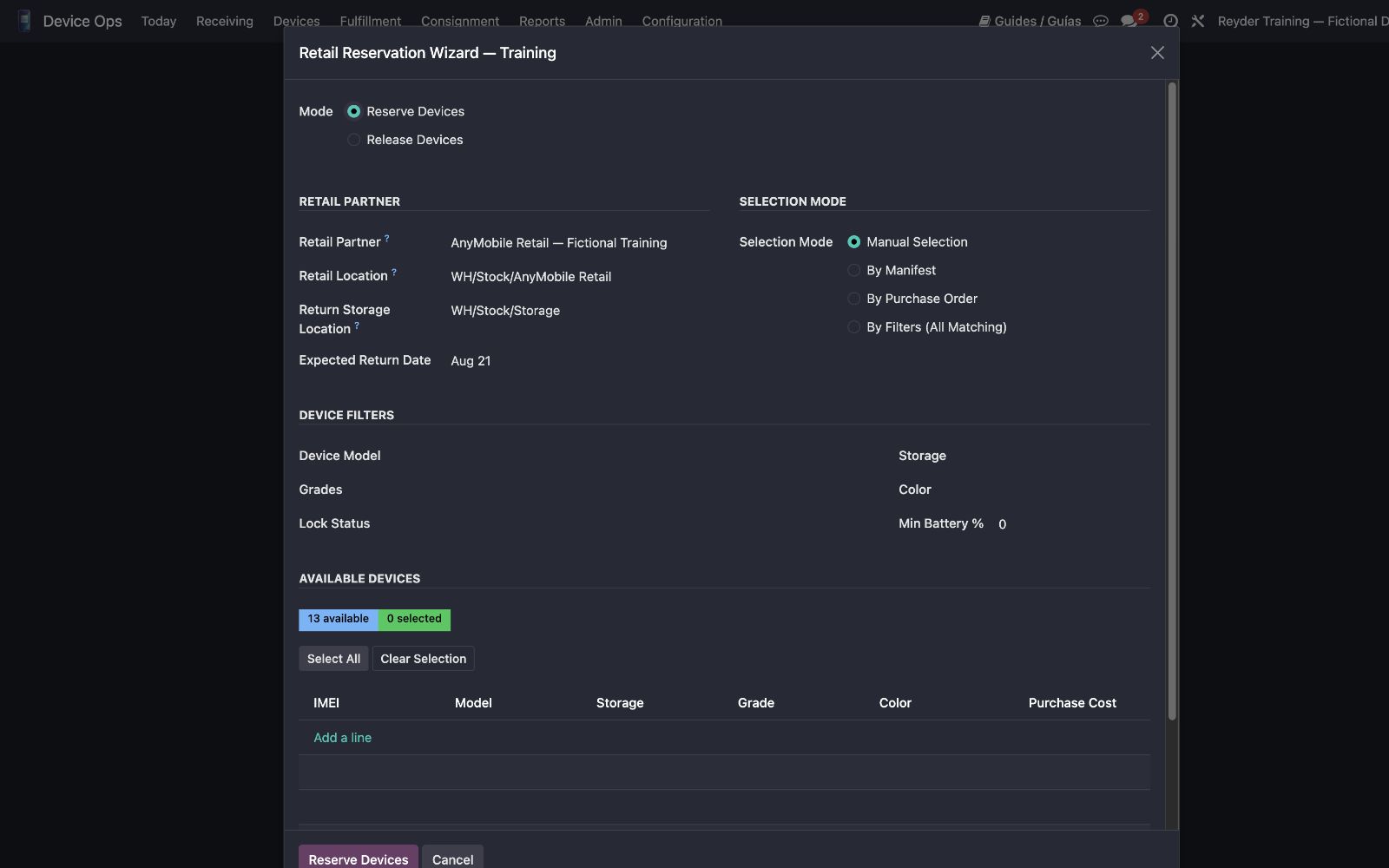
Pick the selection mode that matches how you want to pull devices:
- Manual — pick IMEIs individually
- By manifest — everything on a specific receiving manifest
- By PO — everything from a specific purchase order
- By filters — model / storage / grade / color match
Set the Retail Partner, Retail Location, Return Storage Location, and Expected Return Date (when you expect unsold devices back). The return location must belong to the Holding Company. Click Reserve Devices.
Configure the return shelf once
An administrator should set Settings → Inventory → Retail Operations → Retail Return Storage Location for each holding company. New reservations copy that safe destination. If it is blank, Odoo uses a location only when there is one unambiguous, company-owned storage destination; otherwise activation/release stops and asks for configuration instead of guessing.
What a reservation does
- Creates a
device.retail.reservationrecord inActivestate. - Flags each device with the retail partner and
is_retail_reserved = True. - Optionally moves the devices to the retail location physically (creates a
device.movementrecord for the audit trail).
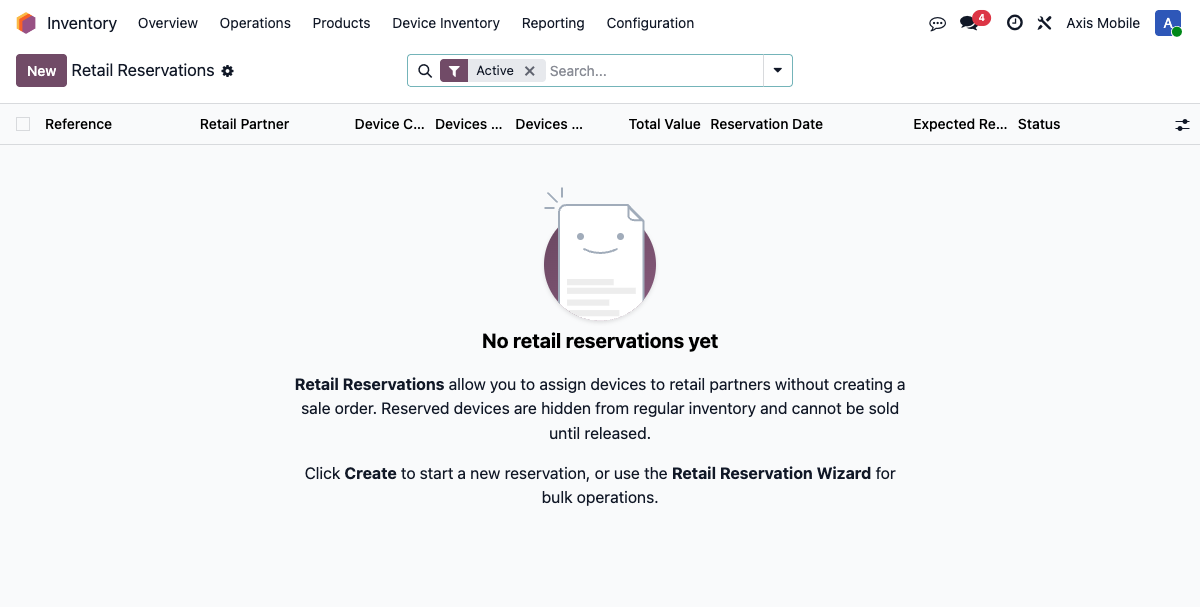
You can review active reservations at Device Ops → Devices → Retail Reservations.
On an Axis Retail Reservation, the Reserved Devices tab shows Sale Price next to Cost. It displays the device's current confirmed retail-sale price for the same store and holding company, in the sale's currency. Unsold devices and draft/cancelled sales show no price. This is read-only: enter or correct a draft sale's price in Retail Sales, not on the reservation. Existing company-access rules still apply to the price.
Export the Axis → AnyMobile transfer document
Open a reservation that contains devices and use either export button in the header:
- Export Excel downloads a formatted workbook. Transfer Summary is the human-readable document; RepairDesk Import is a flat, one-device-per-row sheet starting with headers on row 1. It includes IMEI, serial, brand/model, storage, color, grade, lock/carrier details, battery and device/QC status, purchase cost and currency, location, PO/supplier traceability, intake data, diagnostics, and condition notes.
- Export PDF downloads a landscape transfer document with the from/to parties, reservation dates and location, device count, total cost, detailed device rows, and prepared/received signature lines.
The cost shown in both files is the device's recorded purchase cost, not a retail sale price. Export access follows the same company and record rules as the retail reservation itself.
Step 2 (later) — Release the reservation when it is finished
When the partner returns all remaining unsold devices, open Reserve/Release Devices, choose Release, select the reservation, and click Release Reservation. This action releases the entire reservation; there is no partial-release picker.
- Every still-linked device is cleared of the retail partner flag.
- Devices still at the retail location are moved to the reservation's Return Storage Location, which is company-scoped and saved when the reservation activates.
A blocked release protects the phones
If Odoo says the return location is missing or ambiguous, do not clear the reservation manually. Set the holding company's Retail Return Storage Location and retry. Until then, the reservation and IMEI assignments stay unchanged.
Do not release a reservation for a partial return
If only some phones came back, stop and have a manager split/correct the operational record first. Release Reservation is all-or-nothing.
Auto-close behavior
You don't need to manually release a reservation once everything's sold. When the last reserved device gets recorded as a retail sale, the reservation auto-closes itself and moves to Released.
Part 2 — Retail sales
Record the actual sales the retail partner made. Each sale closes out specific IMEIs and posts the accounting automatically.
Option A — Enter sales one at a time
Go to Device Ops → Devices → Retail Sales → New.
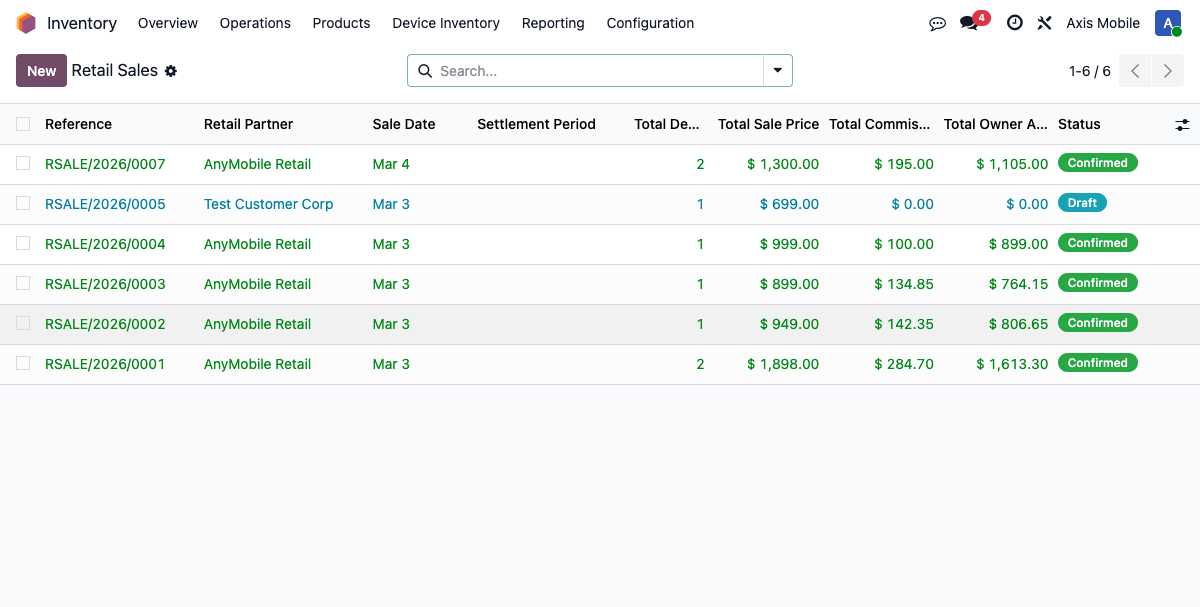
- Set the Retail Partner and Sale Date.
- Add one device line per IMEI sold — pick the device, set its Sale Price.
- Click Confirm when the sale is complete.
By default, the device picker narrows the list to devices reserved to that retail partner
with a positive purchase cost. QC status — including QC Failed — stays visible for
audit but does not block retail settlement. Final confirmation separately checks that
every chosen device is still Available. Sales Managers and Inventory Managers can tick
Exception Override and enter a reason for missing/zero cost; the override does not
bypass availability.
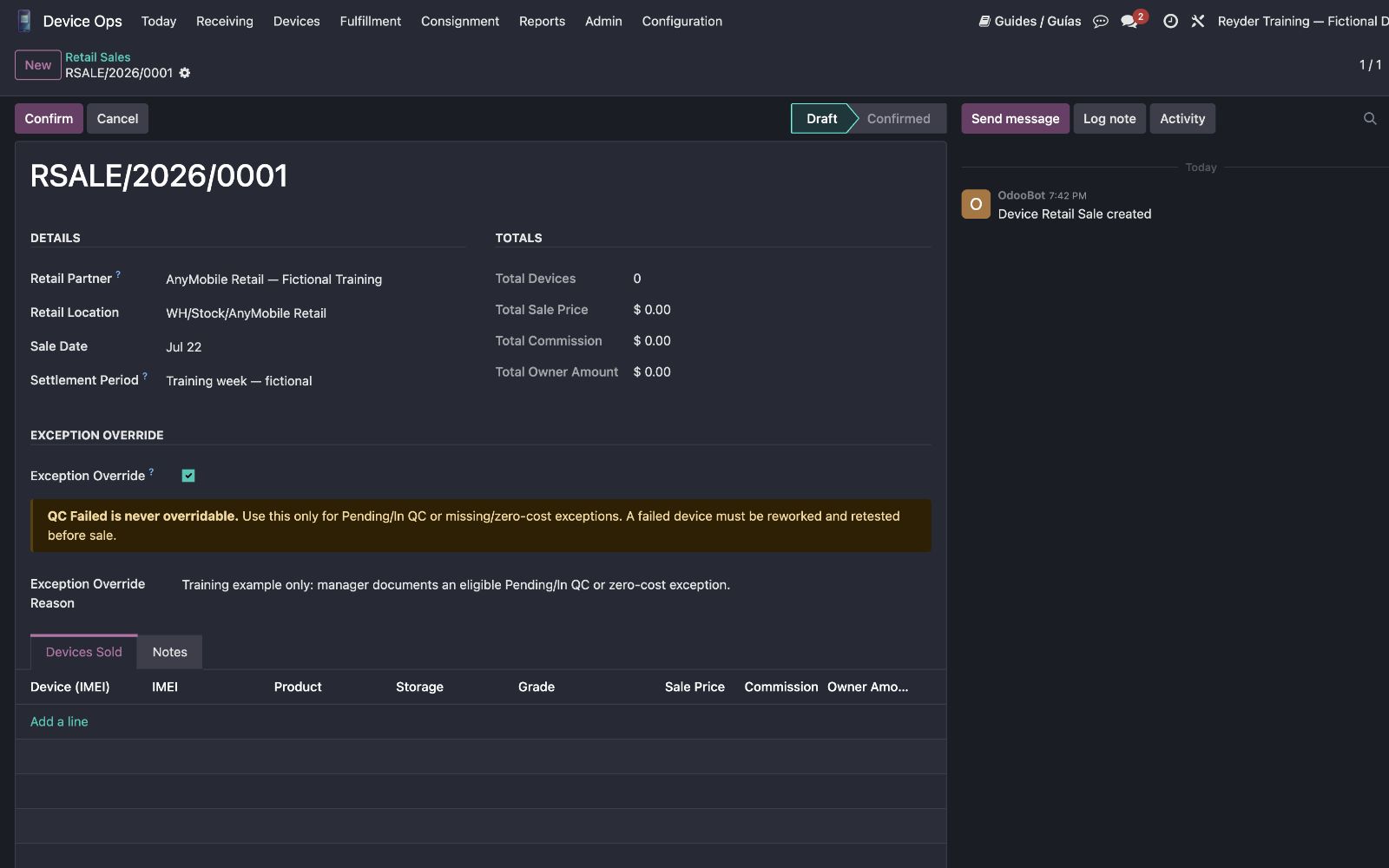
That override is intentionally narrow: it does not let you sell an unreserved device, a device reserved to a different partner/company, a sold device, a duplicate line, or a line with a zero sale price. Reservation, ownership, availability, sale-price, and cost controls remain enforced independently of QC status.
Option B — Import a CSV of sales
Easier when the partner sends you a weekly sales report.
Go to Device Ops → Devices → Import Retail Sales.
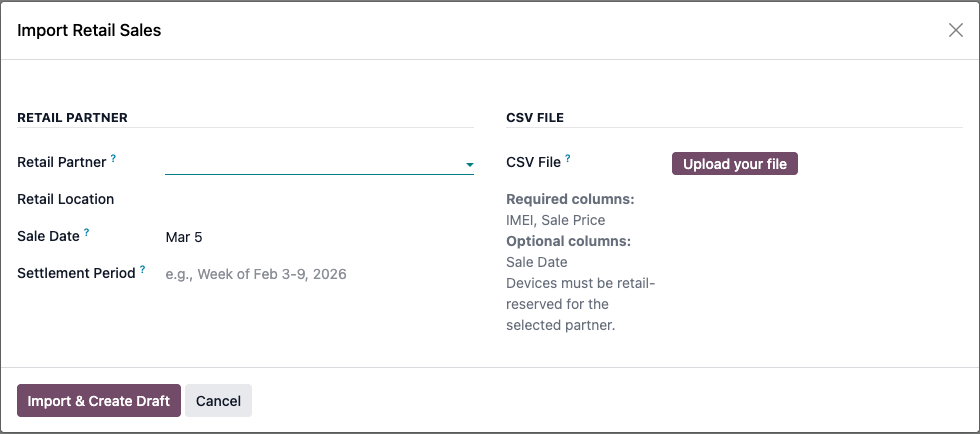
Upload a CSV. The wizard recognizes these columns — headers are case-insensitive and matched by substring (IMEI, imei, IMEI Number, etc. all work), extra columns are ignored, blank rows are skipped:
| Column | Required | Notes |
|---|---|---|
IMEI (or any header containing imei) |
yes | Must match a device already in the system |
Sale Price (or any header containing price) |
yes | The price this IMEI sold for — must parse as a positive number |
Sale Date (or any header containing date) |
no | If present, the importer uses the earliest valid row date as the date for the whole imported sale; it does not keep a different date on each line |
You can leave your vendor's extra columns (supplier SKU, export markers, etc.) in the file — they're ignored.
The wizard creates one device.retail.sale record in Draft state and adds a line per IMEI. It does not auto-confirm — you review the draft and click Confirm on the retail sale form to post accounting.
CSV import validates the same retail-reservation and price rules as manual entry. QC/cost readiness is checked when you confirm the draft sale, so managers can review the imported sale and apply an exception override before confirming if needed.
Importing a mix of partners' sales in one file?
Do one file per retail partner. The retail partner is set on the sale header, not per-line — so mixing partners in one file won't work. Each line's device must also be already reserved to that partner.
One import = one sale date
If the file contains different row dates, Odoo uses the earliest date for the single draft sale. Split the file by date when daily accounting dates must remain separate.
What happens when you confirm a retail sale
Click Confirm. All in one transaction:
- Each device is marked
Sold. Its retail-sale line retains the recorded price, and the device/report retains the Sale Date from the retail-sale header (not the later time someone clicks Confirm). - With valid accounting configuration, the COGS entry posts (DR COGS / CR
Valuation) for the sum of the devices' non-zero
purchase_costvalues. An approved zero-cost exception contributes zero. If the entire approved cost total is zero, Odoo creates no COGS entry and Accounting must review the audited exception. - A customer invoice is still created and posted to the retail partner — one line per device at the sale price, no tax applied — even when the approved COGS total is zero.
- For consignment devices (owned by Axis), the paired Owner + Consignee Settlement Reports are created and auto-confirmed — same as a standard SO sale. The private consignee line records the retail partner as Customer and the header Sale Date; the owner line stores neither. Axis gets its vendor bill.
After confirmation, the retail sale exposes Settlement Reports when applicable. The invoice and COGS references are stored on the sale but are not currently exposed as form smart buttons; accounting should open them from the normal Invoices and Journal Entries lists using the retail-sale reference.
Common problems
A device I want to sell isn't on the list
The retail-sale line domain requires the reservation, partner, and holding company to
match. Reserve the device to the partner first, then return to the sale. QC status does
not hide it. If it has zero cost, a manager can use Exception Override. A stale
device that is no longer Available is blocked at Confirm.
Confirm shows a validation error
Read the full message. Common causes are a missing/non-positive Sale Price, a missing Retail Partner, a stale reservation, or an IMEI that is no longer Available.
Confirm says the device is not ready for sale
For missing/zero cost, complete the cost or have a Sales Manager / Inventory Manager tick Exception Override and enter a reason. The reason is posted to the device and retail-sale chatter. QC status is audit information and does not cause this error.
The CSV import rejects my file
Headers are normalized (lowercased, whitespace → underscore) and matched by substring, so IMEI, imei, IMEI Number, Device IMEI all work — same for Sale Price, price, Unit Price. An optional Sale Date column is also recognized; mixed row dates become the earliest header date for the whole sale. Blank rows are skipped; extra columns are ignored. What the wizard actually enforces:
- There must be a column whose name contains imei and one that contains price.
- Each IMEI must already exist as a
stock.lot(the import can't receive new devices). - Each IMEI must be retail-reserved to the partner on the sale header —
is_retail_reserved=TrueAND matchingretail_partner_id. - Sale price must parse as a positive number.
If an individual row errors, the wizard reports the row number so you can fix just that row.
A retail sale was confirmed but no settlement report appeared
Settlement reports only generate for consignment devices (where owner company ≠ selling company). If the devices belonged to Reyder directly, no settlement is needed — the customer invoice alone covers the accounting. Check each device's owner_company_id to confirm.
The invoice was posted to the wrong journal
Retail invoices use the first sales journal configured for the retail sale's company. There is no customer-specific journal selector in this workflow. Have accounting fix the company's sales-journal configuration before confirming more retail sales; do not edit or repost the invoice casually.