Setup & Configuration
Who this is for
The operator standing up the system for the first time, or anyone verifying setup after a migration. Day-to-day users don't need this page.
What you'll accomplish: configure the accounting, journals, inter-company partners, M360 integration, grades, and users so the module is production-ready.
Before you start: the Device Inventory module is already installed and both companies (Reyder Enterprises, Axis Mobile) exist. If not, do that first.
Setup checklist
Work through these in order. Each one links to the detailed section below.
- [ ] Configure Device Inventory Accounting (journal + 3 accounts)
- [ ] Configure Settlement Journal (purchase journal for vendor bills)
- [ ] Configure Inter-Company Device Transfers (partner, journal, location)
- [ ] Configure the Retail Return Storage Location for each holding company
- [ ] Review Device Proxy Purchase Vendor for each company
- [ ] Make an explicit risk decision on Temporarily Allow Wholesale Zero-Cost Devices
- [ ] Configure M360 QC Integration (credentials, API mode)
- [ ] Verify Device Grades exist (Excellent, Good, Fair, Poor)
- [ ] Assign users to security groups
- [ ] Create your first Consignment Agreement (separate guide)
- [ ] Switch M360 API from Testing to Live when ready for production
Where the settings live
All module settings are on the Settings → Inventory page, grouped at the bottom:
- Inter-Company Device Transfers
- Retail Operations
- Device Inventory Accounting
- Wholesale Device Sales
- Consignment Settlement
- M360 QC Integration
- Gemini Invoice OCR
- Quick Capture AI
The Device Inventory module creates and links its inter-company documents itself. Configure the module settings below rather than enabling a second automatic-order mechanism.
Company roles
The module is built for a two-company consignment model:
| Company | Role |
|---|---|
| Reyder Enterprises | Consignee — runs the warehouse, handles all sales and customer invoices |
| Axis Mobile | Device owner — consigns devices to Reyder; receives owner-settlement payouts |
You can run with a different split. Each active agreement represents one owner/consignee pair. Multiple owners and multiple consignees are supported; Odoo blocks only a duplicate agreement for the same ordered pair.
Device Inventory Accounting
Settings → Inventory → Device Inventory Accounting
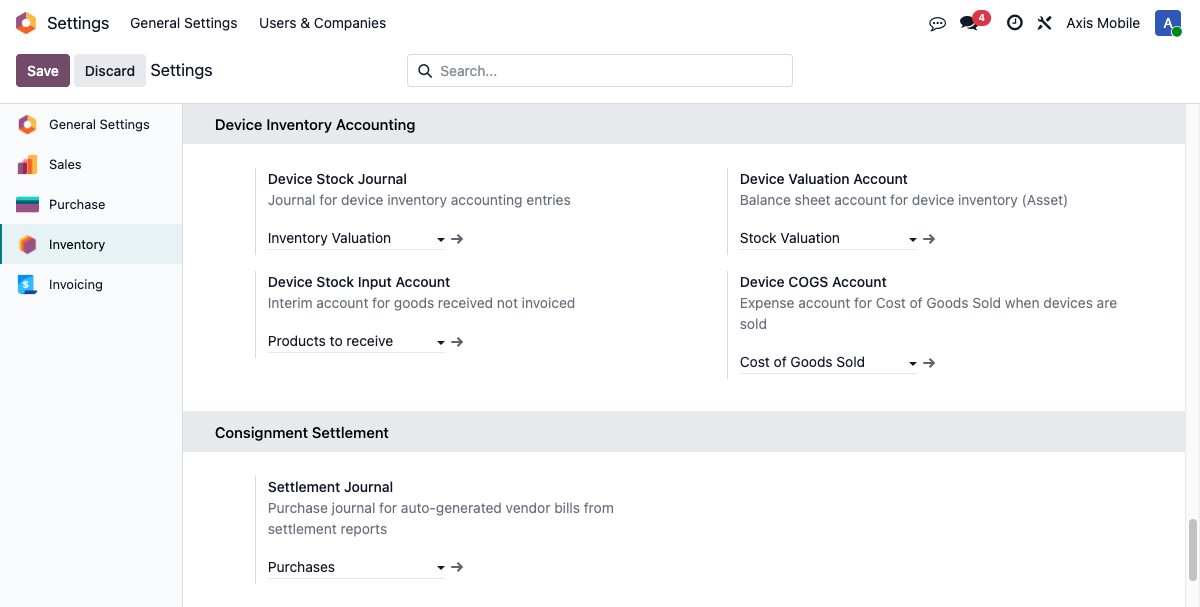
Configure all four before using the module in production. Positive-value receiving, delivery COGS, and retail invoice/COGS all block when required configuration is missing or belongs to the wrong company. A genuinely zero-value receipt creates no accounting amount, and a sealed reconciliation creates no new entry when its value was already posted at carton receipt. Treat any accounting warning as a stop-and-escalate condition.
Configuration is not accounting approval
Your controller or CPA must approve the account mapping and consignment treatment before production use. This page explains where Odoo settings live; it does not establish GAAP policy or authorize an operator to repair entries.
| Setting | What it is | Example |
|---|---|---|
| Device Stock Journal | Journal for all device inventory moves (receiving, COGS, adjustments) | Inventory Valuation |
| Device Valuation Account | Asset on balance sheet — holds value of stock on hand | Stock Valuation |
| Device Stock Input Account | Liability / expense for Goods Received Not Invoiced (GRNI) — cleared when supplier bill arrives | Products to Receive |
| Device COGS Account | Expense — debited when a device sells | Cost of Goods Sold |
How these accounts are used
- Receiving: DR Valuation / CR Stock Input — increases stock on hand, records obligation to pay the vendor
- Sale: DR COGS / CR Valuation — moves value from asset to expense
- Customer invoice: DR AR / CR Revenue (standard Odoo — uses the company's sales journal, not the Device Stock Journal)
Your approved accounting policy should document the final mapping for settlement, retail, and inter-company entries. Keep that policy in the private finance runbook.
Steps
- Go to Settings → Inventory and scroll to Device Inventory Accounting.
- Pick the Device Stock Journal (a Miscellaneous/general journal).
- Pick each of the three accounts.
- Save.
Consignment Settlement
Same settings page, next section. One field:
| Setting | What it is |
|---|---|
| Settlement Journal | Purchase journal used when Reyder explicitly creates a reviewed settlement bill |
New settlement reports freeze statements for review without creating accounting entries. AXIS uses its sales journal to generate a draft invoice to Reyder after review. Its bank journal must have an inbound payment method with an Outstanding Receipts account. Reyder can explicitly create a vendor bill from its report after AXIS posts its invoice; missing purchase-journal configuration blocks that action. Existing bills are reused. See Settlement Reports for the complete workflow.
Steps
- In the separate Consignment Settlement section, find Settlement Journal.
- Pick a purchase-type journal.
- Save.
Inter-Company Device Transfers
Settings → Inventory → Inter-Company Device Transfers
Only needed if you use the Inter-Company Transfer Orders feature. Skip this if devices never move between Reyder and Axis.
| Setting | What to set it to |
|---|---|
| Inter-Company Partner | Contact that represents this company in the other company's documents. For Reyder's settings select Reyder's own company contact; for Axis select Axis's own contact. Leave blank only when the company's main partner is already correct. |
| Device Proxy Purchase Vendor | Vendor that this company must use on direct device POs. In the standard setup, Axis uses Reyder here so an outside-supplier PO is created in Reyder with For Company = Axis, never directly in Axis. Leave blank only when this control is intentionally not required. |
| Inter-Company Sale Journal | Sales journal used for inter-company invoices — typically just the standard Sales journal |
| Default Transfer Location | Where incoming transfers land on receipt, e.g. WH/Input |
Configure each company in its own company context. Each side points to its own representative contact; it does not point to the other company.
Before the first live transfer, also verify:
- the user who will complete the source delivery is allowed into the destination company;
- the destination company has an active Purchase journal; and
- the destination warehouse/location belongs to the destination company.
Those are hard requirements for creation of the mirrored vendor bill and receiving handoff.
Retail Operations
Settings → Inventory → Retail Operations
Set Retail Return Storage Location separately for every company that physically holds retail-reserved phones. Choose an internal location tagged Storage and owned by that same company. Odoo copies it onto each reservation so a later Release or active Cancel returns unsold IMEIs deterministically; it never selects the first storage location from another company.
If this setting is blank, Odoo permits only an unambiguous company-scoped fallback (one Storage area or one warehouse stock location). Multiple possible destinations block the operation until an administrator configures this field.
Do not enable a second order-sync path
Device Inventory directly creates and links the destination PO when its inter-company SO is confirmed. Do not also use Odoo's generic synchronized-order automation for this workflow; two creation paths can produce duplicate documents.
M360 QC Integration
Settings → Inventory → M360 QC Integration
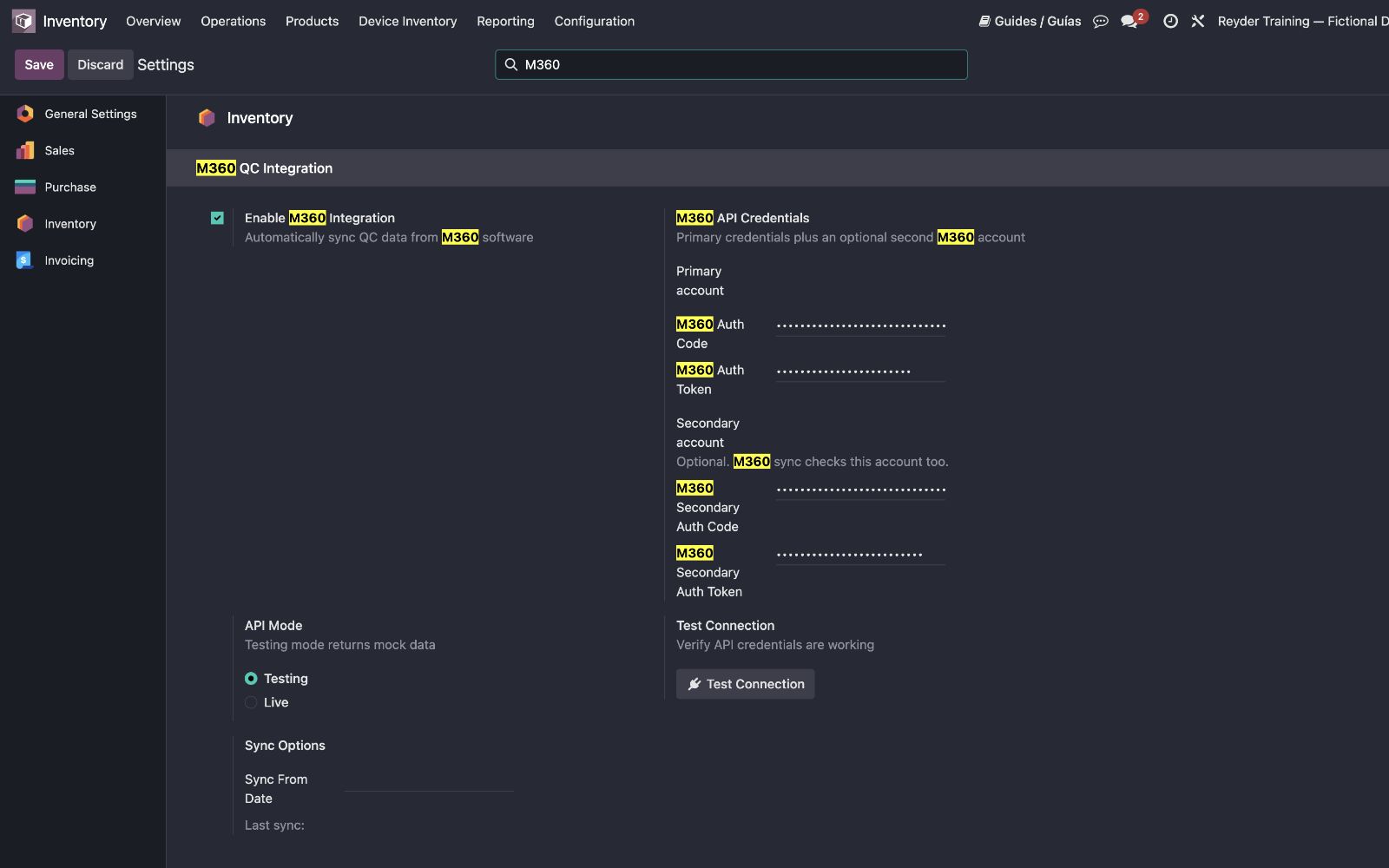
M360 is the diagnostic evidence required by the current QC Complete / Reyder QC Verified workflow. Configure it before promising Reyder-verified results. You may leave it disabled only if the operation will use As Received and will not mark devices QC Complete.
| Setting | What it is |
|---|---|
| Enable M360 Integration | Master toggle |
| Auth Code | Provided by M360 |
| Auth Token | Provided by M360 |
| Secondary Auth Code | Optional second M360 account |
| Secondary Auth Token | Optional second M360 account |
| API Mode | Testing during setup, Live for production |
Steps
- Tick Enable M360 Integration.
- Paste the Auth Code and Auth Token from M360's portal.
- If devices may be tested under a second M360 account, paste that account's Secondary Auth Code and Secondary Auth Token too. Leave both secondary fields blank if you only use one account.
- Set API Mode to Testing.
- Save.
- Use Test Connection to verify every configured credential set.
- On the device form, test Sync from M360 on a known test device. If it pulls data back from either account, credentials are working.
- Set API Mode to Live when you're ready.
Wholesale Device Sales
Settings → Inventory → Wholesale Device Sales
Review Temporarily Allow Wholesale Zero-Cost Devices before go-live. New/company-default setups may have it enabled. When enabled, an authorized wholesale sale can ship an otherwise matching phone with missing or zero purchase cost after recording an audited reason. It does not bypass model, storage, color, Selling As, grade, lock, ownership, QC-failed, or availability controls.
Recommended production decision:
- turn it off when cost completeness is mandatory; or
- leave it on only with written manager/accounting approval and review each exception.
Record the decision and approver in the private finance runbook.
Device Grades
Device Ops → Configuration → Device Grades
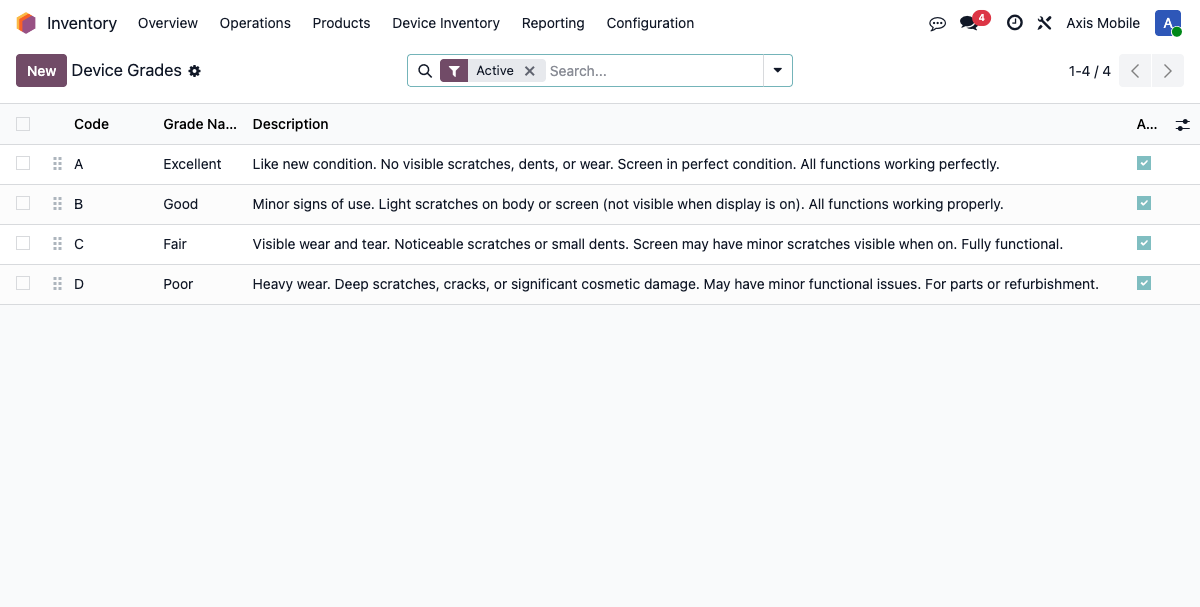
Four standard grades install with the module: Excellent, Good, Fair, Poor. They cover most use cases. Don't rename or delete them — existing records point at these.
You can add a custom grade, such as “Refurbished.” Click New, then enter:
- a required Grade Name;
- a required Code of no more than 10 characters, unique for the intended Company;
- the intended Company (or leave it empty only when the grade is deliberately shared); and
- an optional Description.
Click Save. Do not reuse a code that already exists for that company.
Users and permissions
Settings → Users & Companies → Users
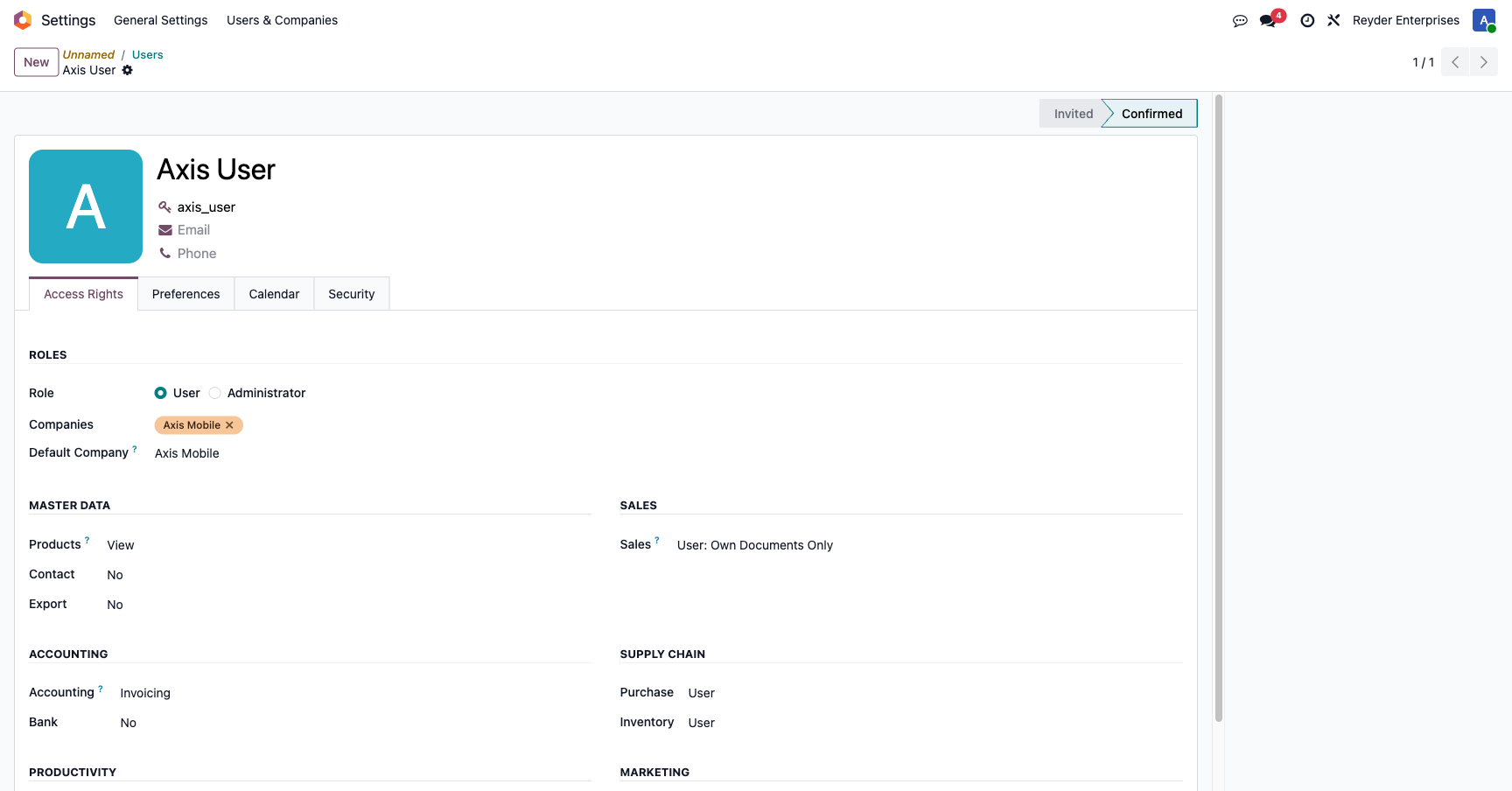
Each user needs the right security groups for their role:
| Role | Assign these groups |
|---|---|
| Warehouse operator | Stock User |
| Warehouse supervisor | Stock Manager |
| Sales | Salesman + Stock User (required to open and scan IMEI manifests) |
| Sales manager | Sales Manager + Stock User |
| Accounting | Accountant + Stock User (settlement-report read access; add Sales Manager only if the person actually manages sales) |
| Admin | All of the above + both companies |
Company assignment — critical for separation
- A person who works only for Axis should have Companies = Axis Mobile only.
- A person who works only for Reyder → Reyder only.
- A person who works for both → both. But this disables data-separation testing for that user.
For the owner-only test profile used to verify isolation, Companies must contain only the owner company. Any extra company invalidates that isolation test. See Security & Multi-Company for the verification procedure.
Your first consignment agreement
Once setup is done, create the Reyder ↔ Axis consignment agreement so devices can actually flow. This is a separate page: Consignment Agreements.
Without an active agreement, Reyder can't see Axis's devices, can't allocate them, and can't sell them. It's the last step that turns setup into a working system.
Common setup problems
I filled in all the accounting fields but saves aren't sticking
Most likely you're editing under the wrong company context. Each company has its own Device Inventory Accounting settings. Switch companies via the header dropdown, re-open Settings, and configure each side separately.
The Device Ops app doesn't appear
Check that the current user has at least the Stock User group. The app is gated by group membership.
M360 integration keeps failing with 401
First verify the active company, API Mode, and every complete, current Auth Code + Auth Token pair configured for that company. Test Connection checks every configured pair, so preserve the exact error text and identify which labeled pair failed. Rotate a token only when M360 confirms that it was revoked or expired; do not replace credentials merely to silence an error.
After neutralizing, certain crons I want running are disabled
--neutralize disables scheduled actions by design. A system administrator should
review and re-enable only the required actions through Settings → Technical →
Scheduled Actions in Developer Mode. Day-to-day operators should not change jobs or
run database commands.