Warehouse Operations
Who this is for
Warehouse team. You'll use this for everything physical — moving devices, scanning outbound IMEIs, optionally tracking boxes, and finding where each phone is.
What you'll accomplish: work through the task queue, complete normal outbound delivery manifests with one scan per unit, and trace device movements.
The four tools you'll use
| Tool | When you use it |
|---|---|
| My Tasks | Assigned work list — currently automatic putaway tasks plus any tasks a manager creates or assigns |
| Delivery Manifest Scanner | Normal outbound flow: scan each sold IMEI once and finish |
| Packing Boxes | Optional Advanced container and label tracking |
| Movement History | Trace where a specific device has been — useful for disputes or audits |
Warehouse tasks
A task is a recorded unit of physical work for a warehouse operator. Putaway tasks are created automatically after receiving completes. Other task types can be created and assigned deliberately, but the current module does not automatically create QC Move or Relocate tasks just because QC starts or somebody requests a move.
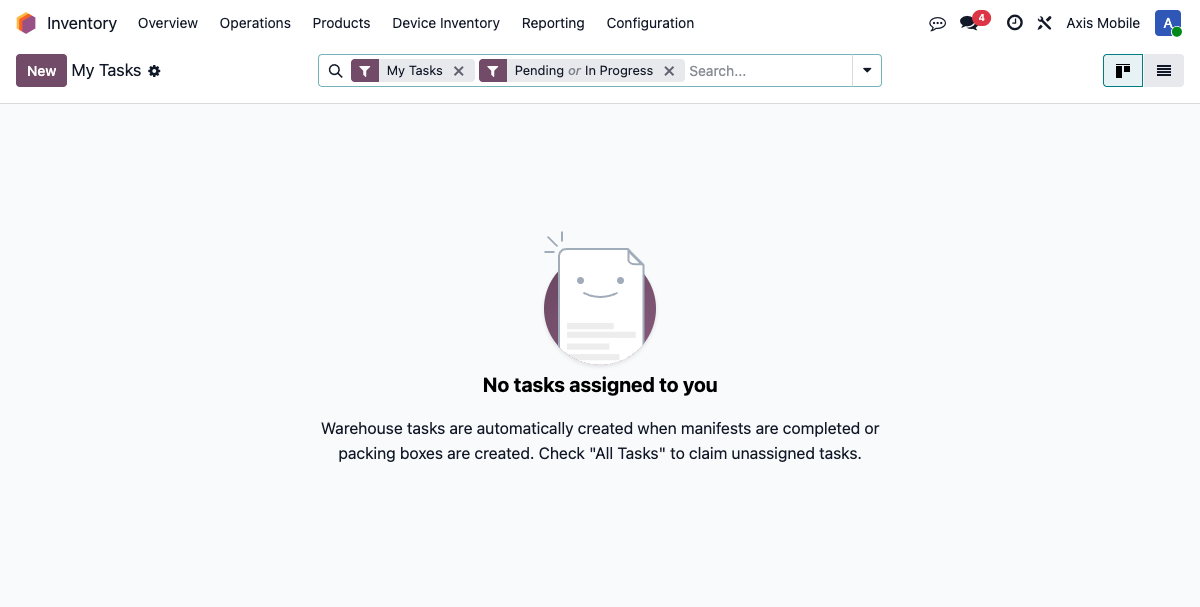
Open your task list
Go to Device Ops → Today → My Tasks for work assigned to you, or Device Ops → Fulfillment → All Tasks for the full queue.
What kinds of tasks you'll see
| Type | What it means |
|---|---|
| Putaway | Devices just arrived in receiving — move them to their shelf homes |
| Pick | A sale needs devices pulled from storage (normally recorded by the delivery-manifest scan) |
| Relocate | Generic move between two storage locations (restocking, inventory rebalance) |
| QC Move | Move devices into or out of the QC area |
| Pack | Pack devices into a shipping container (handled in Packing Boxes, see below) |
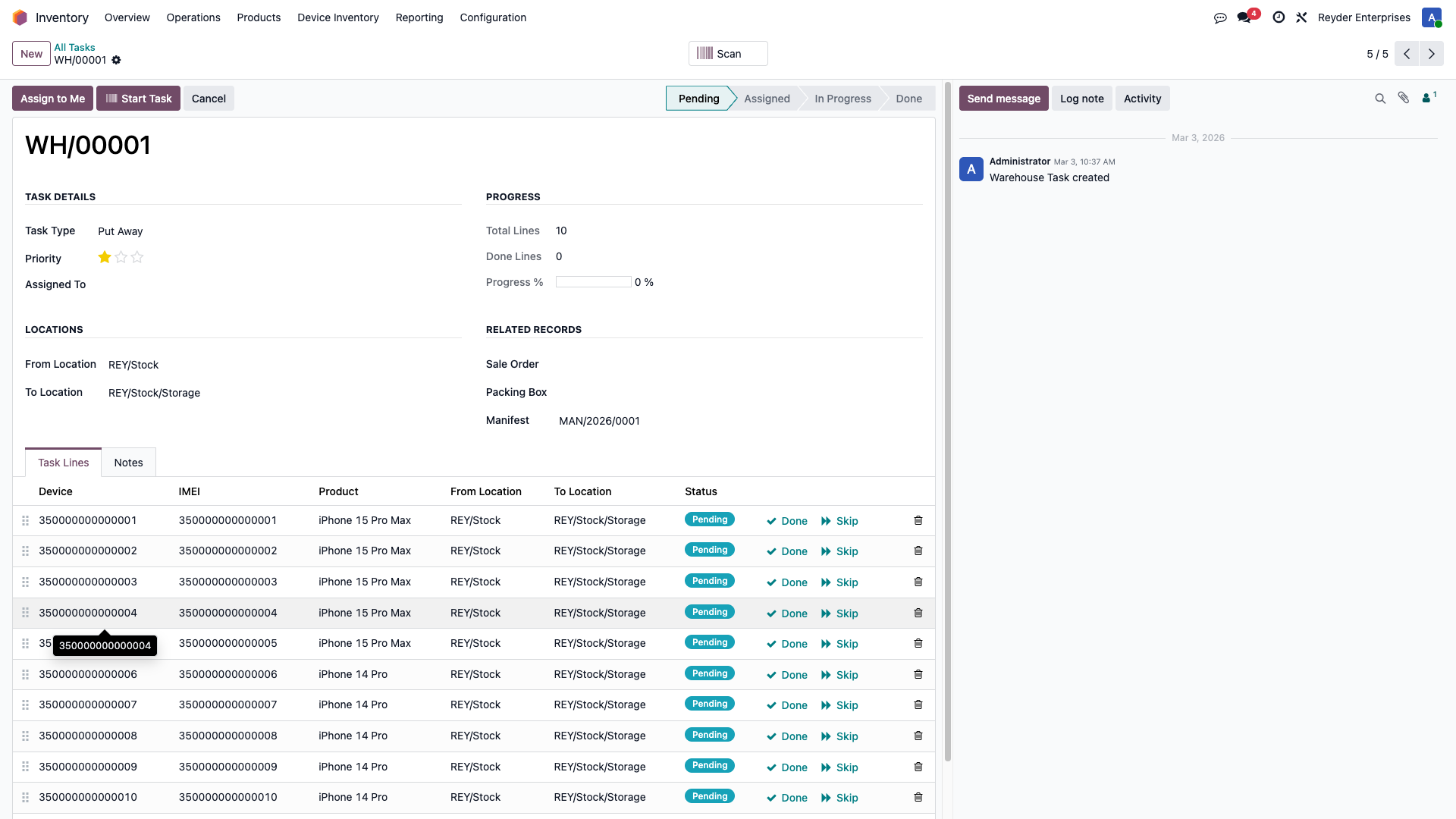
The task lifecycle
- Pending — nobody's picked it up yet
- Assigned — someone claimed it (themselves or a supervisor assigned)
- In Progress — actively being worked
- Done — all devices processed
Working a task
-
Open My Tasks, click a task to open it.
-
Click Start Task — task moves to
In Progress. - Scan each device with your barcode gun. The task ticks off each one as you go.
- When all devices are scanned (or any missing ones acknowledged), click Complete.
The corresponding device.movement records are written as you scan so the movement history is live.
Normal outbound scanning
Before warehouse work, sales must use Confirm to link an existing customer invoice or create a new one, and accounting must post and fully pay it. Then start on the sales order and click Scan IMEIs. The action creates/reopens its delivery manifest and opens the scanner.
- Check the customer and each row's model, storage, color, Selling As, grade, lock, and quantity. Blank Color/Grade/Lock means Any/not promised.
- Scan each physical unit once.
- Confirm every row shows Scanned = Ordered.
- Review the physical shipment and click Finish IMEI Scan.
- Read the review dialog, then click Complete Delivery only as the phones physically leave the warehouse.
Each card says AS RECEIVED — matching supplier information or REYDER QC VERIFIED — matching Reyder results. Each accepted scan reserves the IMEI on that exact row and picks it on the manifest. There is no second packing scan in the normal flow. Finish IMEI Scan opens the review; Complete Delivery is the shipment/accounting event.
See Delivery Manifests for the full workflow and rejection rules.
Optional packing boxes
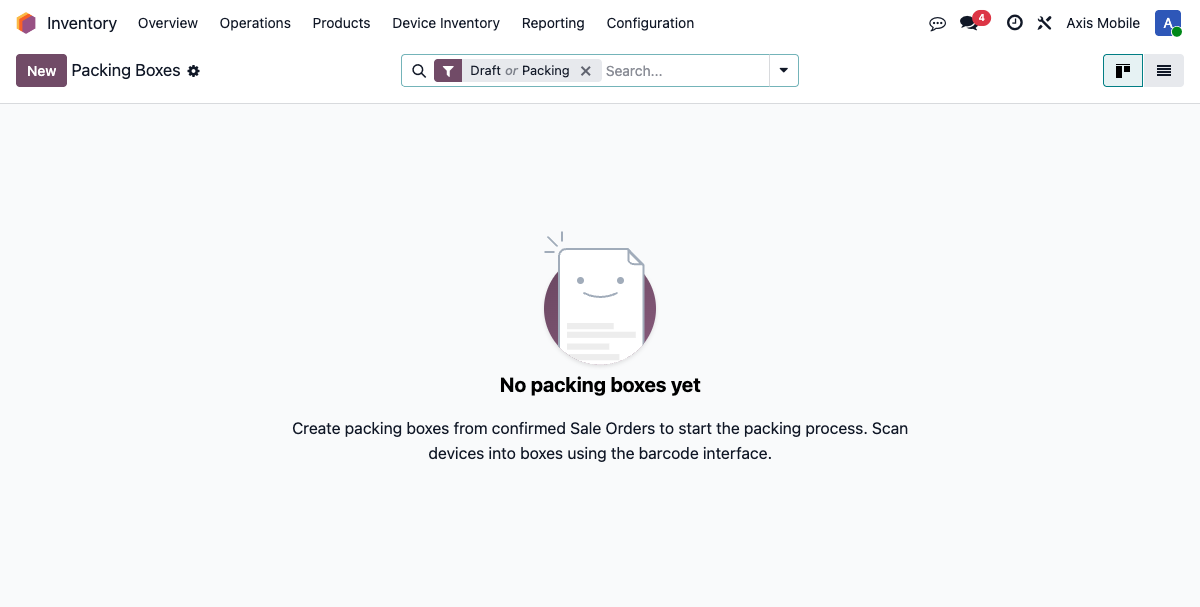
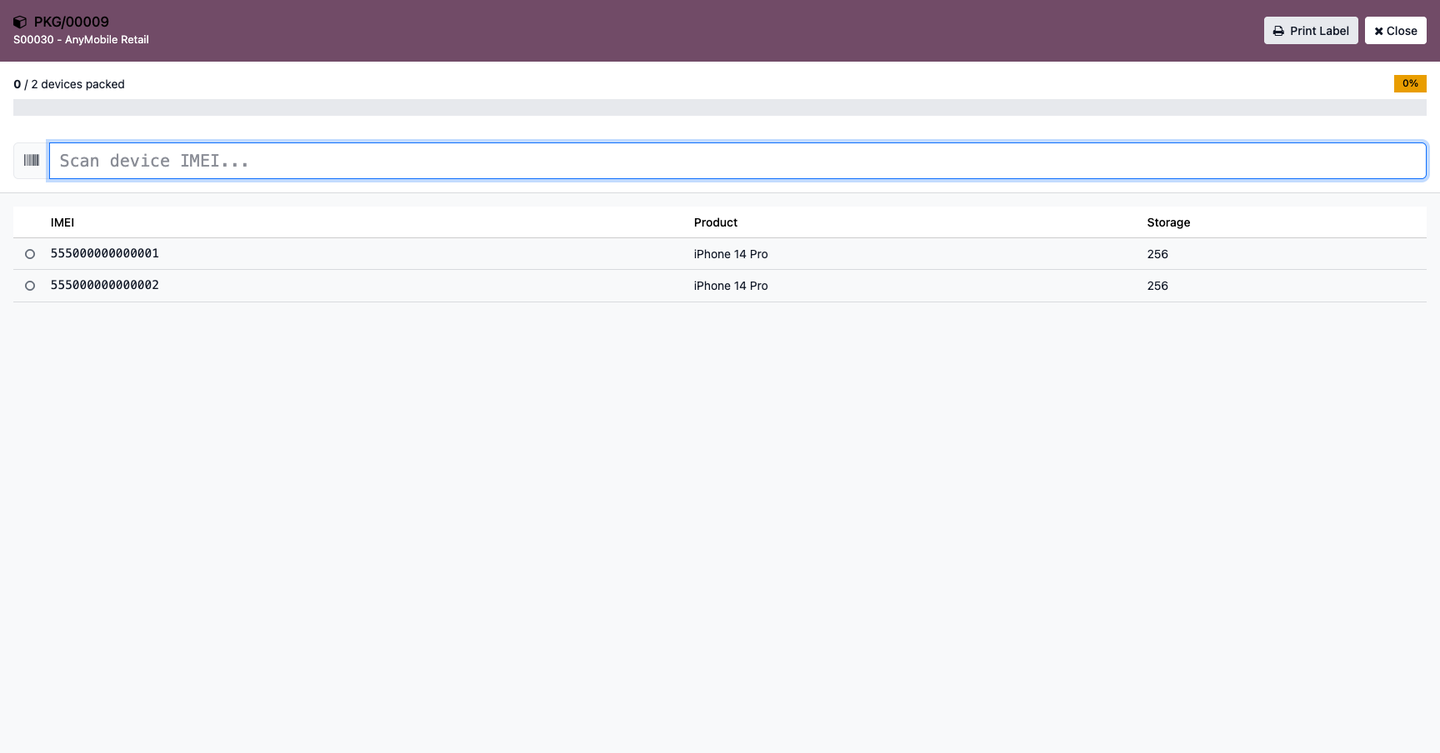
Packing boxes are for Advanced container tracking: box labels, packed-versus-expected control, multiple cartons, and workflows such as inter-company shipping. The normal outbound scan does not auto-create or require one.
Create a box from the sales order's IMEI Fulfillment → Advanced section, or open existing boxes at Device Ops → Fulfillment → Packing Boxes.
Box states
When this optional route is selected:
- Scan each unit into the box.
- Confirm
packed / expectedis complete. - Click Mark Ready to Ship.
- Click Mark Shipped to complete delivery.
An active box blocks direct Finish IMEI Scan. Complete or cancel the box rather than mixing the two completion paths.
When the box is Ready to Ship, Print Label creates a PDF with the box barcode and
contents summary.
Movement history
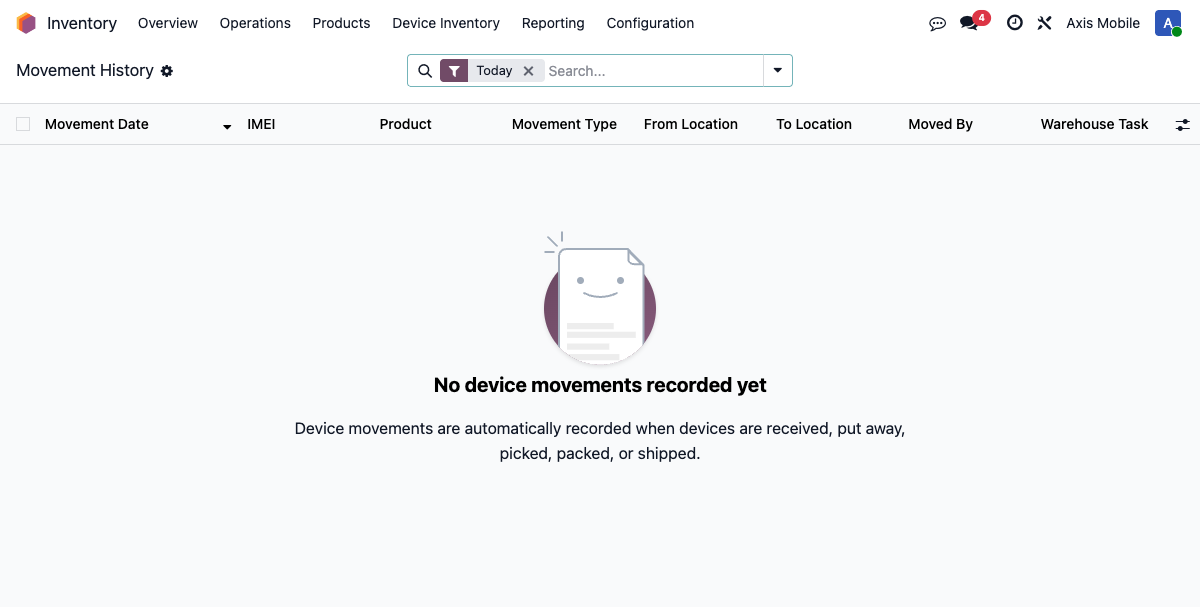
Every physical move a device makes gets logged. If you ever need to answer "where has this phone been?" this is the source of truth.
Open the movement list
Device Ops → Fulfillment → Movement History.
What counts as a movement
| Type | When it's logged |
|---|---|
| Receiving | Device scanned into an IMEI manifest |
| Putaway | Moved from receiving dock to a storage location |
| Pick | Retrieved from storage for an order |
| Pack | Placed in a packing box |
| QC In / QC Out | Moved into or out of the QC area |
| Relocate | Generic location-to-location move |
| Ship | Shipped to customer |
| Retail Transfer | Moved to a retail-partner location |
Each record has: device (IMEI), type, source location, destination location, user who performed it, timestamp.
Finding one device's history
Open All Devices, find the IMEI, click into the device form, and open the Movements tab (or smart button). You'll see every move in chronological order.
Barcode scanning — where to find it
Scanning works the same wherever you do it: point gun at IMEI, pull trigger. But there are a few entry points:
| Where you scan | What the scan does |
|---|---|
| Barcode app → Manifest Receiving | Receives into the selected incoming manifest |
| Purchase Order → Open Device Receiving | Opens the Receiving Manifest; then choose Verify Supplier IMEI List or Receive Without Supplier IMEI List |
| Sales order → Scan IMEIs | Normal outbound: reserves and picks the exact sold unit |
| Delivery manifest → Scan IMEIs | Reopens the same normal outbound scanner |
| Packing box → scan panel | Optional Advanced box tracking and manifest picking |
| Warehouse task → scan | Ticks off the next expected device in the task |
Receiving, delivery, and packing scanners enforce their own duplicate/conflict controls. The warehouse-task scanner validates that an IMEI belongs on the task, but it does not use the same advisory-lock guarantee. Assign one task to one operator and do not scan the same task concurrently from two stations.
Manifest receiving scanner
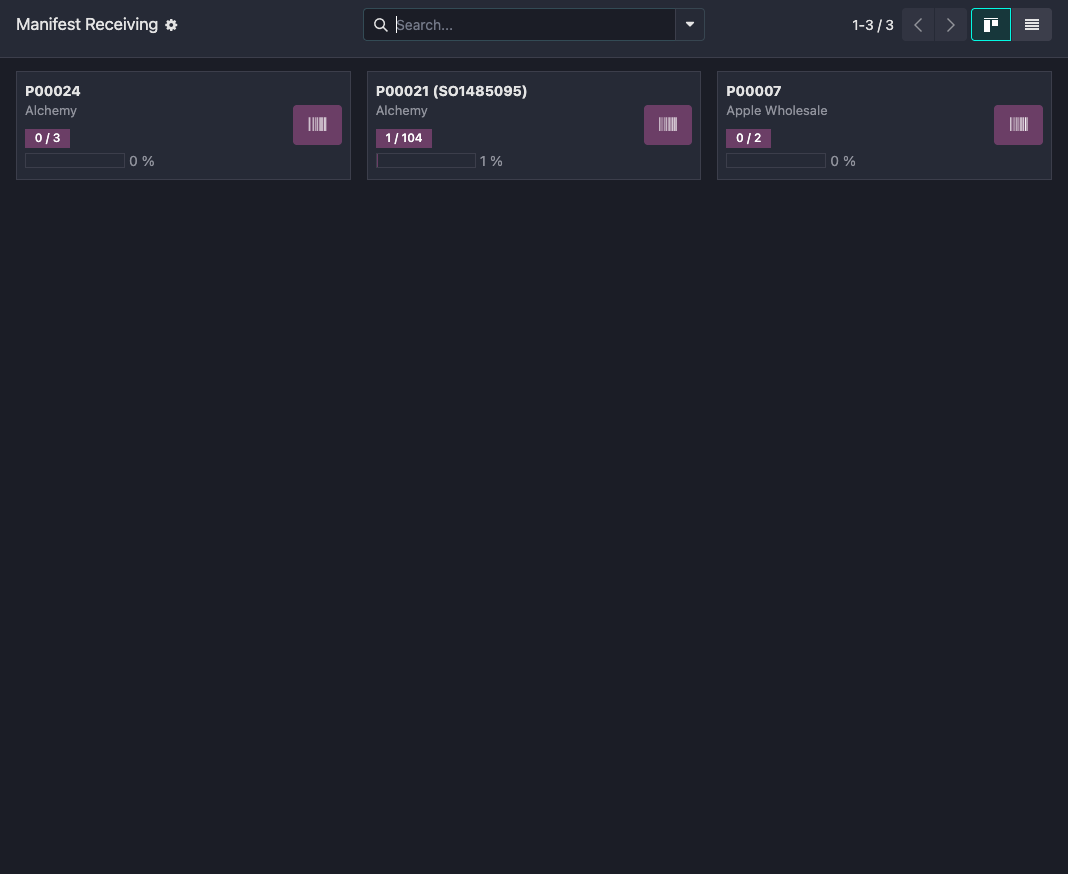
The Barcode app's Manifest Receiving view shows each incoming PO as a scan card with received/expected progress. Use the barcode button on the card to open the receiving scan surface for that manifest.
Delivery scanner
The normal outbound scan surface is focused on the customer order. It shows remaining units by model, storage, color, condition basis, grade, and lock, plus clear progress. As Received cards use intake supplier/PO values and can accept Pending QC; Verified cards use Reyder results. Grade, Lock, and QC status — including a known QC Failed unit — are recorded facts shown on the card and never block the scan. One scan allocates and picks; Finish IMEI Scan opens the final review and Complete Delivery posts the delivery.
Optional packing scanner
The packing scan surface remains available when the order intentionally uses a box. It shows packed/expected progress and the current box contents.
Common problems
A task is 'Pending' forever and nobody picks it up
Go to All Tasks, open it, and click Assign to Me (or assign it to someone). Tasks don't auto-assign — someone has to claim them.
Box won't let me mark it shipped — says 'not all devices packed'
Stop; do not delete a box row or allocation. If a unit will not be fulfilled, Sales or a manager must approve and perform the controlled correction to the unfulfilled SO quantity/allocation. Then reload the box or recreate it from the corrected order and verify the expected count before scanning again. If everything is packed but Mark Shipped is not visible, click Mark Ready to Ship first.
Movement history shows a move I didn't make
Check the user and timestamp, then open the linked source document. Some workflow completions create movement records as part of the transaction. If the source or user still looks wrong, stop and send the IMEI, timestamp, and movement reference to a manager; do not create a second move just to make the screen look right.
Device's current location is wrong
A location field drifts if a move happened outside the system (someone physically moved the phone without scanning). Fix: do a location-update scan via a Relocate task, which writes a movement record and updates current_location_id.