Sales Orders — Enter the Customer Promise
The sales order describes what Reyder agreed to sell. The physical IMEI is chosen later by the outbound scan.
For a normal wholesale order, manual IMEI allocation and packing boxes are not required.
| Who | Sales |
| Use when | A customer is buying phones already in, or expected to be in, inventory |
| Have ready | Customer, exact commercial promise, quantity, price, and whether condition is supplier/PO or Reyder-verified |
| Done when | Every device requirement row is correct and Scan IMEIs opens the linked Delivery Manifest |
| Stop if | You are guessing a promise, inventory evidence is missing, or an existing invoice/order link is unclear |
| Next handoff | Outbound warehouse scans the exact physical phones |
Step 1 — Create the quotation
Open Sales, click New, select the correct customer and company, and add device rows.
Each everyday column has a specific meaning:
| Column | Enter |
|---|---|
| Model | Exact device model |
| Storage | Exact capacity; required for device rows |
| Color | Exact color when promised; Mixed Colors for an aggregate mixed batch; blank = unspecified |
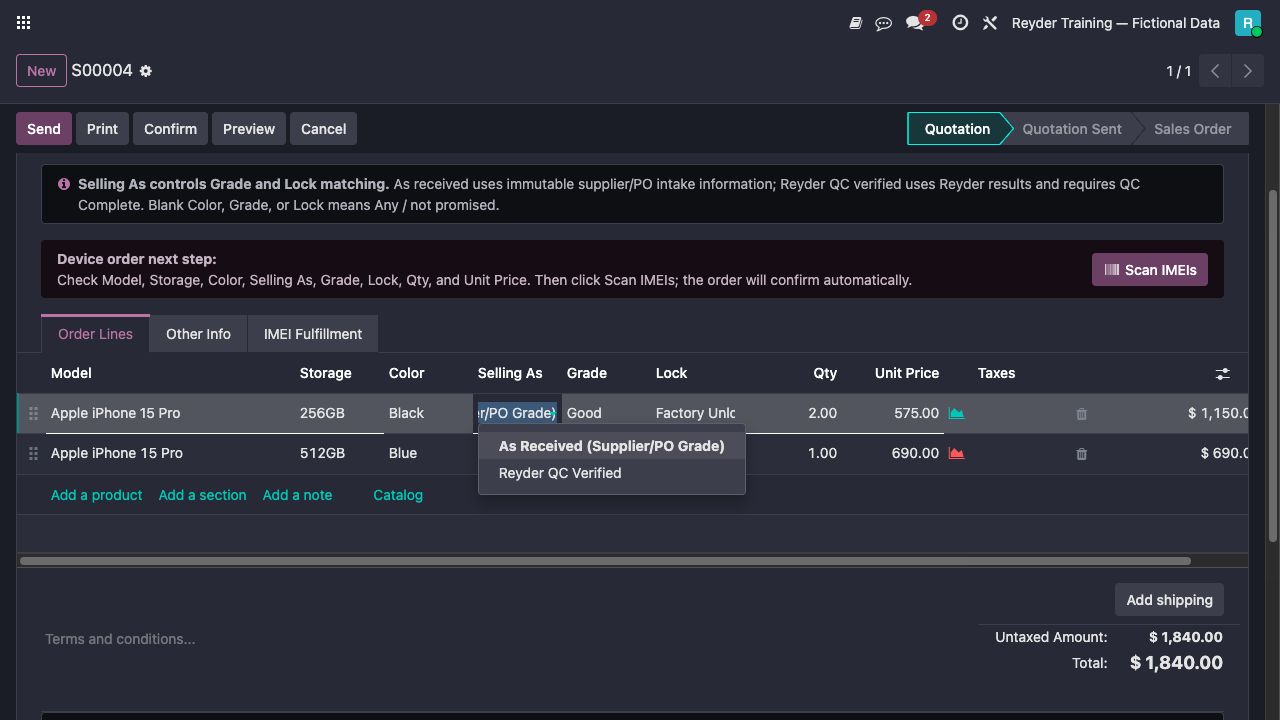
| Selling As | As Received or Reyder QC Verified |
| Grade | Required grade from the source selected by Selling As; blank = Any / not promised |
| Lock | Required lock from the source selected by Selling As; blank = Any / not promised |
| Qty | Whole number of units for this exact promise |
| Unit Price | Customer price per unit |
Do not use a non-device note line as a substitute for these fields; the scanner reads the structured row.
Sealed AS-IS shortcut
For an unopened batch, first confirm the supplier PO in Sealed As-Is Arbitrage mode. On this quotation, enter the exact same device products and quantities, click Link AS-IS Purchase, and select that PO. Odoo marks the device rows As Received, prevents a mismatched PO from being selected, and shows contractual received/in-custody/shipped throughput on the PO, SO, and invoice. Confirm and choose Create AS-IS Invoice & Confirm. Do not scan individual devices; warehouse scans only the external carton/seal identities.
Step 2 — Select the honest Selling As basis
Use for supplier-grade phones resold as-is. Grade and Lock match intake supplier/PO evidence. Pending QC may be accepted, and so can a known QC Failed result or a known contradiction — QC status is a recorded fact and never blocks the scan.
Use only when Reyder is making its own verified promise. Grade and Lock match Reyder results. The scan does not require QC Complete, but the promise is false until it actually is.
See Quality Control & Selling As for the full decision.
Step 3 — Use blank optional fields correctly
A blank is a deliberate business statement: the attribute was not promised.
| Deal | Correct row |
|---|---|
| 40 phones in mixed colors | Color Mixed Colors |
| Customer specifically bought White | Color White |
| Supplier paperwork does not state lock and buyer did not require it | Lock blank |
| Buyer requires Factory Unlocked | Lock Factory Unlocked, backed by the selected evidence basis |
| Buyer accepts any supplier grade | Grade blank on an As Received row |
Never blank a real promise after a phone fails the scan. Correct data only when the customer deal was truly different from the row.
Step 4 — Split different promises into different rows
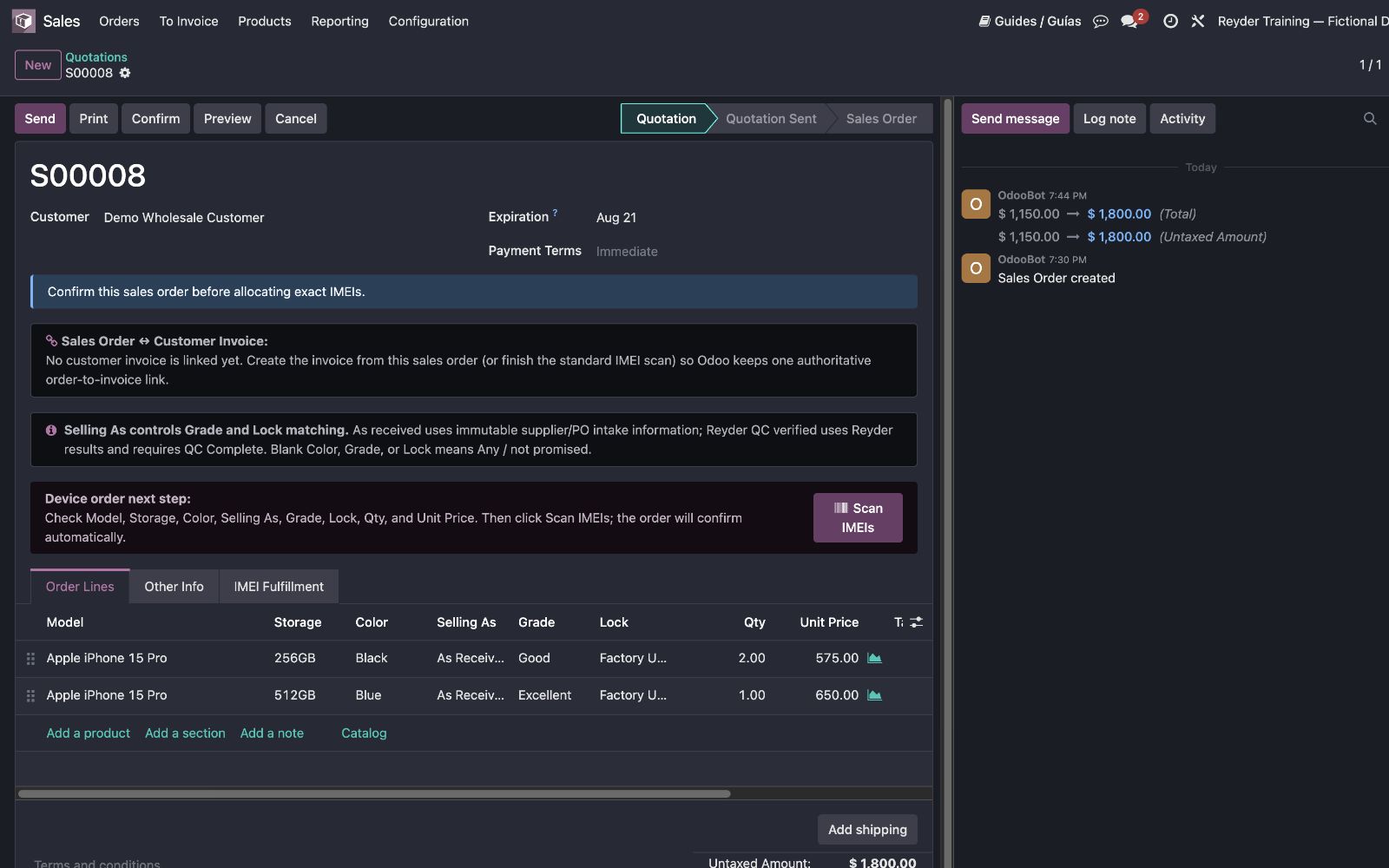
Use separate rows when model, storage, color promise, Selling As, grade promise, lock promise, or unit price differs.
Example:
| Model | Storage | Color | Selling As | Grade | Lock | Qty |
|---|---|---|---|---|---|---|
| iPhone 15 Pro | 256GB | Black | As Received | Good | Factory Unlocked | 2 |
| iPhone 15 Pro | 512GB | Blue | As Received | Excellent | Factory Unlocked | 1 |
The outbound scanner maintains separate Scanned / Ordered counts for these rows.
Step 5 — Review before fulfillment
Check:
- customer and company;
- every structured promise field;
- whole quantities;
- unit prices and taxes/freight as applicable; and
- whether accounting already entered an unlinked invoice for this customer.
Read Sales Order & Invoice Linkage before confirming. Every external device SO must explicitly link an existing invoice or create a new one.
Step 6 — Choose the invoice, then fulfill
Click Confirm or Choose or Create Invoice. In the choice window:
- click Link This Invoice beside the correct existing invoice; or
- click Create New Invoice.
Odoo confirms the SO only after that choice. Review, post, and fully pay the linked invoice. The blue next-step banner then offers Scan IMEIs, which creates or reopens one linked Delivery Manifest and opens the guided outbound scanner.
The scanner then assigns each accepted physical IMEI to the exact matching row. There is no reason to create a second manifest or preselect every IMEI in an allocation wizard.
Correcting an existing unscanned order
If the order says Reyder QC Verified but the actual customer deal was supplier-grade As Received:
- confirm that no IMEIs have been scanned on the affected row;
- confirm the customer terms or source quote;
- change Selling As to As Received;
- retain Grade, Color, or Lock only if actually promised;
- save and review the row again; and
- reopen Scan IMEIs.
If IMEIs are already scanned, stop and use the controlled reversal/correction path. Do not rewrite the promise under an allocated phone.
What scanning validates
An accepted unit must satisfy:
- exact inventory IMEI;
- model and storage;
- selected optional color;
- quantity remaining on that exact row;
- company, ownership, availability, reservation, and duplicate controls; and
- required cost/readiness controls.
Grade and Lock from the chosen Selling As source, and the device's QC status — including a known QC failure or contradiction — are recorded facts shown for comparison, not requirements: they never block acceptance. As Received only changes which evidence source they're compared against for display.
Common problems
Color is not visible or every color is mixed
Use the Color column on the device row. Select Mixed Colors for an aggregate mixed-color batch. Leave it blank only when color was not specified.
Supplier Excellent phone is rejected as ungraded
Check Selling As. Use As Received for the supplier-grade deal or complete Reyder QC for a Verified deal.
The customer invoice already exists
Open Invoices from this SO. If the invoice was created from the same SO, it is already linked and will be reused. Do not create another invoice. See Sales Order & Invoice Linkage.
The same model is going into the wrong row
Compare storage, Color, Selling As, Grade, and Lock. Different promises belong on separate rows and the scanner keeps their quantities separate.
Next: Delivery Manifests.