Inter-Company Transfers
Who this is for
Operations and accounting. You'll use this when devices need to physically change ownership between Reyder Enterprises and Axis Mobile — e.g. Reyder bought stock from a supplier and is now moving some of it over to Axis to resell.
What you'll accomplish: move a batch of devices from one company to the other, with the accounting (sale on the source side, receipt on the destination side) automatically mirrored.
When to use this
- Reyder received a PO from a supplier and some of those devices are actually being bought by Axis.
- Axis bought stock directly but Reyder's warehouse will store and sell it — you need to transfer ownership back to Reyder.
- One company is rebalancing stock to the other for operational reasons.
For moving devices between locations within the same company, use a Relocate warehouse task instead. Inter-company transfers are specifically for ownership changes.
How the transfer works
One transfer order generates two linked documents through the Device Inventory module:
- A sales order in the source company (Company A sells to Company B)
- A purchase order in the destination company (Company B buys from Company A)
The module links both documents directly. The destination's receiving manifest is not created when the PO is confirmed — it's created when the source's delivery manifest completes (to avoid duplicate manifests). So the destination waits until the source actually ships.
Transfer Order  →  Source SO (confirmed)
                      ↓ (Device Inventory creates and links)
                   Dest PO (auto-created, confirmed, awaiting shipment)
                      ↓
                   Source delivery manifest completes
                      ↓
                   Dest Receiving Manifest (auto-created NOW)
                      ↓
                   Verify + Complete Receipt
                      ↓
                   Devices now owned by destination company
Step 1 — Create the transfer order
Go to Device Ops → Fulfillment → Inter-Company Transfers → New.
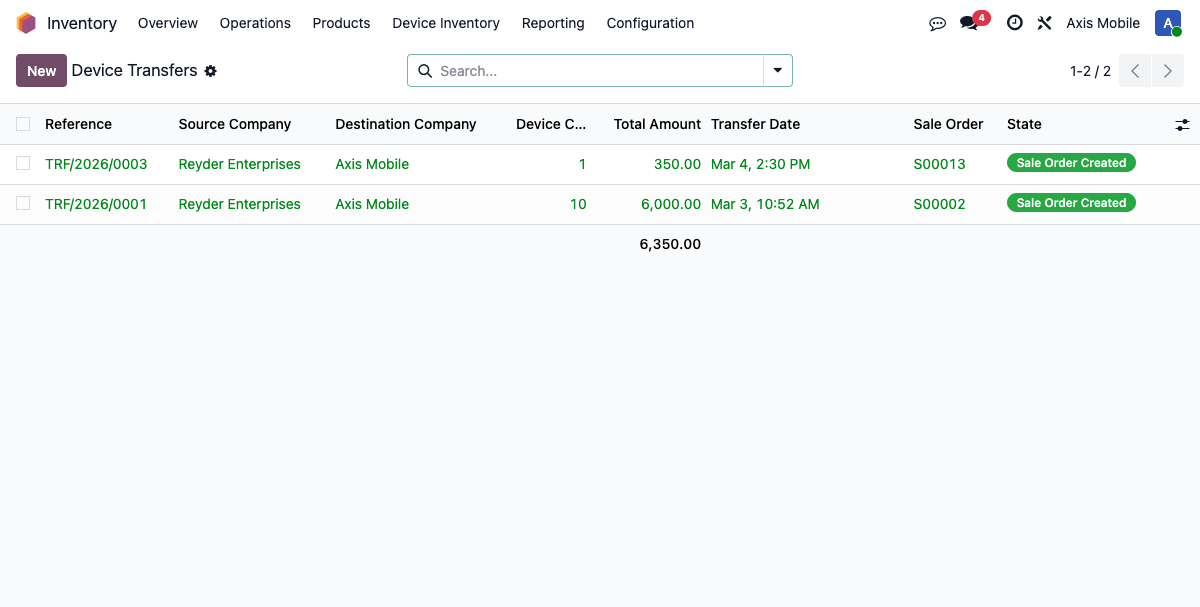
Fill in:
- Source Company — who currently owns the devices
- Destination Company — who will own them after transfer
- Source Location — the warehouse/shelf the devices ship from
- Destination Location — where they'll end up on the other side
Pick the devices
Choose a Selection Mode:
| Mode | What it does |
|---|---|
| By Manifest | Pulls every transferable, available device from one receiving manifest — useful for an entire fresh inbound shipment |
| By Purchase Order | Pulls every transferable, available device from one PO, even when it was received across multiple manifests |
| By Product Group | Filters by model, storage, and Supplier/PO Grade — useful when transferring part of a homogeneous batch |
Pick the devices you want moved. Prices are set to the devices' purchase_cost automatically — inter-company transfers are at cost, not a marked-up price.
A newly received batch does not have to finish QC first
The transfer is sold As Received (Supplier/PO Grade). A unit in Pending QC can be selected immediately after receiving. A unit already In QC or known QC Failed stays blocked. In the preview, verify the IMEI, model, storage, color, Supplier/PO Grade, Intake Lock, QC status, and cost; do not substitute a similar-looking unit.
If the preview count is smaller than the physical batch, stop and review the missing IMEIs. They may already be reserved/sold, be in QC, have failed QC, be retail-reserved, or have no positive unit cost. Do not assume By Manifest bypasses those safeguards.
Step 2 — Confirm the transfer
- Review the selected devices and click Confirm.
- After the transfer reaches Confirmed, click Create Sale Order.
The second button is intentionally unavailable before the first confirmation.
The system:
- Creates and auto-confirms a sales order in the source company to the destination company's partner.
- The Device Inventory module creates and links a matching purchase order in the destination company with you (source company's partner) as the vendor. The PO is auto-confirmed.
- The source SO spawns a delivery manifest pre-filled with the IMEIs.
- The destination's receiving manifest is not yet created — it will spawn when the source's delivery manifest is marked complete. Destination users should expect the manifest to appear after the source ships, not immediately.
The generated SO never treats an entire mixed manifest as one generic model row. It creates a separate As Received row for every exact combination of:
- model;
- storage;
- color;
- normalized Supplier/PO intake grade;
- intake lock status; and
- unit cost.
Two phones with the same promise and cost can share one row; different storage, color,
grade, lock, or cost stays on a separate row. Each exact IMEI remains allocated at its
own purchase_cost. Do not merge or loosen these generated rows: they are the
guardrail that makes the prefilled IMEIs scan correctly, including Pending-QC units.
Transfer order state moves to Sale Order Created. Source has a delivery manifest to work; destination has a PO and is waiting.
Step 3 — Source ships
The source company's warehouse team treats this like any normal delivery:
- Open the delivery manifest (smart button on the source SO).
- Click Scan IMEIs and scan each physical phone against the prefilled delivery requirements (see Delivery Manifests).
- Click Finish IMEI Scan, review the confirmation, then click Complete Delivery when the phones physically leave. A packing box is optional and is not auto-created for this transfer.
On ship:
- Devices remain Reserved and source-owned while the buyer's exact receipt is pending;
they are not treated as a normal external-customer
Solddevice at this step. - For every positive-cost transfer, the configured COGS entry is required in the source company's books. Missing source accounting configuration blocks Complete Delivery; do not bypass that stop.
- An inter-company customer invoice is created (out_invoice) — and via Odoo's mirroring, a draft vendor bill appears on the destination side for the same amount.
Step 4 — Destination receives
Once the source's delivery manifest completes, the system auto-creates the destination's receiving manifest. The destination company's warehouse treats this like any normal receipt:
- Open the receiving manifest (smart button on the destination PO — appears once the source has shipped).
- Click Verify Supplier IMEI List, then scan each physical IMEI against the exact transfer list created by the source shipment.
- Click Complete Receiving, review the dialog, then click Complete Receipt.
If the receiving manifest isn't there yet
Check the source's delivery manifest. If it's still In Progress or Draft, the destination's receiving manifest hasn't been created yet — that happens only when the source's manifest becomes Complete. The destination team should wait for that handoff rather than creating a manifest manually.
On receive:
- Devices'
owner_company_idupdates to the destination company. - Devices return to Available under the destination company after the exact handoff.
- Each device's stock.quant is now in the destination company's warehouse.
- When the destination accounting configuration is valid and the received value is non-zero, the receiving GL entry posts (DR Valuation / CR GRNI) in the destination company's books. Missing or cross-company configuration blocks a positive-value receipt from completing. A genuinely zero-value receipt has no entry; Accounting must review that cost evidence before closing the transfer reconciliation.
The devices are now owned by and stocked with the destination company.
Direct-to-owner delivery (optional)
If the destination company wants devices shipped straight from the supplier to their location (bypassing your warehouse entirely), check Direct to Owner on the source supplier PO. Devices never transit the source warehouse — they ship direct from vendor to destination.
This is used when Axis buys devices that Reyder's ordering on their behalf but shouldn't physically handle.
Use the complete handoff:
- In Reyder, create the outside-supplier PO.
- Set For Company = Axis Mobile and enable Direct to Owner.
- Confirm the Reyder PO. Odoo creates the linked inter-company SO and the buyer PO.
- On the Reyder/source PO, use Upload Supplier IMEI List. This source manifest is upload-only; do not scan the physical phones into Reyder. The manifest is also linked from the Reyder inter-company sales order so the source-side record retains the exact supplier evidence.
- Complete the upload preview and import. Odoo mirrors that exact list to the Axis/buyer PO's Receiving Manifest.
- Switch to the Axis company and open the linked buyer PO.
- When the phones physically arrive, open Verify Supplier IMEI List, scan the exact handoff, and complete the receipt.
If Axis opens its buyer PO before Reyder has uploaded a list, the buyer PO no longer stops at a generic "wait for handoff" message. Axis can use Upload Supplier IMEI List there. Odoo copies that fallback upload to the Reyder direct-delivery PO, links the source manifest to the Reyder sales order, and reloads the same exact IMEIs on the Axis receiving manifest. This fallback is available only while the Reyder source list is missing. Either side may replace the list only before Axis starts receiving; after the first physical scan, the IMEI evidence is locked.
Do not create the supplier PO directly in Axis with the outside vendor. The Axis-side PO is created by the inter-company chain and its vendor must remain Reyder.
Accounting summary
Source company
| Event | Entry |
|---|---|
| Delivery shipped | For positive-cost devices, required DR COGS / CR Device Valuation; missing source configuration blocks completion |
| Customer invoice | out_invoice to destination company, auto-posted |
Destination company
| Event | Entry |
|---|---|
| Receiving manifest complete | A positive new value requires valid destination configuration and posts DR Device Valuation / CR GRNI; missing or cross-company configuration blocks completion. A genuine zero value has no entry, and an already-valued sealed reconciliation posts no duplicate entry. |
| Vendor bill | in_invoice from source company, draft — needs manual posting |
The draft vendor bill on the destination side is deliberate. Your accountant reviews it before posting so the inter-company handoff is verified.
Have accounting review the source invoice, destination draft bill, and approved account mapping before posting. Detailed accounting policy belongs in the private finance runbook.
Configuration needed
Before the first transfer can run, confirm these settings:
Settings → Inventory → Inter-Company Device Transfers:
- Inter-Company Partner — the Contact that represents the company whose settings you are editing (Reyder selects Reyder's own company contact; Axis selects Axis's own)
- Device Proxy Purchase Vendor — normally Reyder on Axis, so outside-supplier device POs cannot be created in the wrong company
- Inter-Company Sale Journal — the sales journal used for cross-company invoices
- Default Transfer Location — where receipts land by default
- an active Purchase journal in the destination company
- destination-company access for the user who completes/posts the source handoff
These are per-company settings. Configure both companies in their own company context. Each side uses its own representative contact, or its main company partner when the optional setting is blank.
Common problems
The inter-company PO didn't auto-create
Verify the destination company's Inter-Company Partner setting and its company partner. The confirmed source SO must use a partner that matches either the destination company's own partner or its configured inter-company partner. Correct the company configuration; do not imitate the link with free-text fields.
The destination has a PO but no receiving manifest
Expected behavior until the source ships. The destination manifest only appears when the source's delivery manifest becomes Complete. Check the source side first — if it's still In Progress, wait. If the source says Complete and the destination still has no manifest, send both document references and the completion time to support.
Devices show up in both companies after the transfer
Check the step that didn't complete. The ownership change happens on the receiving manifest complete step. If the source shipped but the destination didn't mark the receiving manifest complete, the devices are still owned by the source company — the manifest being open is what's blocking the ownership update. Complete it and the issue resolves.
The destination's vendor bill amount doesn't match the source's invoice
Both amounts are computed from purchase_cost summed across transferred IMEIs. If
they differ, stop payment and shipment closeout. Compare the line IMEIs and
purchase_cost values, preserve both references, and have Accounting use the
approved reversal/reissue process. Do not edit or repost a posted document merely to
force the totals to match.
Can I cancel a transfer in progress?
Normal cancellation is safe only before the source Complete Delivery step. After source delivery, COGS/invoice effects already exist even if the buyer has not received. Stop and have inventory plus accounting perform a controlled reversal; do not cancel documents independently. After destination receipt, use an approved reverse-transfer process rather than editing ownership fields.