Purchasing & Receiving
Use this workflow for normal supplier shipments. Its purpose is to turn a confirmed device purchase order into exact IMEI inventory while preserving what the supplier claimed at intake.
Before you scan: determine whether the supplier provided an exact IMEI file. The answer selects the only permitted receiving mode for that Receiving Manifest.
| Who | Purchasing creates/reviews the PO; inbound warehouse scans the physical shipment |
| Use when | Phones arrive from an outside supplier. Inter-company buyer receipts follow the special handoff note below. |
| Have ready | Correct company, PO, physical phones, and the supplier's exact IMEI file if one exists |
| Done when | Receiving Manifest is Complete and every accepted IMEI exists in inventory |
| Stop if | Wrong company/PO, mixed evidence modes, unknown exact-list IMEI, wrong row, shortage, or overage |
| Next handoff | QC when Reyder verification is required; otherwise Sales may sell the units As Received |
Watch purchasing and receiving (6 minutes)
The steps in the video, in order:
- Create the PO (Purchasing): Purchase → Orders → Requests for Quotation → New, choose the supplier, click Add a product, and fill Storage, Color (if known), supplier Grade, Lock (Unknown if the supplier did not say), Quantity and Unit Cost. Save. Buying for Axis Mobile? Axis cannot create its own supplier purchases: create the PO in Reyder with For Company = Axis Mobile, or click Direct to Axis when the supplier ships straight to Axis.
- Or import the supplier invoice: on an empty request click Import Supplier Invoice, upload the PDF, click Extract Lines. Before Apply to PO, add up the quantities and compare them and the total with the paper invoice. Tick Skip on any subtotal or duplicate row. (A real import once produced 160 units for a 60-unit invoice.)
- Confirm: check the PO against the invoice once more and click Confirm Order. Odoo creates the Receiving Manifest with one blank slot per phone.
- Open receiving (warehouse): Device Ops → Receiving → IMEI Manifests, open the manifest. Supplier sent an exact IMEI file? Upload Supplier IMEI List. No file? Receive Without Supplier IMEI List. Never mix the two.
- Scan: choose the PO line (model, storage, grade, cost), then scan each phone. Wrong phone? Undo Last Scan right away.
- Short shipment: recount first. Then Finish Partial Receipt → The listed phone(s) were not physically received → reason, note, physical-check box → Record N Missing and Close Receipt. Never leave the receipt open waiting.
- PO was wrong? Purchasing corrects the quantity on the confirmed PO line before scanning starts; the manifest's blank slots follow automatically. Once scanning has started, finish with a short receipt and a note instead.
- Result: the manifest's Received button lists the phones: Available and Pending QC. Next: Quality Control.
More videos: Video Guides.
The receiving chain
The PO defines expected commercial rows. The Receiving Manifest records the physical count. Each accepted IMEI becomes one inventory unit.
Step 1 — Create or review the purchase order
To create a new PO, open Purchase → Orders → Requests for Quotation, click New, select the supplier, and add one device row for each distinct promise. Enter Model, Storage, optional Color, supplier/PO Grade, Lock, Quantity, and Unit Cost. If the supplier did not state the lock, choose Unknown rather than leaving it blank. Save, then review the complete PO before Confirm Order. If purchasing already created it, open that exact PO instead of making another.
Before confirmation, review:
| PO value | Rule |
|---|---|
| Supplier | Must match the shipment |
| Model | Exact device model |
| Storage | Exact capacity for the row |
| Color | Supplier/PO claim if known; otherwise blank |
| Grade | Supplier/PO intake grade, not Reyder QC |
| Lock | Supplier/PO lock claim; choose Unknown when the supplier did not state it |
| Quantity | Whole physical units expected |
| Unit Cost | Cost per unit for inventory/accounting |
Use separate PO rows for materially different model, storage, color, grade, lock, or cost.
Importing a supplier invoice PDF
On an empty draft request, Import Supplier Invoice reads the supplier's PDF and shows every extracted row for review before anything is added to the PO. Reading a PDF is not perfect: subtotal lines, repeated rows, or a misread quantity can become extra device rows.
Check the imported quantities and total against the paper invoice
Before Apply to PO, add up the preview quantities and compare them, and the dollar total, with the paper invoice. Tick Skip on subtotal/duplicate rows and fix any wrong quantity. After applying, compare the PO's lines and Total with the invoice again before Confirm Order. A real import once turned a 60-unit invoice into a 160-unit PO.
Buying for Axis Mobile
Axis Mobile cannot create its own device purchases from suppliers. Create the supplier PO in Reyder Enterprises and set For Company = Axis Mobile, or click Direct to Axis when the supplier ships straight to Axis (this sets For Company and Direct to Owner in one click). See Inter-Company Transfers.
Correct a wrong PO quantity
If the PO itself is wrong (for example the supplier's final invoice says 18 units, but the PO says 20), Purchasing corrects the quantity on the PO line. Do it before anyone scans: while the Receiving Manifest has no scans and no uploaded supplier list, its blank slots follow the corrected PO automatically and the chatter logs the change (for example 60 → 58 expected). Once scanning has started, do not edit the PO to hide a difference: finish with a short receipt and explain the reason in its note. Never record a fake shortage to cover a PO typing mistake.
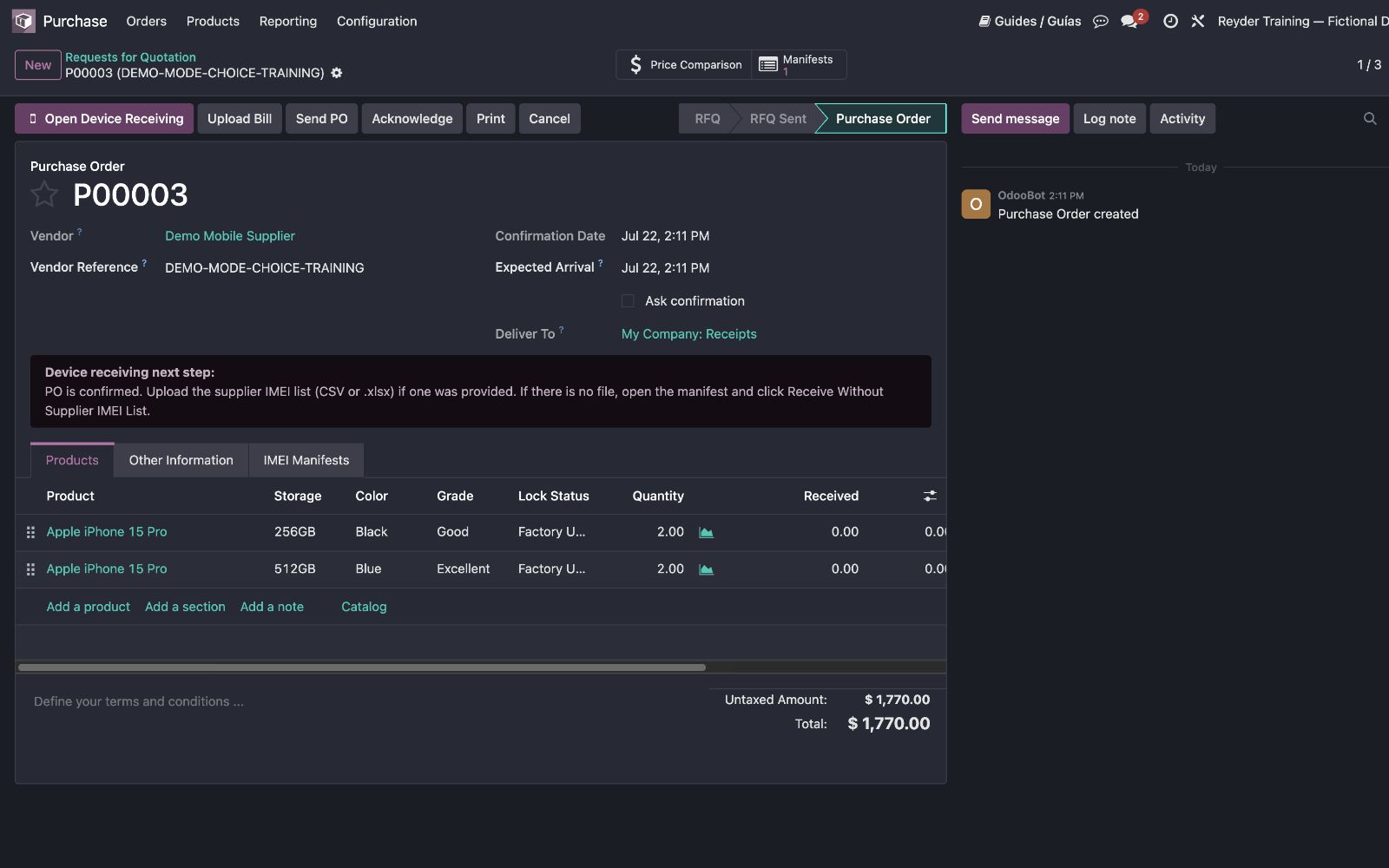
Receiving preserves a claim; it does not verify it
PO Grade and Lock become Intake Supplier/PO Information. They do not populate Reyder Verified Results.
Step 2 — Open the receiving manifest
Confirm the device PO. Odoo creates one Receiving Manifest linked to that PO. Click Open Device Receiving. The first screen presents the two safe choices; the Manifests smart button reopens the same record later. The warehouse finds the same manifest under Device Ops → Receiving → IMEI Manifests.
The initial state is Awaiting Manifest. Here, “manifest” means the optional supplier IMEI file—not the Odoo Receiving Manifest you already opened.
Verify the Receiving Manifest shows the correct PO, supplier, company, and receiving location before continuing.
Step 3 — Choose exactly one receiving mode
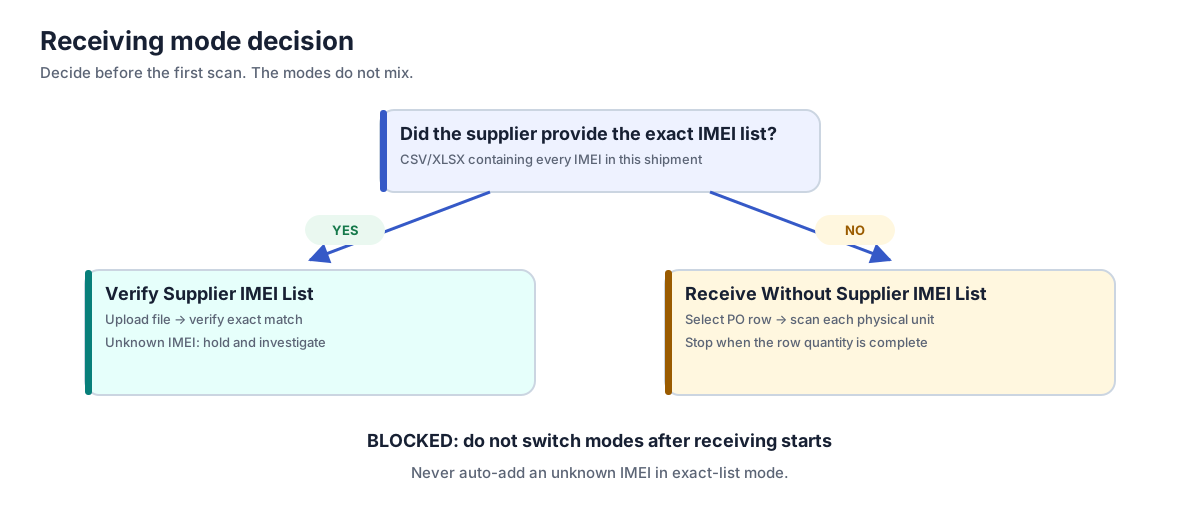
| Supplier evidence | Required mode | What each scan does |
|---|---|---|
| Exact IMEI CSV/XLSX exists | Verify Supplier IMEI List | Accepts only an unreceived IMEI from the uploaded list |
| No exact IMEI list exists | Receive Without Supplier IMEI List | Assigns the scanned IMEI to the PO row selected by the receiver |
Do not upload a fabricated file just to enable list verification. Do not use no-list mode to bypass a supplier file.
When a supplier-list preview cannot resolve a row automatically, choose its PO Line from the full promise label: model, storage, color, Supplier/PO Grade, lock, unit cost, and remaining/ordered quantity. Not selected is a stop sign, not permission to guess. Use Bulk Resolve only if all unresolved IMEIs belong to the identical promise; Odoo blocks a mapping that exceeds that PO row's remaining quantity.
Inter-company buyer PO
Do not choose either outside-supplier path while the buyer manifest is waiting for the source shipment. After the source company completes delivery, Odoo loads the exact IMEI handoff and the buyer verifies that list. See Inter-Company Transfers.
The modes, file format, and mismatch handling are documented in Single Scan vs. Batch Scan.
Device labels print as you scan
With Labels: On in the scanner header, every accepted scan prints that phone's Reyder label on this computer's Dymo, so it goes on before the phone is shelved. Print Labels on the Receiving Manifest prints a whole receipt. See Device Labels.
Step 4 — Review what was received
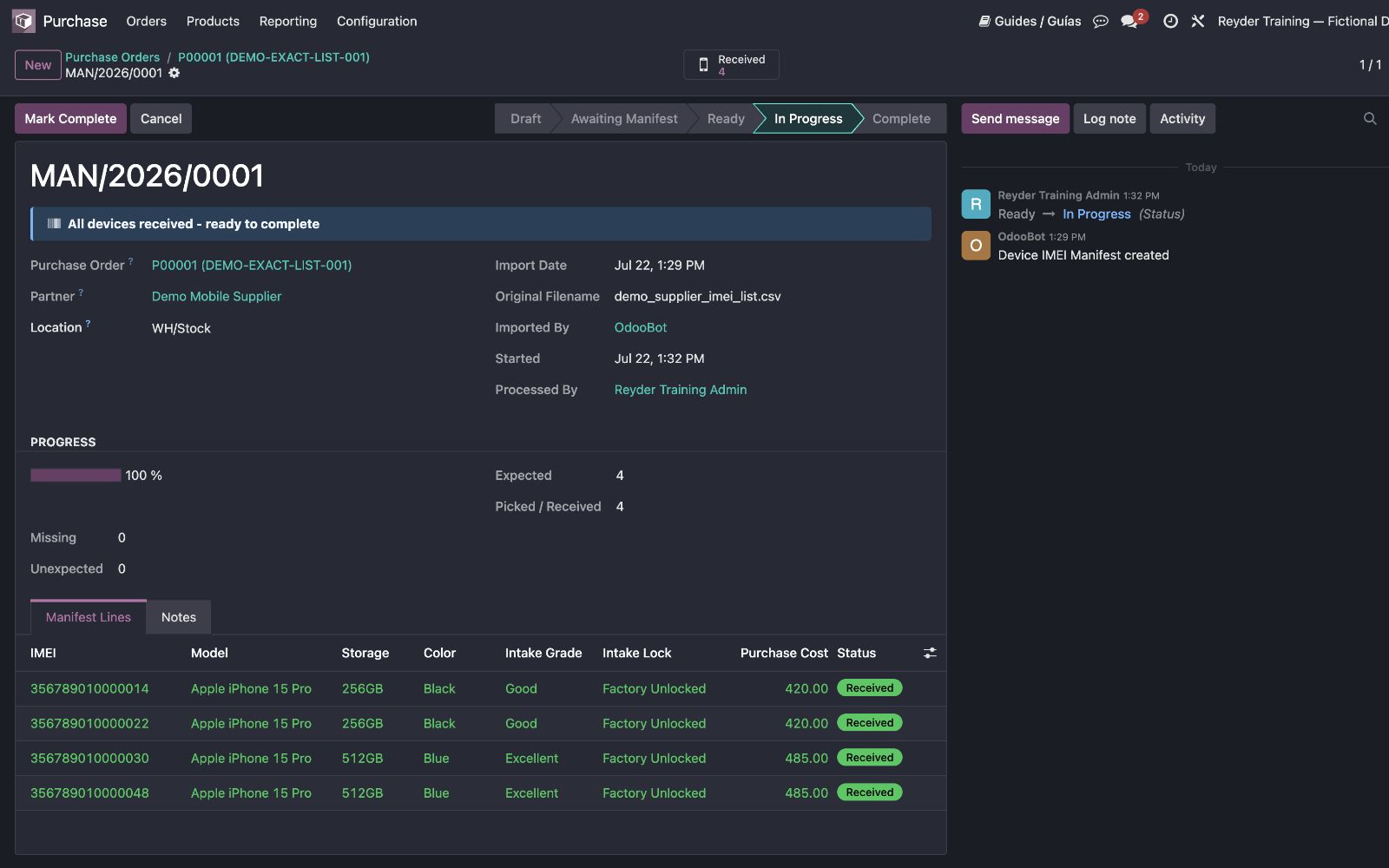
During scanning, watch these counts:
| Count | Meaning |
|---|---|
| PO Expected | Quantity ordered on device PO rows |
| Manifest Rows | IMEIs or expected slots controlled by the Receiving Manifest |
| Received | Physical IMEIs accepted into inventory |
| Remaining | Expected rows not yet received |
| Missing | Expected IMEIs/units acknowledged as not received at completion |
A mismatch is a review condition, not a target to erase. Recount the physical shipment, confirm the correct PO and scan mode, and investigate held units.
Short shipment
If an expected unit truly did not arrive, leave it unreceived and document the accepted shortage. Completing the Receiving Manifest may mark remaining expected lines Missing. Do not scan a substitute IMEI into an exact supplier-list slot.
If zero units arrived, do not try to complete a zero-receipt manifest. Add a clear note to the PO/manifest, keep every phone unreceived, and cancel the receiving manifest with Purchasing or a supervisor. The server requires at least one accepted IMEI before a short receipt can be completed.
Extra physical phone
- In exact-list mode, set an unknown IMEI aside. Resolve it against the supplier and PO; the scanner must not auto-add it.
- In no-list mode, do not exceed the selected PO row casually. A physical overage needs purchasing review before it becomes accepted inventory.
Duplicate IMEI
The second scan is rejected. Search the Receiving Manifest and All Devices before trying anything else. Never alter the digits to force uniqueness.
Step 5 — Complete the receiving manifest
In the receiving scanner, click the completion button at the bottom when you are done (Finish Partial Receipt while phones are still expected; on the manifest form the same review is Review Short Receipt). A full receipt has a short confirmation. If units remain, Odoo opens Finish a short receipt? instead of the normal completion. It lists the phones still expected and asks What happened?: Recount or continue scanning (the safe default; the receipt stays open), The listed phone(s) were not physically received, or A phone is here but cannot be scanned. Recording the shortage requires:
- a shortage reason;
- optional notes that will help Purchasing reconcile the shipment; and
- confirmation that the user physically checked the shipment and the listed units were not received.
The final action, Record N Missing and Close Receipt, says exactly how many units will be recorded missing. Do not leave a short receipt open "until the rest arrives": an open manifest keeps the PO half-received indefinitely. Close it short; if a phone arrives later, a manager records it as a Late Receipt. Use the action only when:
- the physical count was performed;
- every accepted phone has one successful scan;
- the correct receiving mode was used;
- held, missing, or duplicate phones were resolved or documented; and
- the PO/manifest variance is understood.
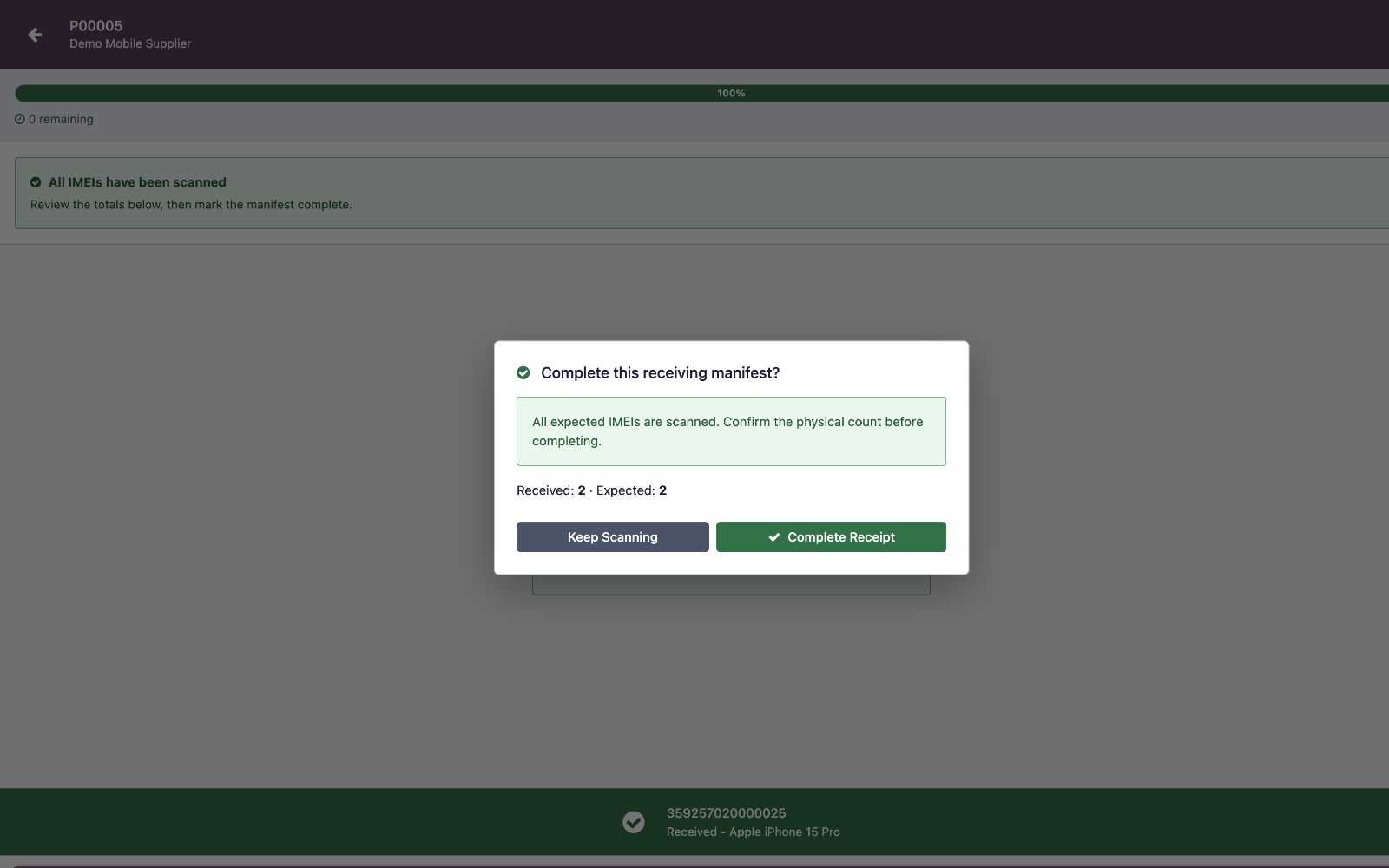
When the physical shipment is short, the review clearly names the units that will be marked missing:
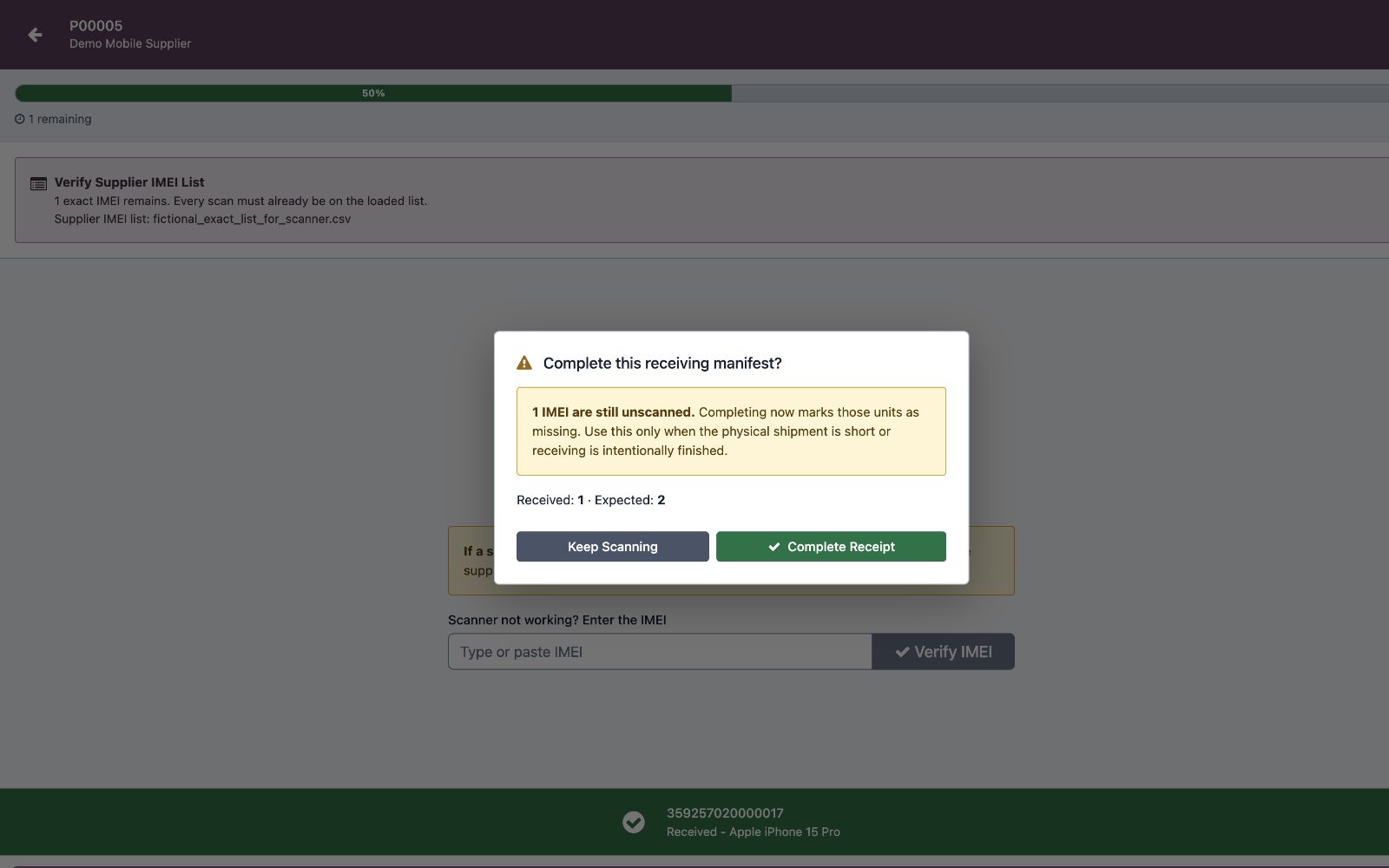
Odoo checks the outstanding rows again when the action is submitted. If another user scanned a unit after the review opened, completion is stopped so the user must review the current list rather than confirming stale information.
Completion:
- closes the Receiving Manifest;
- records any remaining expected rows as missing and creates one open reconciliation item per missing row;
- posts the receiving valuation/GRNI entry for a positive new value and blocks completion if its journal/accounts are missing or belong to the wrong company; a genuinely zero-value receipt creates no accounting amount, and a sealed reconciliation creates no new entry when its value was already posted at carton receipt; and
- creates downstream warehouse work such as putaway.
The phones now exist in inventory with Available custody/status as applicable and
Pending QC unless Reyder actually tested them.
Reconcile a completed short receipt
Do not reopen the manifest or edit a missing line directly. Inventory managers can use Device Ops → Receiving → Short Receipt Reconciliation for the open queue, or open the completed Receiving Manifest and use Reconcile Missing Devices. Resolve each open item using the physical, shipment, and supplier evidence:
| Resolution | Use when | Result |
|---|---|---|
| Late Receipt | The originally expected IMEI arrives later | The missing line becomes received; Odoo adds only that unit's inventory, PO receipt quantity, putaway work, and supplemental accounting entry |
| Confirmed Shortage | The investigation confirms the unit was not received and will not arrive | The expected line stays missing and the reconciliation item is closed with an audit reason |
| Substitute Receipt | A different, approved IMEI arrived in its place | The expected line stays missing; the replacement is recorded separately as an unexpected unit with its own inventory and audit linkage |
Resolving an item does not rerun the original manifest completion, repost the original receipt, or erase the historical shortage. Record the actual resolution, reference the supplier decision in the notes, and resolve only the unit physically observed.
After receiving — choose the honest outbound path
- Sell immediately using intake evidence → select As Received (Supplier/PO Grade) on the sales row.
- Promise Reyder's own tested result → complete QC and select Reyder QC Verified.
See Quality Control & Selling As.
One-off Device Intake is not a supplier shortcut
Use Device Ops → Receiving → Device Intake only for a small company-owned unit with no supplier PO and no vendor IMEI list—for example, an approved trade-in, replacement, or test phone.
Do not use Device Intake for a normal supplier shipment or consigned batch. It bypasses the PO/Receiving Manifest chain that purchasing and accounting need.
Common problems
I opened the Receiving Manifest but do not know which scan button to use
Stop and answer one question: did the supplier send the exact IMEIs? Yes means upload and Verify Supplier IMEI List. No means Receive Without Supplier IMEI List.
The supplier file row count does not equal the PO quantity
Do not scan yet. Review mapping, blank rows, duplicates, and the correct PO with purchasing. The discrepancy should be understood before physical verification.
The scanner says the IMEI already exists
Search All Devices. The phone may have been received on another PO or scanned earlier. Do not add it again.
The Receiving Manifest will not complete
Review remaining expected rows and the physical shortage. Complete only after the discrepancy is accepted and documented in the Finish a short receipt? review. If another scan changed the outstanding list, reopen the review. If nothing arrived and zero IMEIs were accepted, add the shortage note and cancel the manifest instead of completing it.
A phone arrived after a short receipt was completed
Do not reopen the manifest or force the line to Received. A stock manager opens Reconcile Short Receipt and records Late Receipt for the exact expected IMEI.
For exact messages, see Troubleshooting.
Correct a received IMEI model
Use IMEI Model Corrections from the device page. Request the correct model with reason/evidence and independent manager review; do not unlock the model field or rewrite the original purchasing/receiving documents.