Quality Control & Selling As
Receiving and QC preserve two different truths. The sales order's Selling As field chooses which truth Reyder is promising to the customer.
| Who | Trained QC operator; Sales chooses Selling As from the actual deal |
| Use when | Reyder promises its own tested grade/lock or a discrepancy needs verification |
| Have ready | Exact physical IMEI, active M360 session, required inspection evidence, and grading standard |
| Done when | Device is QC Complete with actual Reyder grade/results, or is clearly failed/held |
| Stop if | IMEI/evidence does not match, M360 session is missing, or result is uncertain |
| Next handoff | Sales uses Reyder QC Verified only after successful completion |
The two evidence sections
| Device section | Who supplied the information? | When it changes |
|---|---|---|
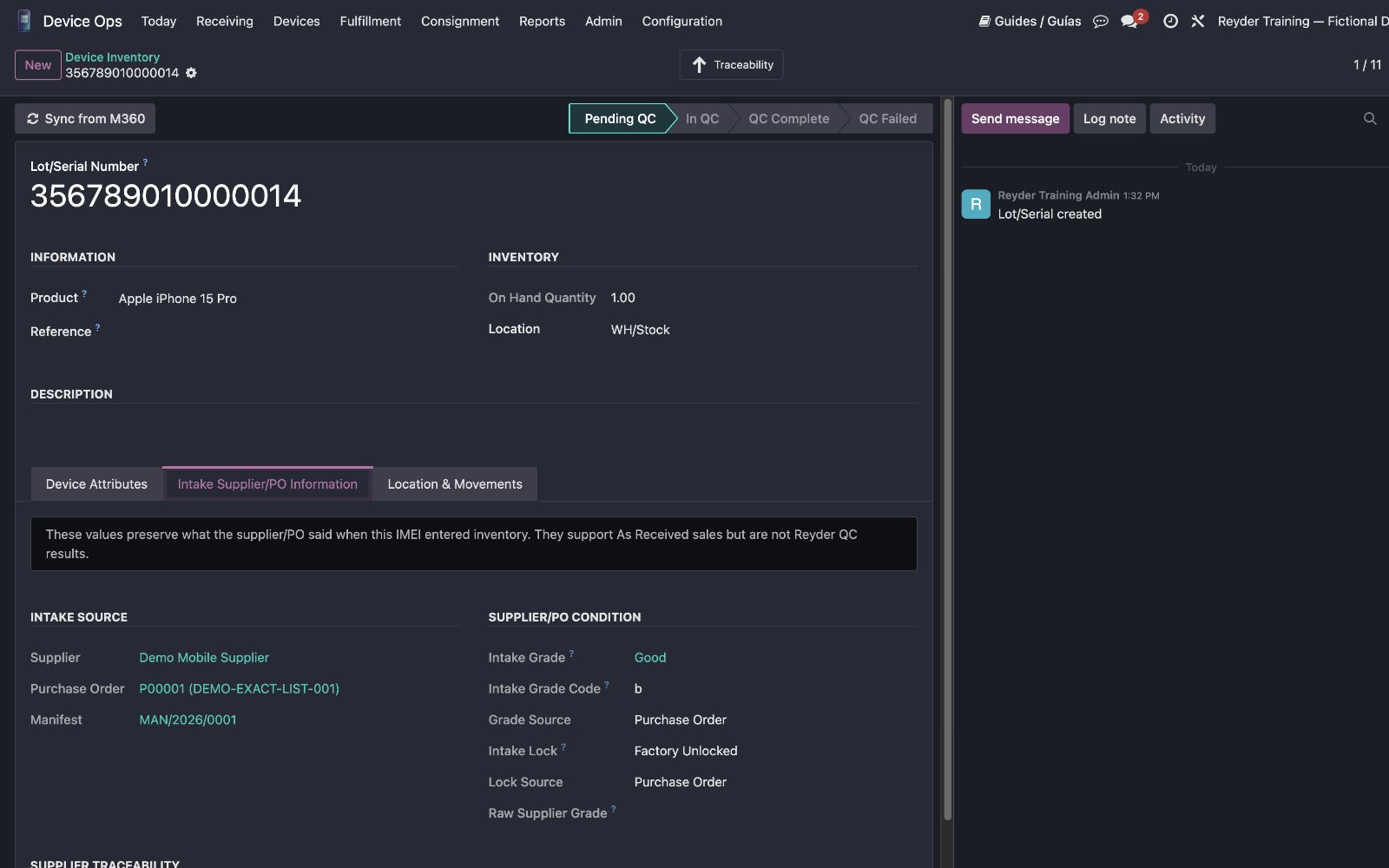
| Intake Supplier/PO Information | Supplier file or purchase order | Captured at receiving and preserved as intake provenance |
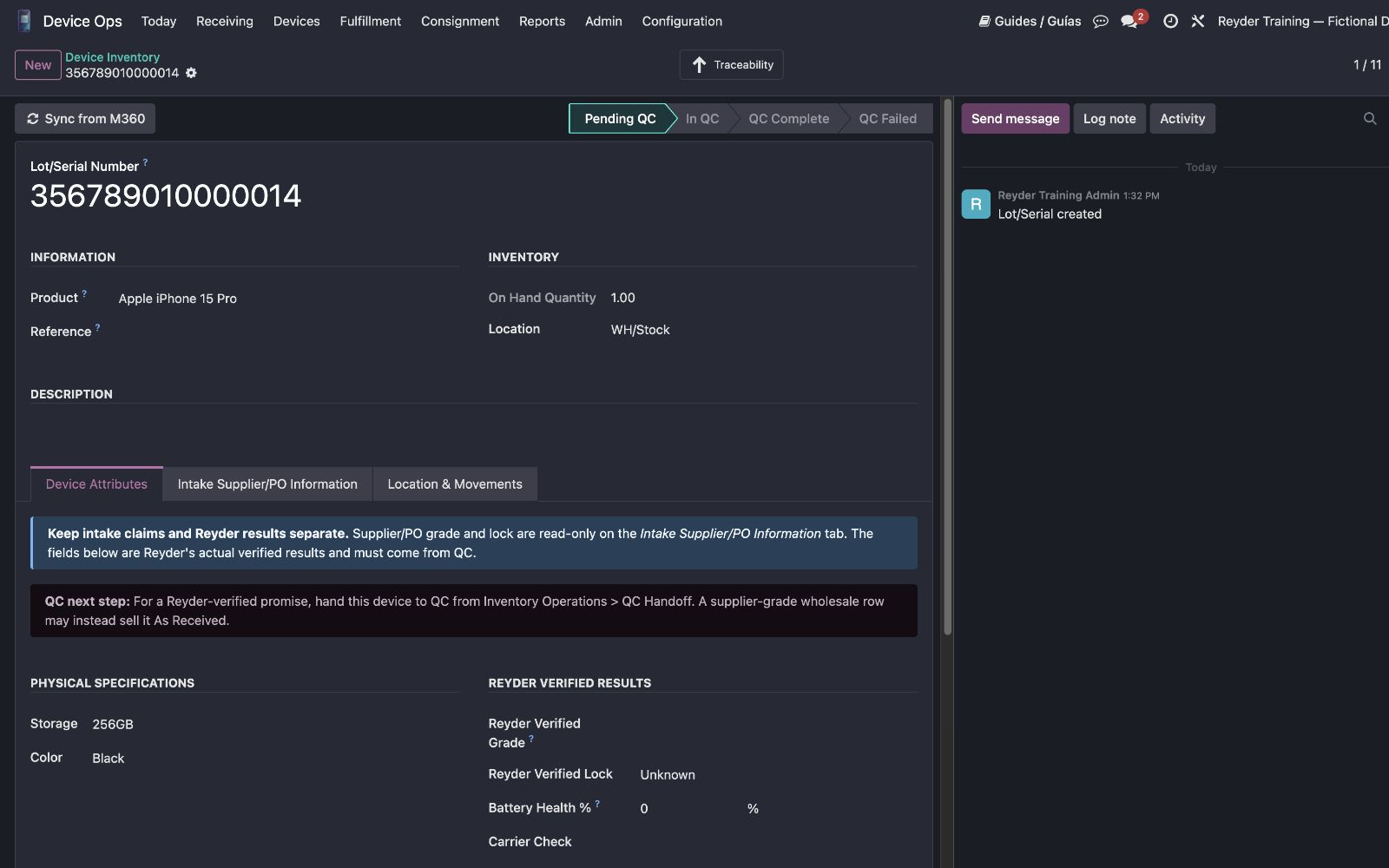
| Reyder Verified Results | Reyder diagnostics and physical inspection | Recorded only when Reyder actually performs QC |
Never copy an intake value into a verified field merely to make a sales scan pass.
Do QC in the holding company
The active Odoo company must be the company physically holding the phone. For an Axis-owned consignment phone stored and tested by Reyder, switch to Reyder Enterprises before QC Handoff, M360 Sync, pass/fail, or reset. Ownership alone does not authorize a company that does not hold the physical unit to change QC evidence.
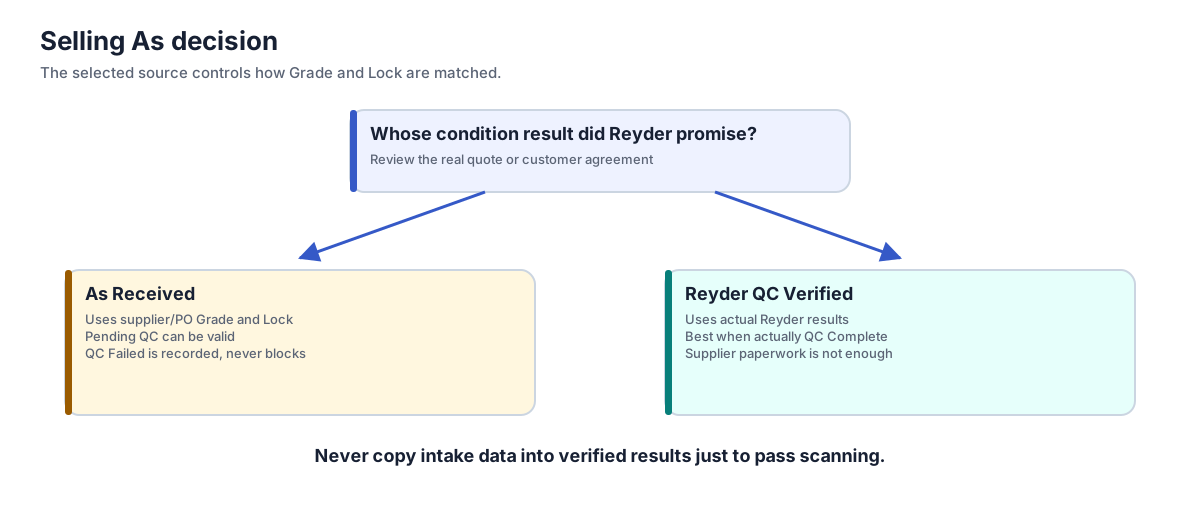
Choose the Selling As basis
As Received (Supplier/PO Grade)
Use this when Reyder is reselling supplier-graded wholesale inventory as received.
- Grade and Lock requirements are compared against Intake Supplier/PO Information.
Pending QCis allowed because Reyder is not claiming an internal test.- Blank Grade or Lock means that attribute was not promised.
In QCand even a knownQC Failedresult are recorded facts — neither blocks the scan or sale.- A completed Reyder QC result that contradicts the supplier claim is never hidden; it still shows on the device and manifest even though the scan proceeds.
Example: supplier says Excellent, buyer accepts supplier-grade Excellent, and the units ship immediately. Select As Received and Grade Excellent.
Reyder QC Verified
Use this when Reyder promises its own tested condition or lock result.
- Grade and Lock requirements are compared against Reyder Verified Results instead of supplier paperwork.
- Only choose this basis once the device is actually
QC Complete— the scan won't stop an early or contradicted promise, but that promise is false until QC backs it up. - QC status never blocks the scan or sale here either; grade, lock, and QC are recorded facts, not a sales gate.
Example: buyer requires Reyder-verified Excellent and Factory Unlocked. Complete QC, record those actual results, then select Reyder QC Verified on the SO.
Grade, Lock, and QC status are recorded facts, not a scanner gate
Pending QC, In QC, QC Failed, and any contradiction between the selected
Grade/Lock promise and the applicable evidence never block a wholesale scan or sale —
they stay visible on the device and manifest as informational facts. Blacklisted
carrier status, iCloud On, and MDM Present also appear only as warnings. Hold
the phone and escalate any of these; do not ship it merely because the scanner still
permits a scan. The only hard wholesale stop is a device with missing or zero
purchase cost, and even that can be relaxed by the Temporarily Allow Wholesale Zero-Cost Devices
company setting or overridden by a Sales/Inventory Manager with a typed reason.
When QC is required
Complete Reyder QC when any of these is true:
- the customer was promised a Reyder-verified grade or lock status;
- intake evidence is missing for an attribute that must be promised;
- Reyder discovered a possible contradiction or defect;
- retail or another stricter channel requires QC; or
- a manager requires testing before release.
QC is not busywork used to copy the supplier's row. It creates new, attributable Reyder evidence.
QC workflow
Step 1 — Hand off the physical units
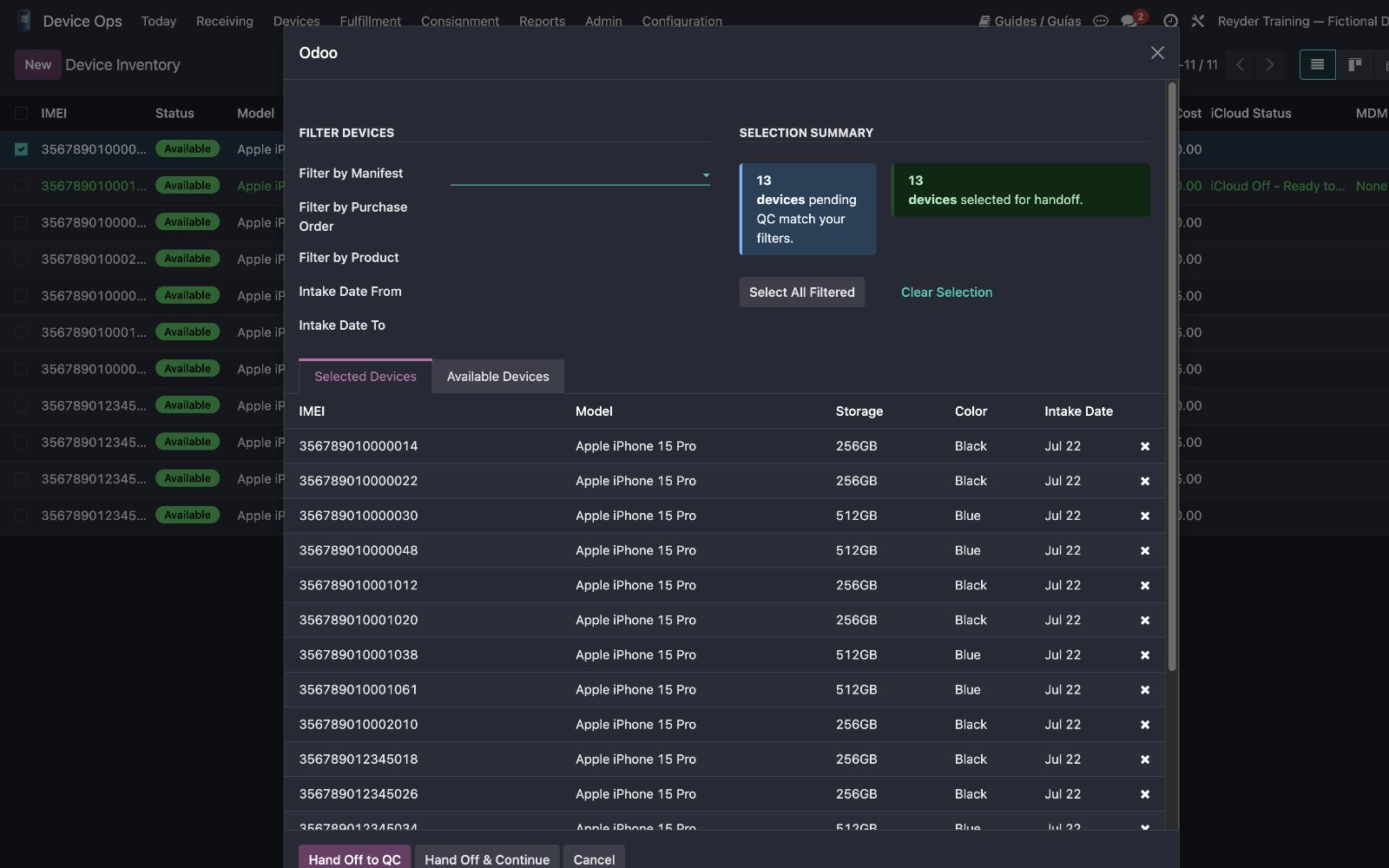
Open Device Ops → Receiving → QC Handoff. Filter by PO, Receiving Manifest, model, or date. Select only the physical units entering the QC area and click Hand Off to QC. Confirm those exact devices now show In QC before recording diagnostics or trying to complete QC.
Step 2 — Perform diagnostics
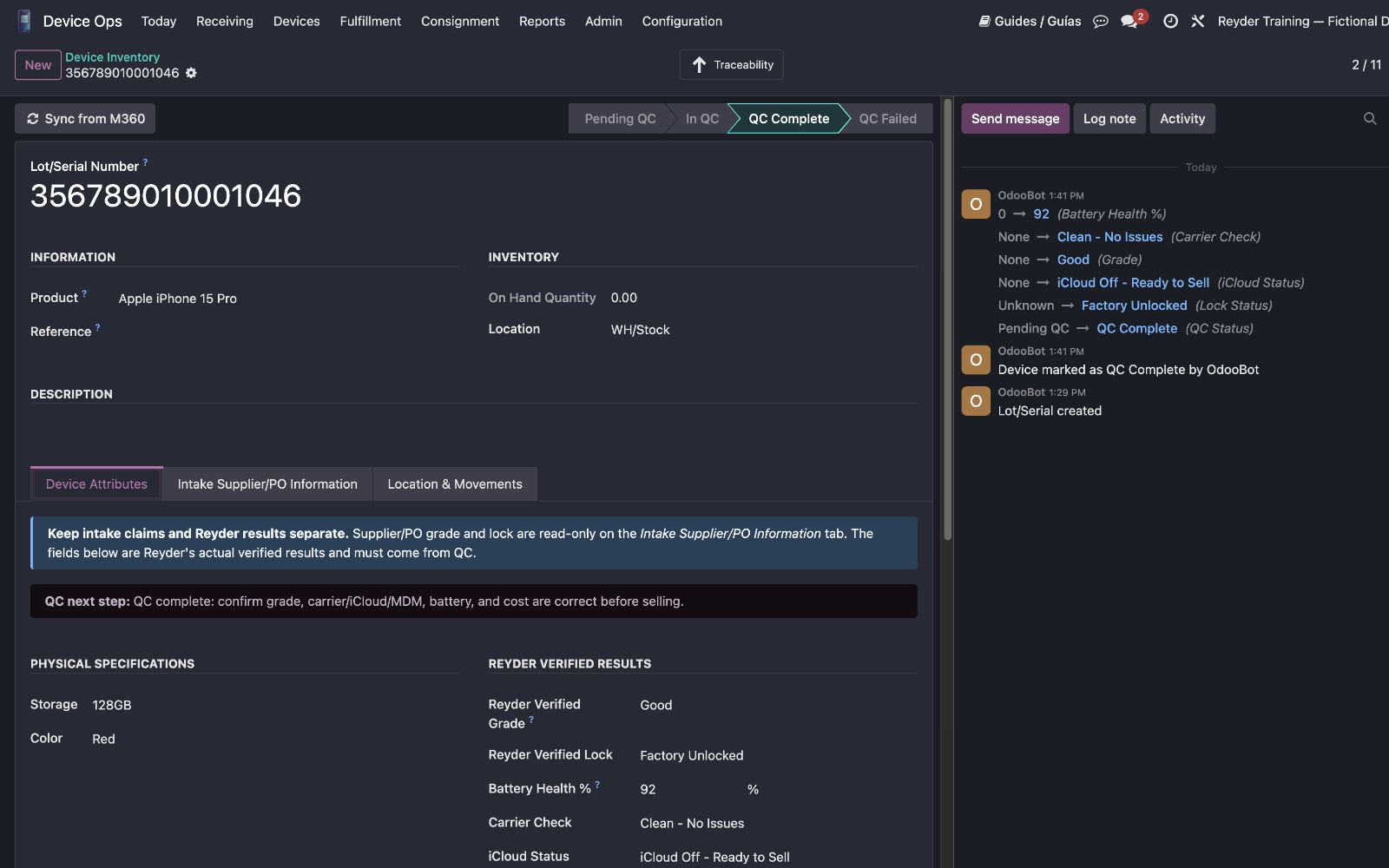
Run the approved M360 session and the required physical inspection. Confirm the IMEI being tested matches the device record, then click Sync from M360. A successful sync imports evidence but deliberately leaves the phone In QC; a background/data sync never decides that a phone passed. Record actual battery, carrier, iCloud/MDM, cosmetic, lock, and diagnostic results as applicable. The current Mark QC Complete control requires a linked M360 session whose diagnostics passed; physical notes alone do not unlock it.
Step 3 — Record actual grade and lock
Assign Reyder's grade based on the completed test, not the PO. Record lock status only when it was actually established.
Step 4 — Complete or fail QC
Mark the unit QC Complete only if required evidence exists and it passed. Mark/leave it failed or held when it did not.
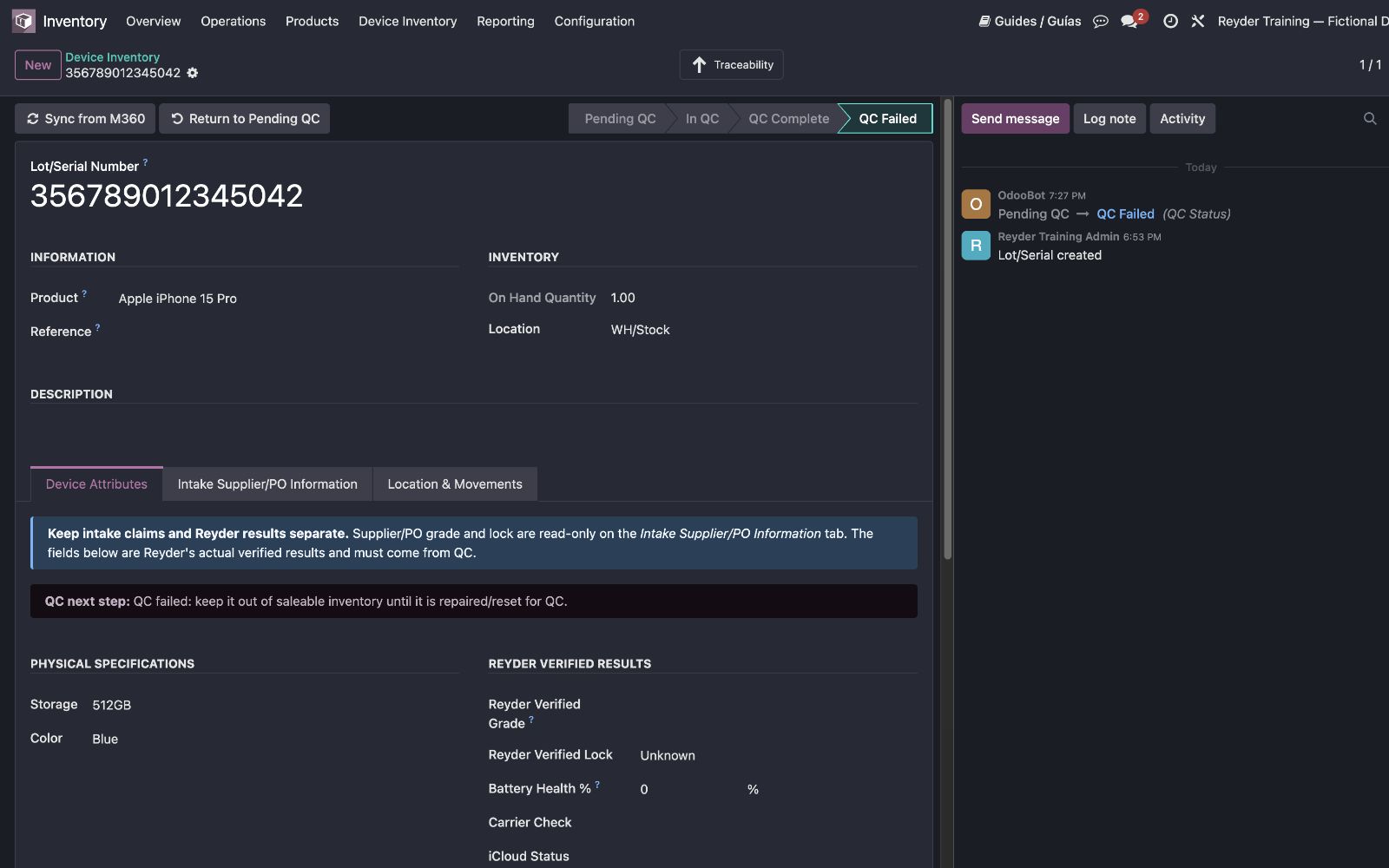
A QC Failed phone stays failed in the QC workflow. After the failure has been reviewed or repaired, only a Stock Manager may use Return to Pending QC. That controlled reset clears the old Reyder/M360 results and records the cleared M360 session as invalid. Odoo rejects that same session if a later manual or automatic sync finds it again. The phone must receive a new handoff, a physical retest, a genuinely different M360 session, and new evidence. Verify that the new session reference differs and its date is later than the invalidated evidence. A reset alone is not fresh evidence and does not turn a failed phone into a QC-passed device.
If Sync from M360 says the session was invalidated, do not retry or copy the old result. Run a new diagnostic session for that exact physical IMEI in M360, then sync again. The rejected session reference remains visible on the device for audit purposes.
QC Complete requirements
The controlled action requires the device to be In QC with a fresh linked M360 session, passing diagnostics, and a Reyder grade. If the action is hidden or rejects the device, do not write a placeholder result yourself; follow the approved support procedure.
Sales consequences, by channel
QC status is not a single rule — it means something different depending on where the device is being sold:
| Device QC status | Wholesale (sale order, either Selling As) | Retail (device.retail.sale) |
Inter-company transfer |
|---|---|---|---|
| Pending QC | Sells — recorded, never blocks | Sells — recorded, never blocks | Allowed on an As Received transfer |
| In QC | Sells — recorded, never blocks | Sells — recorded, never blocks | Excluded |
| QC Complete | Sells — recorded, never blocks | Sells | Allowed |
| QC Failed | Sells — recorded, never blocks | Sells — recorded, never blocks | Excluded |
Grade and Lock mismatches follow the wholesale row's rule too: they're recorded facts shown for comparison and never block the scan. The only hard wholesale sales stop is a device with missing or zero purchase cost — relaxable by the Temporary Zero-Cost Exception company setting or overridable by a manager with a typed reason. Availability, ownership, company, reservation, quantity, and duplicate controls remain separate from QC and condition basis, and still apply in every channel.
Common problems
The supplier says Excellent but outbound scan says Grade is missing
Check Selling As. A Reyder QC Verified row correctly ignores the supplier claim. If the actual deal is supplier-grade/as-is, correct the unscanned SO row to As Received. Otherwise complete QC.
The buyer requires Unlocked but intake lock is Unknown
Do not blank the SO merely to pass scanning. Verify the actual lock status, then use Reyder QC Verified.
Can I sell a phone while QC is Pending?
Yes, only on an honest As Received wholesale row with matching intake evidence and all other sale controls satisfied. Pending QC cannot satisfy a Reyder QC Verified promise.
QC found a worse grade than the supplier claimed
The known result must not be hidden. Hold the phone and correct the commercial plan; do not rely on the earlier intake claim after Reyder knows it conflicts.
See Sales Orders for customer-promise entry and Troubleshooting for exact scan errors.