Troubleshooting Core Workflows
Start with the exact PO, Receiving Manifest, SO, Delivery Manifest, invoice, or IMEI. Read the entire error before changing anything.
Who is allowed to correct what
| Situation | Safe owner |
|---|---|
| A phone is rejected but another matching unit is available | Operator places the rejected phone in HOLD and scans the matching unit |
| A genuinely wrong, unscanned SO requirement row | Sales confirms the actual customer promise, then corrects the row |
| Shortage, overage, wrong PO row, mixed receiving mode, or partial receipt | Purchasing/warehouse manager decides and records the reason |
| Posted invoice, payment, vendor bill, or settlement | Accounting follows approved controls; operator does not edit it |
| Completed record, duplicate system record, stale reserved phone, access problem, or missing GL entry | System support investigates from exact references and logs |
Never weaken a true promise, change a completed status, delete a linked record, or use another person's account to make an error disappear.
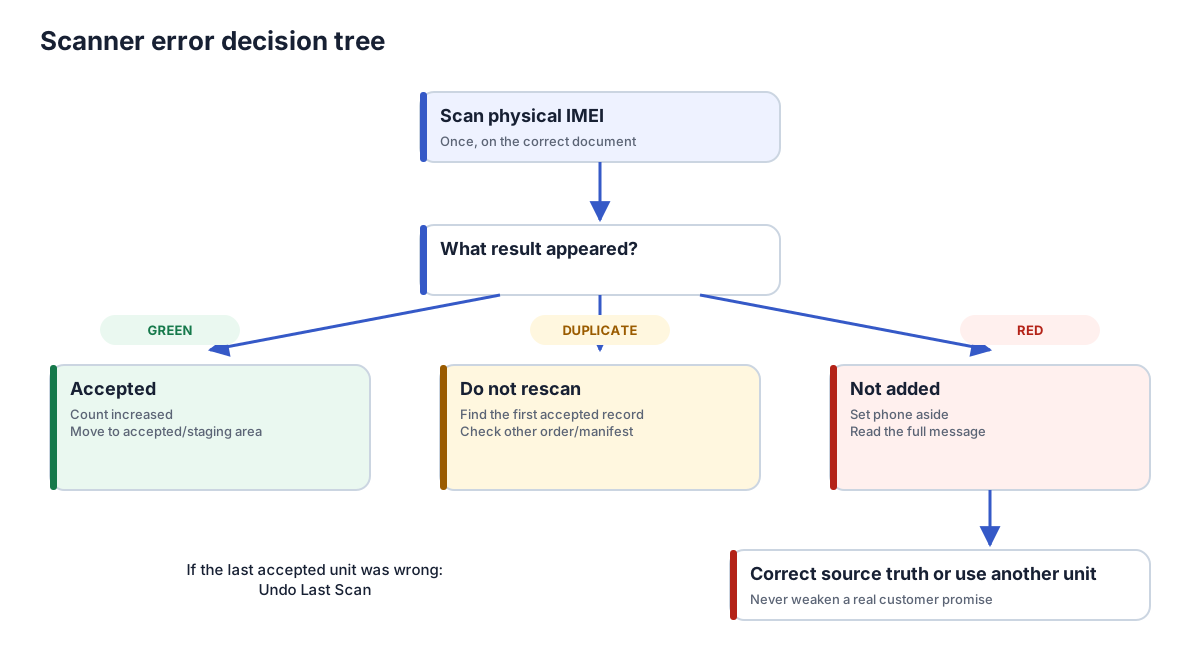
First response to any scanner error
- Stop the physical flow. Keep the rejected phone out of accepted/staged units.
- Record the exact message and IMEI. A screenshot is better than a paraphrase.
- Confirm the company and source document. Wrong-company and wrong-order scans can look like inventory mismatches.
- Identify inbound or outbound. Receiving rules and customer-delivery rules are intentionally different.
- Correct the source truth. Do not weaken an actual promise or edit an IMEI to force success.
Symptom index
| Symptom | Go to |
|---|---|
| Single Scan / Verify Supplier IMEI List is unavailable | Receiving mode is blocked |
| Batch Scan / Receive Without Supplier IMEI List is unavailable | Receiving mode is blocked |
| Receiving IMEI is not on supplier list | Exact-list IMEI is unknown |
| No-list scanner says select PO row | No-list row is not selected |
| IMEI already exists / duplicate | Duplicate IMEI |
| Supplier grade phone flagged as a mismatch outbound | Outbound condition mismatch |
| Correct model rejected outbound | Outbound specification mismatch |
| IMEI belongs to another order | Cross-order allocation |
| Finish IMEI Scan disabled | Delivery count is incomplete |
| SO and invoice seem unlinked | Invoice or sales-order link is missing |
| Invoice already exists | Invoice already exists |
| Manifest will not complete | Receiving Manifest completion is blocked |
| QC Complete is unavailable | QC completion is blocked |
| Inventory Value seems to omit phones or its Count looks wrong | Reading On-Hand Device Cost |
Receiving mode is blocked
The mode is chosen by supplier evidence, not operator preference.
Verify Supplier IMEI List unavailable
No exact supplier IMEI file controls this Receiving Manifest. If the supplier did not provide one, use Receive Without Supplier IMEI List. Do not fabricate a spreadsheet.
If a real file exists, confirm it was uploaded to this exact Receiving Manifest and that no receiving has already begun.
Receive Without Supplier IMEI List unavailable
An uploaded exact supplier list controls the Receiving Manifest. Use Verify Supplier IMEI List. No-list assignment cannot bypass that evidence.
See Receiving Scan Modes.
Exact-list IMEI is unknown
The physical IMEI did not match an unreceived row in the uploaded supplier list.
- Set the phone aside.
- Check scanner output for extra characters.
- Check both IMEIs on dual-SIM phones.
- Search the supplier file and Odoo for the exact digits.
- Confirm the correct PO/shipment.
- Escalate the supplier discrepancy.
Do not auto-add the phone as unexpected and do not switch to Batch Scan.
No-list row is not selected
No-list receiving needs a PO row to supply model, storage, grade, lock, cost, and remaining quantity. Select the row matching the physical group before scanning. Clear the work area and choose Change PO Line before moving to another group.
Duplicate IMEI
Possible causes:
- scanned twice in this session;
- already received on this manifest;
- already exists from another PO/intake; or
- outbound IMEI already allocated/scanned.
Search the exact IMEI in the current manifest and All Devices. On outbound, also check the other order named by the error. Never change digits or create a second device.
Receiving Manifest completion is blocked
Review expected, received, remaining/missing, and variance. Recount the box. A true shortage must be documented in Record Short Receipt. Select a reason, identify the outstanding units, and confirm the physical count. An exact-list row cannot be filled with a substitute IMEI.
Completion should occur only after the discrepancy is understood. See Purchasing & Receiving.
A missing phone arrived after completion
Keep the completed manifest closed. Do not edit its state, its missing line, stock quantities, or the original journal entry.
- Open the completed Receiving Manifest.
- Click Reconcile Short Receipt.
- Open the item for the exact expected IMEI.
- A stock manager records Late Receipt and verifies the physical IMEI.
Odoo receives only that unit and records separate putaway and accounting evidence. If the supplier confirms that the unit will never arrive, choose Confirmed Shortage. If a different approved IMEI arrived, choose Substitute Receipt so the original expected IMEI remains historically missing.
If no open reconciliation item exists, or the physical IMEI does not match the expected row, stop and send support the manifest number, expected IMEI, physical IMEI, and supplier evidence. Do not use SQL or direct inventory edits.
Outbound condition mismatch
First read the requirement-card badge.
- REYDER QC VERIFIED looks only at Reyder results. The scan does not require QC Complete, but the promise is false until it actually is.
- AS RECEIVED looks at intake supplier/PO Grade and Lock and can accept Pending QC.
Grade, Lock, and QC status — including a known QC Failed result — are recorded facts shown on the card; none of them reject the scan. If the actual deal was supplier-grade/as-is and no IMEI has been scanned on the row, correct Selling As to As Received. If Reyder verification was promised, complete QC before shipping — the scanner won't stop a false promise, but you should. Never copy supplier grade into a verified field.
Outbound specification mismatch
The right model can still be the wrong unit. Compare:
- storage;
- selected color;
- row quantity remaining;
- availability and reservation;
- company and ownership; and
- cost/readiness.
Selling As, required grade from that source, selected lock, and any known QC failure/conflict are worth checking too, but none of them are why a scan gets rejected — they're recorded facts shown on the card, not requirements. The error describes the first useful mismatch among the items above. Fix a source record only if it was truly entered incorrectly.
Cross-order allocation
An IMEI can belong to only one open customer allocation. Open the order named by the message. Use another available phone, or have a stale/cancelled allocation released through the controlled workflow. Do not directly set the device Available.
Delivery count is incomplete
Finish IMEI Scan enables only when every device requirement card has
Scanned = Ordered. Freight/service rows are not device requirements. Check each
requirement card, especially same-model rows with different storage, Selling As, grade,
color, or lock.
If an active packing box exists, finish or cancel that Advanced flow instead of mixing completion paths.
Invoice or sales-order link is missing
Do not create a replacement immediately.
From the SO
- Open Invoices and IMEI Manifest.
- Verify customer, quantities, price, and invoice state.
From the invoice
- Look for Sale Orders and IMEI Manifest.
- Check Invoice Origin/reference and fulfillment status.
If this was a direct device invoice created outside the workflow, use Create Linked IMEI Fulfillment once if appropriate. Otherwise provide support both references. See Sales Order & Invoice Linkage.
Invoice already exists
If it is already linked to the same SO, it is the invoice the delivery workflow must reuse. Open it through Invoices, then review, post, and fully pay it before scanning. Do not create another invoice.
If it is still unlinked, return to the SO, click Confirm or Choose or Create Invoice, and select Link This Invoice on that exact row.
An IMEI match error is unrelated to invoice linkage. Fix Model/Storage/Selling As/etc., not the invoice.
QC completion is blocked
Confirm the device is In QC, has the required diagnostic/session evidence, and has an actual Reyder grade. A supplier/PO claim does not satisfy verified-result requirements.
If the actual deal is As Received, do not fabricate QC. Select As Received on the sales row. If Reyder verification was promised, finish the approved QC process.
Reading On-Hand Device Cost
Open Device Ops → Reports → On-Hand Device Cost. This operational report aggregates IMEI-level records; it is not Odoo's native Inventory Valuation report and it is not a General Ledger balance.
- On-Hand Phones includes every IMEI whose net quantity in an internal location is positive. Available, Listed, Reserved, and Returned phones can therefore all be physically on hand. A Sold phone normally is not.
- On-Hand Cost is the sum of the phones' recorded purchase cost. Each report row uses the Inventory Owner's company currency (falling back to the Lot Company only for an older owner-less IMEI). Rows never mix owners. If owners use different currencies, group or filter by Inventory Owner before interpreting a total; this operational report does not turn a mixed-currency grand total into an accounting conversion.
- Inventory Owner is the economic owner. Lot Company is simply the company assigned to the IMEI record. Neither label proves physical location; internal stock quants determine whether and where a phone is on hand. The two companies can differ for consigned or returned phones, so an Axis-owned phone can remain visible to Axis while its Lot Company is Reyder.
- In a generic pivot, Count means the number of grouped report rows, not the number of phones or the sum of quantities. The dedicated report removes that misleading measure; use On-Hand Phones for phone count.
If phones still appear missing, clear saved filters, confirm the active company, and check both Inventory Owner and Lot Company before searching the exact IMEI under Device Ops → All Devices. Listed or Reserved is a lifecycle status, not proof that the physical phone left inventory.
What to send support
Include:
- active company;
- PO/SO/invoice/manifest reference;
- exact 14–16 digit IMEI;
- inbound mode or outbound Selling As basis;
- exact full message;
- screenshot showing row requirements/counts; and
- whether any unit was already accepted or any document completed.
Do not send a vague “scanner does not work” report when the screen contains a specific guardrail message.
Admin and accounting exceptions
For missing GL entries, settlement records, multi-company access, configuration, or controlled recovery, stop and send the exact references and message to your system administrator. Operators should not repair those conditions through direct status changes, deletion, database edits, or another user's account.