Quality Control (QC) Workflow
Context
After devices are received, they go through Quality Control before they can be sold. This involves diagnostic testing, grading, and M360 integration.
QC Status Flow
pending_qc → in_qc → qc_complete (ready to sell)
                   → qc_failed (needs re-test or disposal)
qc_failed  → pending_qc (reset for re-testing)
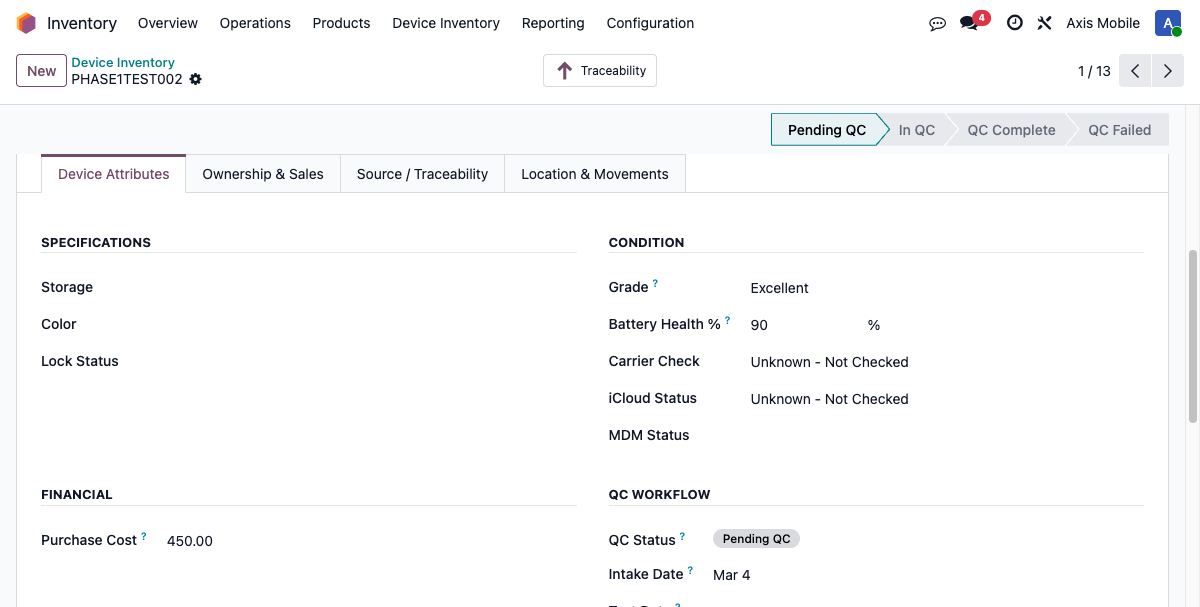
The device form QC Workflow section displays: QC Status, Intake Date, Test Date, and Tested By.
Step 1: QC Handoff
Path: Inventory → Device Inventory → Inventory → QC Handoff
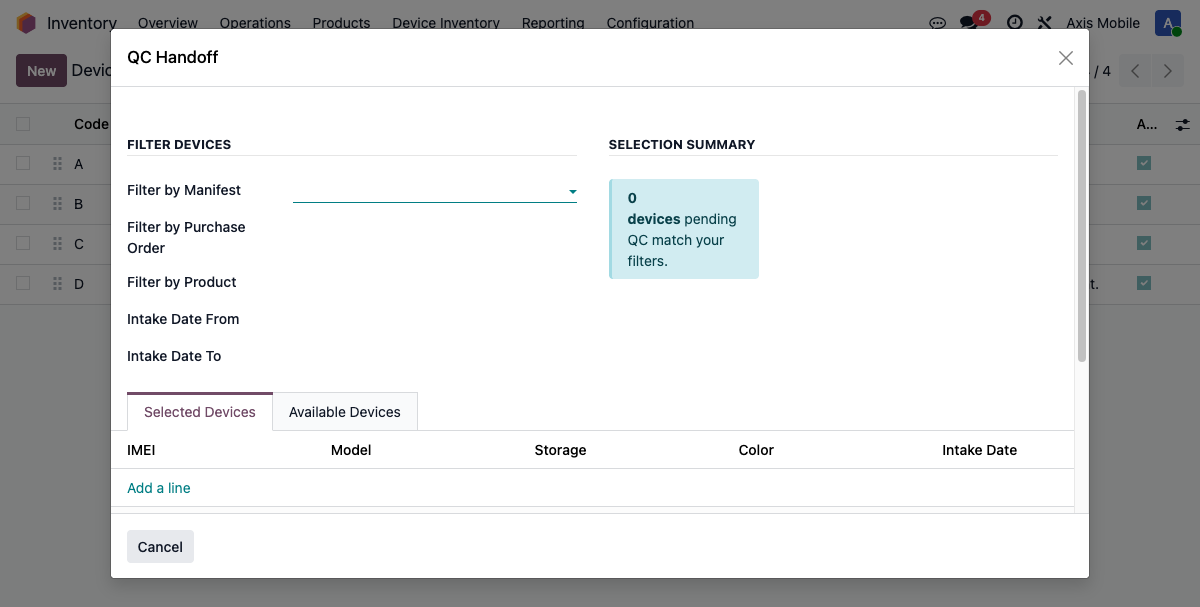
The wizard lets you filter devices by:
- Manifest — select from receiving manifests
- Purchase Order
- Product — device model
- Date range
Select the devices to hand off, then click Hand Off to QC.
- Changes
qc_statusfrompending_qc→in_qc - Creates a
device.movementrecord withmovement_type = 'qc_in'
Step 2: M360 Diagnostics Integration
M360 is external diagnostic software that tests devices.
When enabled (Settings → Inventory → M360 QC Integration):
- Devices can sync diagnostic data from M360
- A manual sync button is available on the device form
- Auto-sync can be configured
M360 data captured on the device:
| Field | Description |
|---|---|
| m360_session_id | Unique M360 test session identifier |
| m360_sync_date | When data was last synced |
| m360_technician | Who performed the test |
| m360_report_url | Link to full M360 diagnostic report |
| m360_diagnostics_passed | Boolean — did device pass? |
| m360_diagnostics_summary | Text summary of results |
M360 also provides additional device status data:
- battery_health — battery health percentage (0–100%)
- carrier_check — clean / financed / blacklisted
- icloud_status — off / on / unknown / na
- mdm_status — none / present / removed
Step 3: Grade Assignment
Grades are assigned during or after QC testing.
Path: Inventory → Device Inventory → Configuration → Device Grades
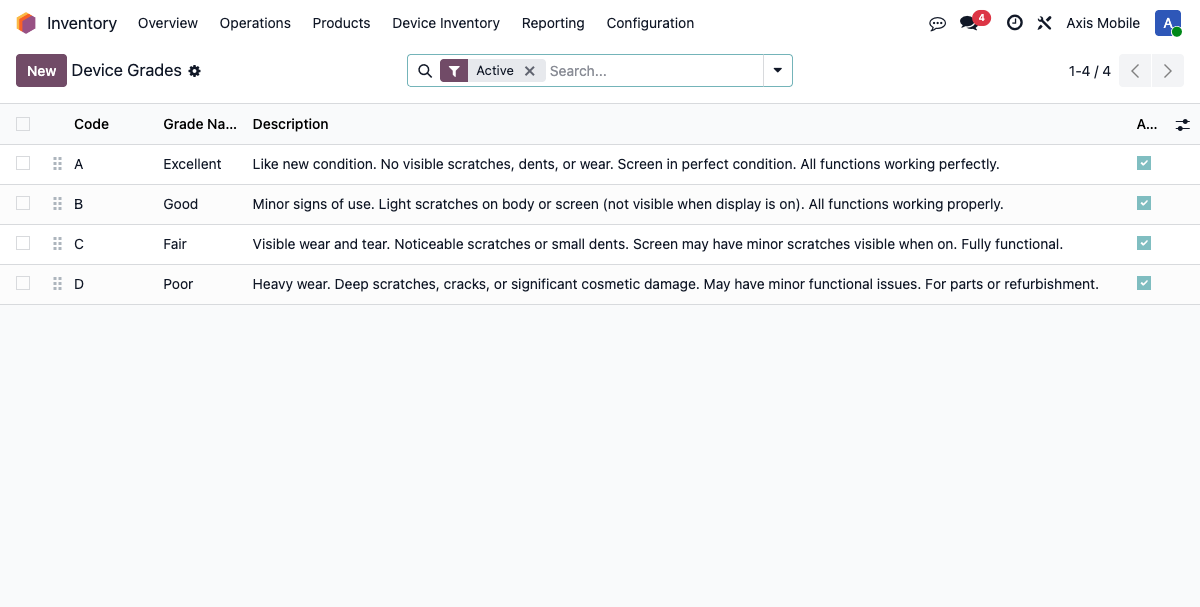
Standard grades:
| Grade | Description | Condition |
|---|---|---|
| Excellent | Like new, minimal wear | No visible scratches, all functions perfect |
| Good | Light use, minor cosmetic | Small scratches, fully functional |
| Fair | Moderate use, visible wear | Noticeable scratches/dents, fully functional |
| Poor | Heavy use, significant wear | Major cosmetic damage, may have functional issues |
- Grade affects device value and commission calculations
- Set via the
grade_idfield (Many2one →device.grade) on the device form
Step 4: Mark QC Complete
On the device form, click the status bar to advance to QC Complete.
This calls action_mark_qc_complete().
Requirements — both must be met before QC can be marked complete:
m360_session_idmust be set (M360 diagnostic data synced)grade_idmust be assigned
If either is missing, Odoo raises a validation error.
On success:
qc_statuschanges toqc_complete- Device is now eligible for allocation to sales orders
Step 5: Mark QC Failed (Alternative Path)
If a device fails diagnostics, click to set the status to QC Failed.
This calls action_mark_qc_failed().
qc_statusis set toqc_failed- Failed devices cannot be allocated to sales orders
- Can be reset later:
action_reset_to_qc()sends the device back topending_qcfor re-testing
Notes Section on Device Form
The device form includes two text fields for QC notes:
- Cosmetic Notes (
cosmetic_notes) — describe the physical condition of the device - Functional Notes (
functional_notes) — note any functional issues discovered during testing
Key Fields Reference
| Field | Type | Description |
|---|---|---|
| qc_status | Selection | pending_qc, in_qc, qc_complete, qc_failed |
| grade_id | Many2one → device.grade | Device condition grade |
| battery_health | Integer (0–100) | Battery health percentage |
| carrier_check | Selection | clean, financed, blacklisted, unknown |
| icloud_status | Selection | off, on, unknown, na |
| mdm_status | Selection | none, present, removed |
| m360_session_id | Char | M360 diagnostic session ID |
| intake_date | Date | When the device was received |
| test_date | Date | When QC testing was performed |
| tested_by | Many2one → res.users | Who performed the test |