Delivery Manifests — Scan and Fulfill a Sale
A Delivery Manifest is the outbound control record linked to one sales order. Its scanner assigns the exact inventory IMEIs leaving for that customer.
Normal path: open the SO → click Scan IMEIs → scan each physical unit once → click Finish IMEI Scan → review → click Complete Delivery.
| Who | Outbound warehouse operator |
| Use when | Shipping exact inventory IMEIs for an external customer SO |
| Have ready | Correct SO, physical phones, labeled UNSCANNED/ACCEPTED/HOLD zones, and one scanner |
| Done when | Every device requirement card is complete and Delivery Manifest is Complete |
| Stop if | Wrong customer/row, red result, IMEI mismatch, count mismatch, or phones are not physically leaving |
| Next handoff | Customer shipment and accounting review of the linked invoice |
Before opening the scanner
Review the sales order first. Every device row should correctly show:
Model, Storage, Color, Selling As, Grade, Lock, Ordered, and Unit Price.
Blank optional Color, Grade, or Lock means Any / not promised. Different promises belong on separate rows.
Do not start scanning to discover what the customer ordered. Correct the commercial record first.
Step 1 — Open the linked Delivery Manifest scanner
Click Scan IMEIs in the SO's blue next-step banner.
For a normal quotation this action:
- confirms the SO;
- creates or reopens its one active Delivery Manifest; and
- opens the guided scanner.
You can later reopen the same scanner from the SO or IMEI Manifest smart button. Do not create a second Delivery Manifest.
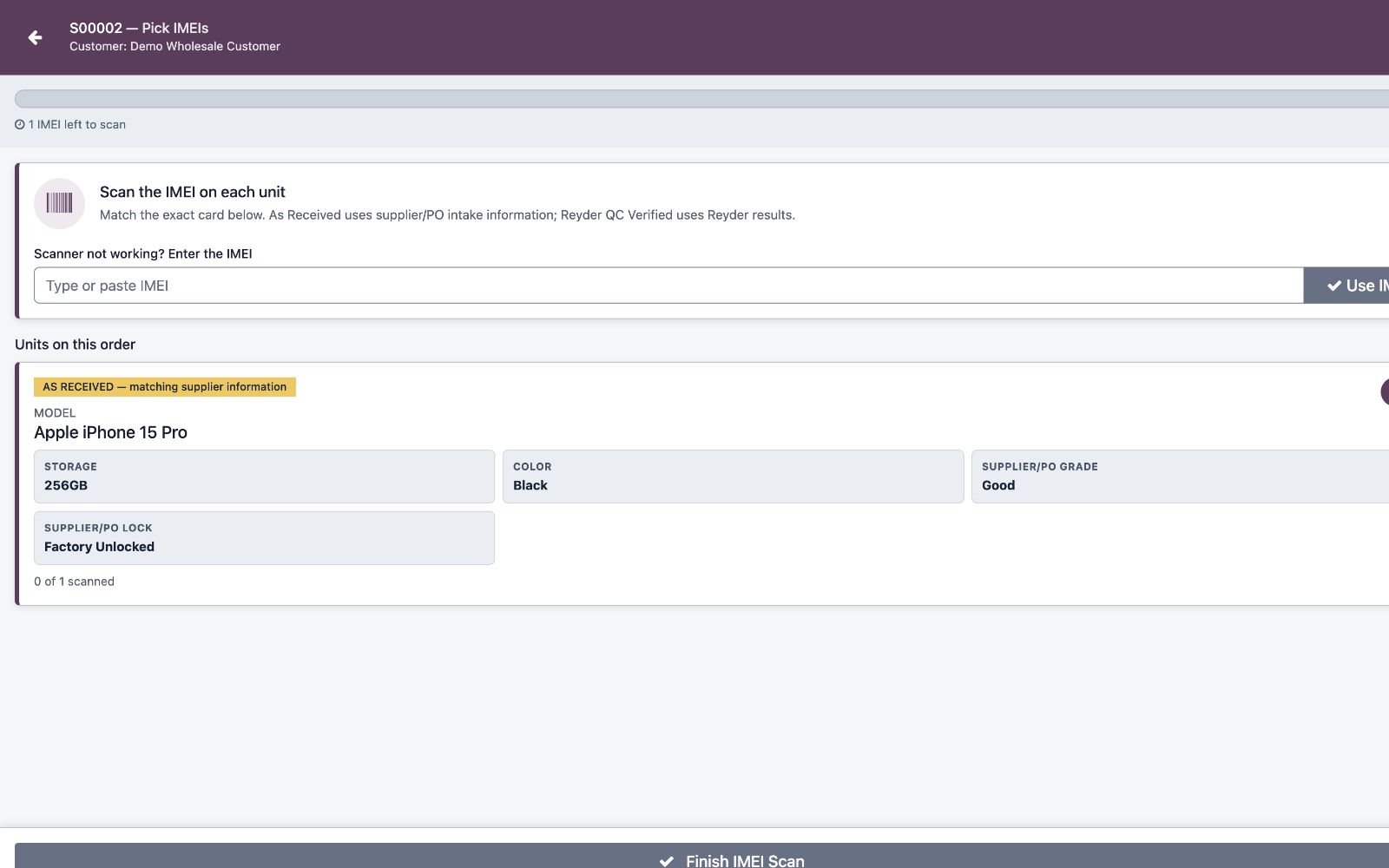
Step 2 — Read the requirement cards
Each card represents one exact sales row and displays:
- model and storage;
- optional color promise;
- Selling As basis;
- required grade from that basis;
- optional lock promise; and
Scanned / Orderedwith units remaining.
The card's evidence badge is critical:
- AS RECEIVED — matching supplier information uses intake supplier/PO evidence.
- REYDER QC VERIFIED — matching Reyder results uses Reyder results. The scan does not require QC Complete, but the promise is false until it actually is.
Grade, Lock, and QC status — including a known QC Failed result — are recorded facts shown on the card; none of them block the scan. If the badge is wrong for the deal, go back and correct an unscanned SO row. Do not scan and then change the basis around an accepted unit.
Step 3 — Scan each physical IMEI once
Use the UNSCANNED / ACCEPTED / HOLD workstation routine from Odoo Basics. Scan the IMEI from the physical phone. A box label is acceptable only after you verify that the box belongs to that exact phone; a loose or mismatched box is not evidence. If using the manual fallback, type the exact IMEI from the physical unit and compare the displayed result before moving it.
Every successful scan:
- finds the inventory unit by exact IMEI;
- finds the correct open SO row;
- validates model, storage, optional color, Grade/Lock from Selling As, and remaining quantity;
- validates company, ownership, availability, reservation, cost/readiness, and known QC controls;
- creates or reuses the exact IMEI allocation; and
- marks its Delivery Manifest row scanned.
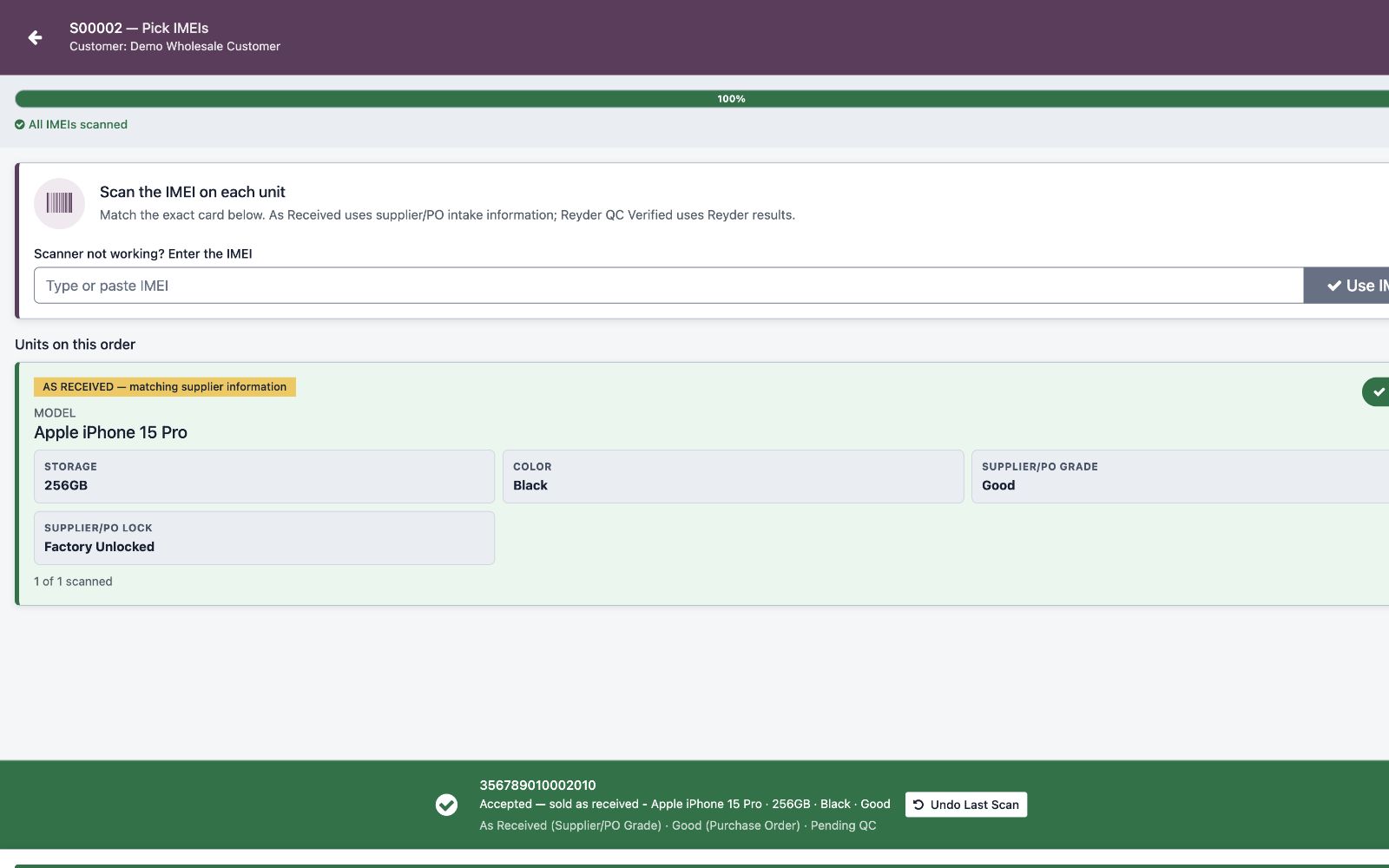
Green result
The unit was accepted and the row count increased. Place it in the shipment staging area.
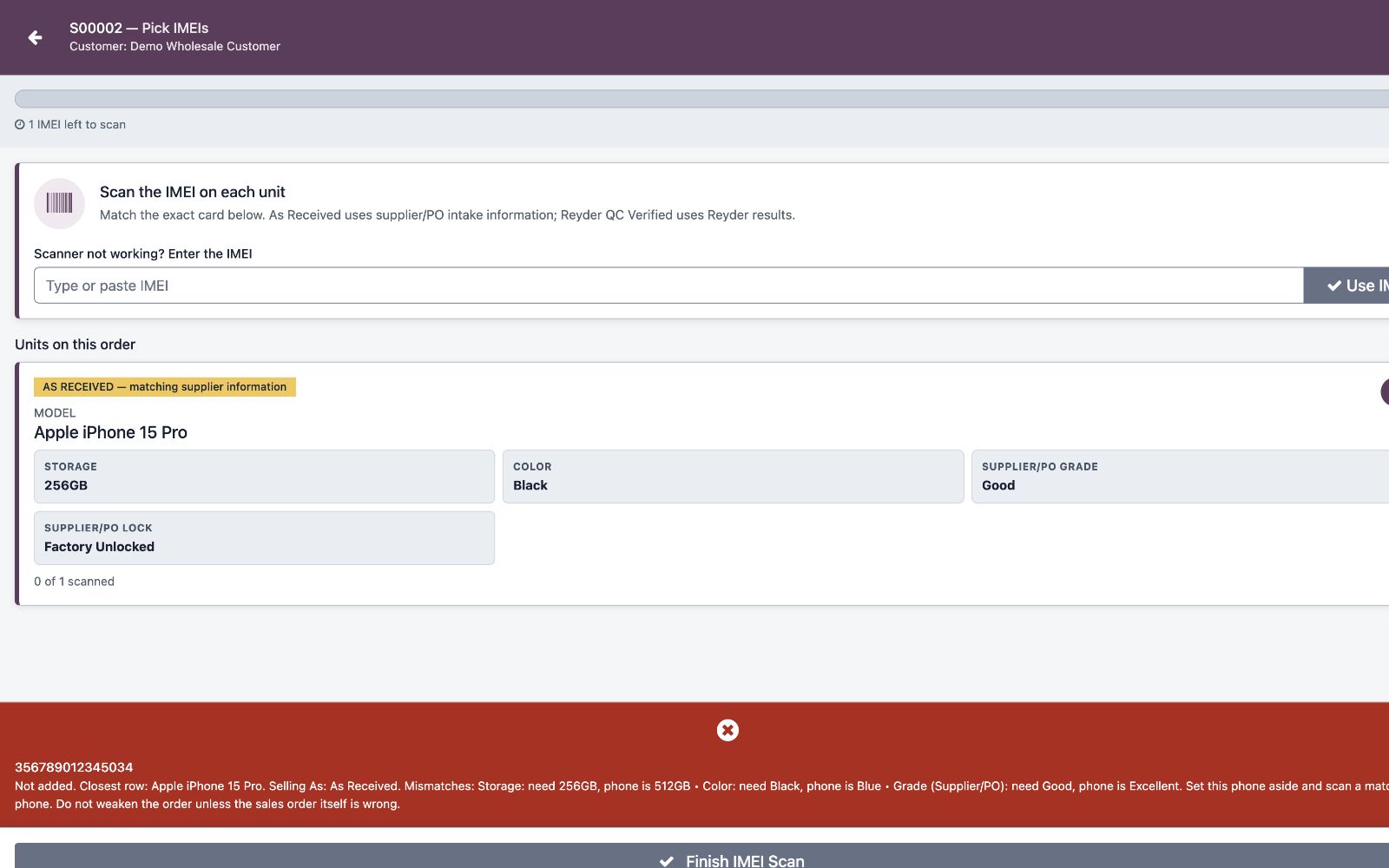
Red result
The unit was not added. Keep it out of the shipment. Read the full reason and use a matching unit or correct a truly incorrect source record.
Duplicate result
The unit is already scanned or allocated. Do not scan it again. Find the first accepted record or another order holding it.
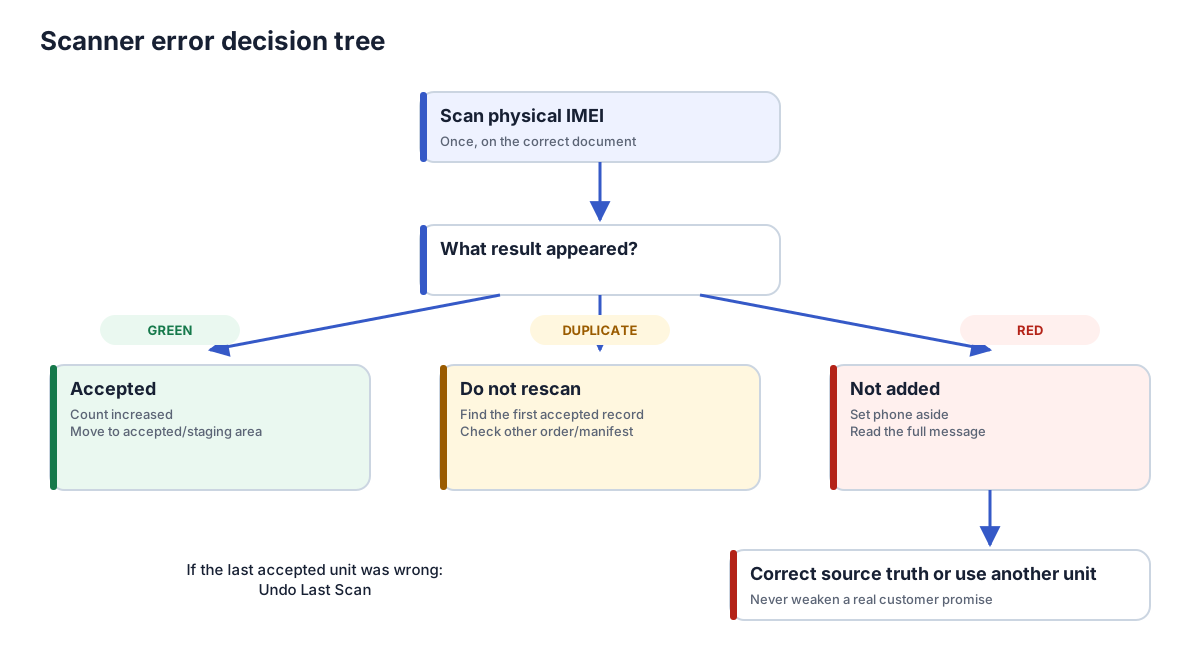
Step 4 — Undo an immediate mistake
If the most recently accepted physical phone was wrong, click Undo Last Scan before scanning another unit. The action removes that unit from this delivery and restores the row count so the correct replacement can be scanned.
Undo is intentionally limited to immediate recovery. For an older scan or a completed delivery, stop and use the reviewed correction process.
Step 5 — Finish the IMEI scan
The finish action enables only when Scanned = Ordered on every device requirement card.
- Compare the physical staged phones with the total and row counts.
- Click Finish IMEI Scan.
- Read the completion dialog.
- Click Complete Delivery only when the phones are physically leaving inventory.
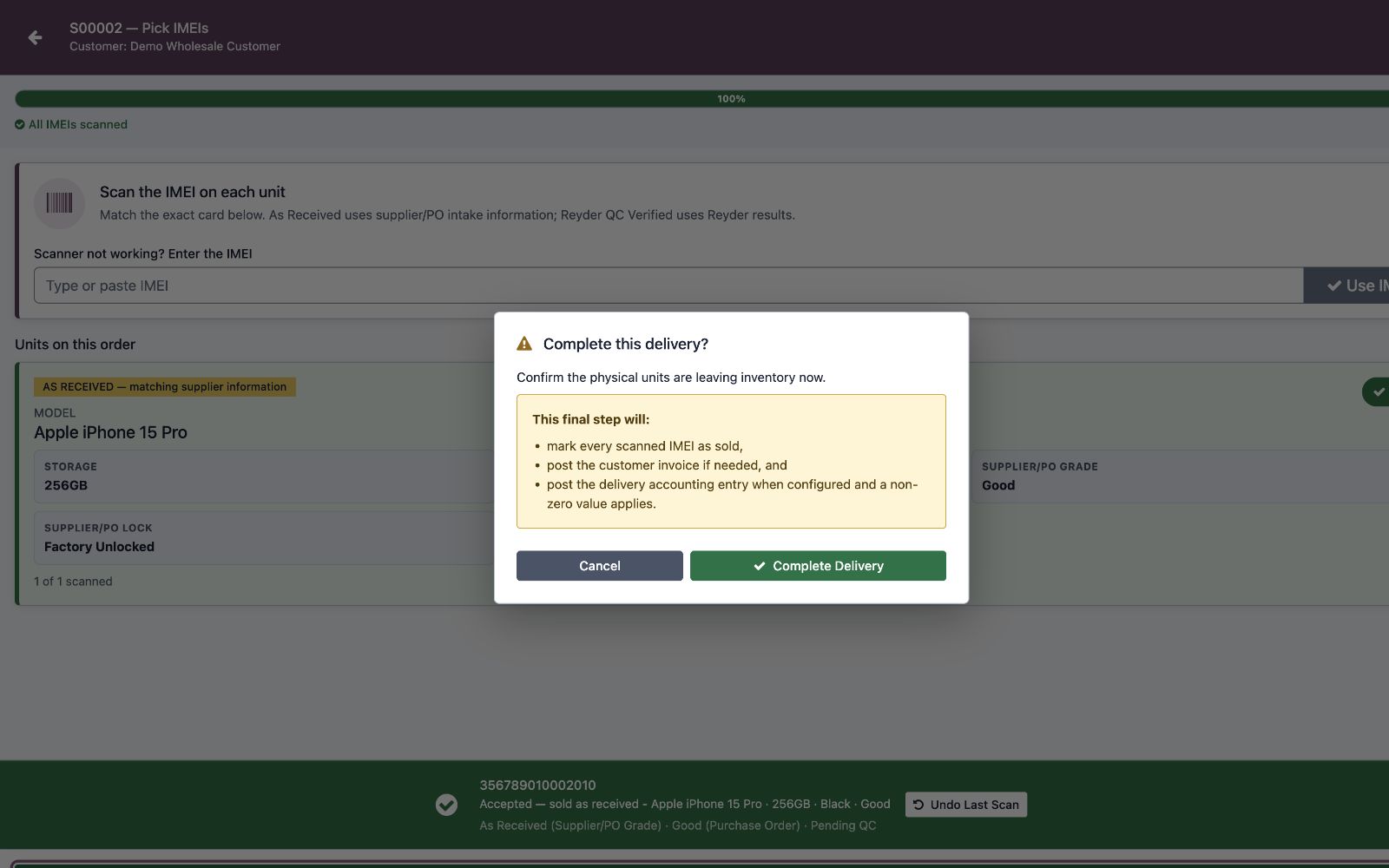
For a normal external-customer delivery, completion:
- marks the exact accepted IMEIs sold;
- finalizes the Delivery Manifest;
- posts COGS/delivery accounting when the approved accounts and journal are configured and a non-zero inventory value applies;
- creates and posts the customer invoice if none exists;
- posts valid draft billing created from the same SO and invoices only any genuine uninvoiced remainder—never the same units twice; and
- creates consignment settlement records when applicable.
If no delivery accounting entry is created, do not assume that “no entry” is correct. Stop and have Accounting verify whether the units had zero value or whether configuration is missing before the shipment is treated as financially closed.
There is no second normal scan.
Inter-company deliveries finish differently
In an inter-company handoff, source completion leaves devices Reserved and source-owned until the destination verifies and completes its exact receiving manifest. See Inter-Company Transfers.
Invoice and payment gate
Every external device SO now has an explicit invoice-first backbone. Whether the user links an existing invoice, creates a new one, uses New Prepaid Device Invoice, or uses the direct-invoice rescue, the linked invoice must be posted and fully paid before normal users allocate or ship exact IMEIs.
See Sales Order & Invoice Linkage.
Optional packing boxes
Packing boxes are an Advanced container-tracking path, not a normal prerequisite. Use one only when the shipment needs a box label, multiple-container control, or an explicit inter-company packing route.
Once an active box exists, complete through the box workflow:
Do not mix direct Delivery Manifest completion with an active box. Ship or cancel the box through the controlled workflow first.
Common problems
The order changed while its delivery manifest was cancelled
Resetting an unused cancelled delivery now refreshes its empty scan slots from the current SO rows, storage, and quantities. It refuses to reopen assigned/scanned history or create a second active manifest. Use the existing active manifest, or undo/reconcile the recorded devices first. Reopening never rewrites invoice or inventory history.
Finish IMEI Scan is disabled
One or more rows still has units remaining. Compare every card's Scanned and Ordered values; do not look only at the overall total.
The IMEI is the right model but is rejected
Model is only one control. Compare storage, optional color, Selling As, grade, lock, availability, ownership, reservation, cost/readiness, and QC status.
The scanner says the IMEI belongs to another order
Use another available unit or have the stale allocation reviewed. Do not steal the IMEI by editing its status.
The scanner expects Reyder QC but these phones just arrived
Confirm the actual deal. If it is supplier-grade/as-is and no IMEI is scanned on the affected row, change Selling As to As Received. If Reyder verification was promised, complete QC.
Completion says a packing box is active
Someone started the Advanced container path. Open that box and finish it, or cancel the unused box through the proper action.
The invoice already exists
That is not an error when it came from the same SO. Completion posts valid draft billing and invoices only a real remainder. Verify the link rather than creating another invoice.
See Troubleshooting for a full symptom table.