Sales Orders & Device Allocation
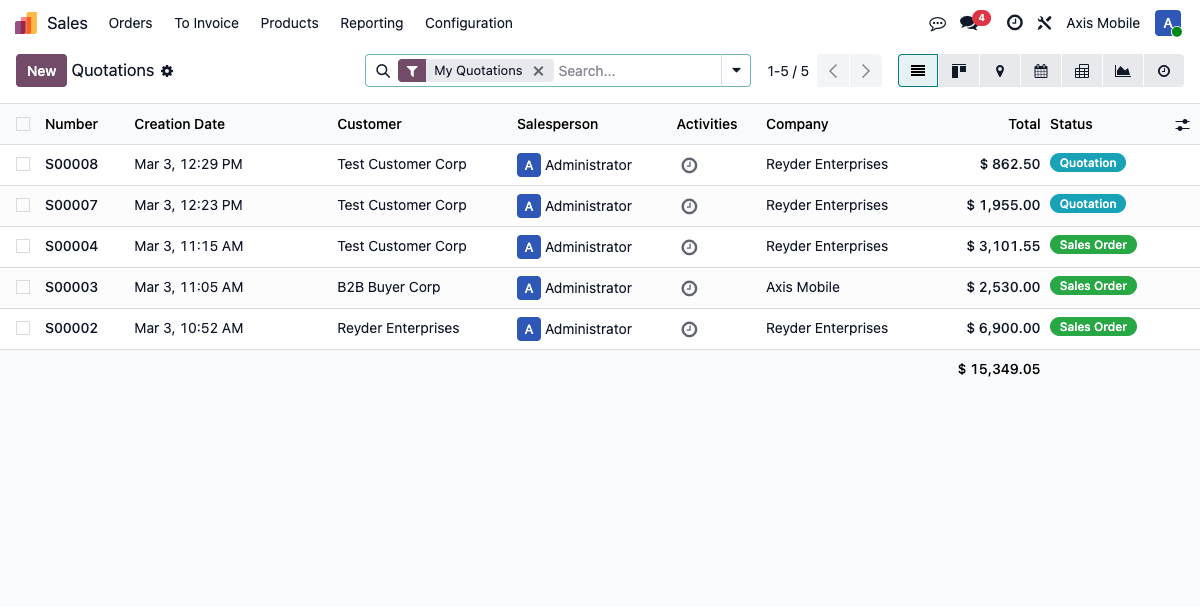
This guide covers the full workflow for creating sales orders, allocating devices, and confirming orders in the Device Inventory system.
Step 1: Create Sales Order
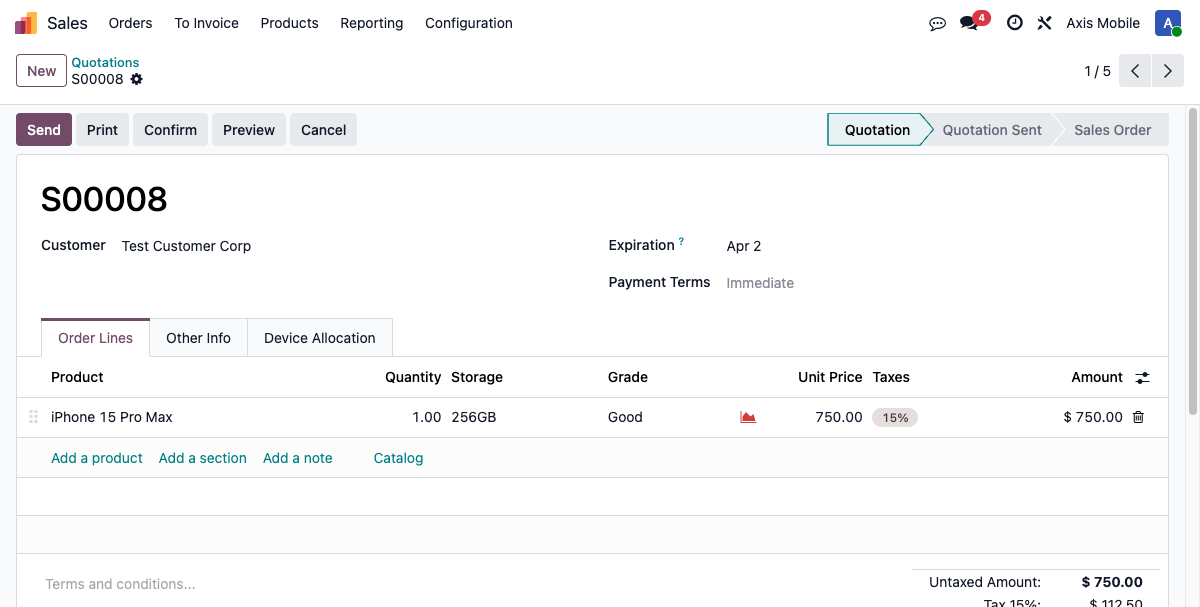
Path: Sales → Orders → New
- Set the Customer field.
- Add one or more product lines using a device product.
- On each line, you may specify filtering criteria for device allocation:
required_storage— e.g., 128GB, 256GBrequired_grade— e.g., Excellent, Good, Fair, Poorrequired_color— e.g., Black, White, Space Grayrequired_lock_status— e.g., Unlocked, Locked
Step 2: Device Allocation Tab
After at least one device has been allocated to a SO line, the Device Allocation tab appears on the sales order form.
- This tab contains all
sale.order.line.devicerecords linked to this order. - Important: The tab only appears when
total_devices > 0(computed fromdevice_line_ids). This creates a chicken-and-egg situation — the tab is hidden before the first allocation, and the Allocate button lives inside that tab. - Resolution: Use the Allocate Devices wizard to perform the first allocation. The wizard can be launched directly before the tab becomes visible.
Step 3: Allocate Devices Wizard
Access: Click the Allocate button inside the Device Allocation tab.
Model: device.allocation.wizard
Filtering Devices
The wizard supports the following filters to narrow down eligible devices:
| Filter | Field |
|---|---|
| Storage Capacity | storage_capacity |
| Grade | grade |
| Color | color |
| Lock Status | lock_status |
Device List Columns
Matching available devices are shown with:
- IMEI
- Product
- Storage
- Grade
- Color
- Battery Health
- Purchase Cost
- Suggested Sale Price
Allocation Process
- Select the devices you want to allocate.
- Set the Unit Price for each device.
- Click Allocate.
What Happens on Allocation
When a sale.order.line.device record is created:
- Device
statuschanges fromavailable→reserved. - Commission is auto-calculated from the active consignment agreement (if applicable).
_sync_to_delivery_manifest()is called if a delivery manifest already exists for this order.
Constraints
- Advisory locks are used to prevent race conditions when two users allocate the same device simultaneously.
- Unique constraint:
UNIQUE(sale_order_id, lot_id)— the same device (by serial/lot) cannot be allocated to the same SO more than once.
Step 4: Commission Auto-Calculation
When allocating a device owned by a different company (consignment device):
- The system finds the active
device.consignment.agreementbetween the device owner and the selling company (consignee). calculate_commission(sale_price, currency)is called.- The following fields are set on the
sale.order.line.devicerecord: commission_rate— stored as a decimal (e.g.,0.15= 15%)commission_amount— calculated asunit_price × commission_rateowner_amount— calculated asunit_price - commission_amount- The
is_consignmentcomputed field is set toTrue.
Visual indicator: When the sales order contains consignment devices (i.e., devices owned by another company), the order is highlighted in orange as a reminder.
Step 5: Confirm Sales Order
Click the Confirm button to move the SO from quotation to a confirmed sales order.
What Happens on Confirmation
action_confirm() is overridden and performs the following in order:
- Inter-company order: If
is_inter_companyisTrue, an inter-company purchase order is automatically created in the destination company. - Device order: If the SO has device allocations (
is_device_orderisTrue), a delivery manifest of type'delivery'is automatically created and pre-filled with the allocated device IMEIs. - Standard Odoo confirmation: The normal Odoo SO confirmation flow runs (stock moves, email confirmations, etc.).
After confirmation, the SO status changes to Sales Order and the delivery manifest is ready for processing.
Cancelling a Sales Order
Calling action_cancel() on a sales order releases all device reservations:
device_statusreverts fromreserved→availablefor each allocated device.- All associated
sale.order.line.devicerecords are set tocancelledstate. - Draft delivery manifests linked to the order are cancelled.
This ensures no devices remain locked to a cancelled order.
Key Fields Reference
sale.order
| Field | Description |
|---|---|
is_device_order |
Computed: True if any SO line has device allocations |
total_devices |
Count of all device allocations across all lines |
consignment_device_count |
Count of consignment (other company's) devices on this order |
total_commission |
Sum of commission_amount across all device lines |
delivery_manifest_ids |
One2many to delivery manifests |
packing_box_ids |
One2many to packing boxes |
packing_state |
not_started, packing, ready, shipped |
is_inter_company |
True for inter-company orders |
sale.order.line.device
| Field | Description |
|---|---|
sale_order_line_id |
Link to the SO line — note: field name is sale_order_line_id, NOT sale_line_id |
lot_id |
Link to the device record (stock.lot) |
unit_price |
Sale price for this specific device |
unit_cost |
Related purchase_cost from the device record |
commission_rate |
From consignment agreement — stored as decimal: 0.15 = 15% |
commission_amount |
Calculated: unit_price × commission_rate |
owner_amount |
Calculated: unit_price - commission_amount |
state |
draft, reserved, confirmed, delivered, cancelled |
is_consignment |
Computed: True if the device owner is not the selling company |