Device Inventory Module — Setup and Configuration Guide
This guide covers all required configuration steps to get the Device Inventory module running correctly in a multi-company Odoo 19 environment.
Navigation
All device inventory settings are found at:
Settings → Inventory tab → scroll to the bottom
The following configuration sections appear at the bottom of the Inventory tab:
- Inter-Company Device Transfers
- Device Inventory Accounting
- Consignment Settlement
- M360 QC Integration
1. Company Setup
The module is designed for a two-company consignment model:
| Company | Role | Odoo ID |
|---|---|---|
| Reyder Enterprises | Consignee / Seller — sells devices on behalf of owners | 1 |
| Axis Mobile | Device Owner — provides devices on consignment | 2 |
Reyder Enterprises operates as the consignee. It receives devices, performs QC, sells to end customers, and remits owner proceeds via settlement reports.
Axis Mobile (or any owner company) supplies devices under a consignment agreement. Axis users see only their own settlement data and never see Reyder customer names, sale prices, or order numbers.
Inter-Company Transfer Setting
To enable automatic inter-company purchase orders when devices are transferred between companies, enable the inter-company sync setting in Odoo's General Settings:
Settings → General Settings → Companies → Inter-Company Transactions
Set the Inter-Company action to Synchronized Orders (or Create Purchase Order) so that a transfer initiated by Reyder automatically generates a corresponding purchase order on the Axis side.
2. Device Inventory Accounting
Navigate to Settings → Inventory tab and scroll to the Device Inventory Accounting section.
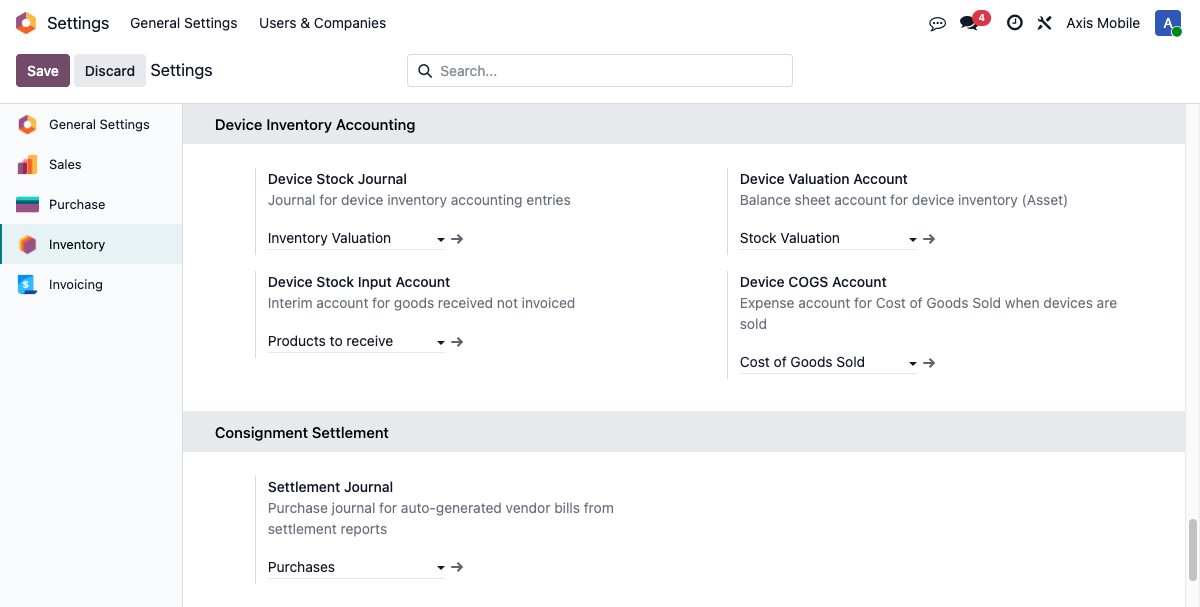
These accounts govern all GL entries generated by device receiving, sales (COGS), and valuation adjustments.
| Setting | Description | Example Value |
|---|---|---|
| Device Stock Journal | Journal used for all device-related GL entries (receiving, COGS, adjustments) | Inventory Valuation |
| Device Valuation Account | Balance sheet asset account that holds the value of devices currently in stock | Stock Valuation |
| Device Stock Input Account | Interim clearing account for devices received but not yet vendor-invoiced (goods received / not invoiced) | Products to receive |
| Device COGS Account | Expense account debited when a device is sold and removed from inventory | Cost of Goods Sold |
Accounting Flow Summary
- Receiving (PO → Manifest complete)
- DR Device Valuation Account
-
CR Device Stock Input Account
-
Sale (delivery manifest marked complete)
- DR Device COGS Account
-
CR Device Valuation Account
-
Settlement (auto-generated vendor bill)
- DR Owner Payable (settlement amount)
- CR Accounts Payable (via Settlement Journal)
Configuration Steps
- Go to Settings → Inventory tab.
- Scroll to the Device Inventory Accounting section.
- Select the Device Stock Journal (must be a journal of type Miscellaneous or Inventory).
- Select the Device Valuation Account (asset account on the balance sheet).
- Select the Device Stock Input Account (interim clearing account).
- Select the Device COGS Account (expense account).
- Click Save.
3. Consignment Settlement
The settlement section appears in the same Device Inventory Accounting screenshot above.
When a delivery manifest is marked complete, the system automatically creates a vendor bill (settlement report) payable to the device owner. The following journal is used for that bill:
| Setting | Description | Example Value |
|---|---|---|
| Settlement Journal | Purchase journal used for auto-generated vendor bills to device owners | Purchases |
Configuration Steps
- In the same Device Inventory Accounting section, locate Settlement Journal.
- Select a journal of type Purchase.
- Click Save.
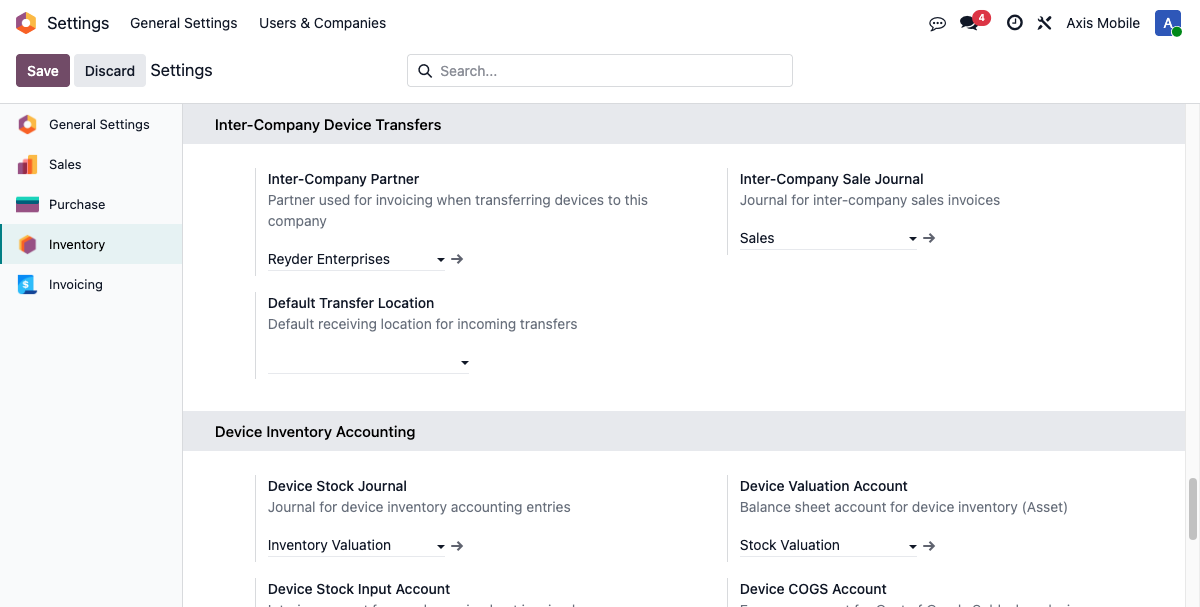
4. Inter-Company Device Transfers
Navigate to Settings → Inventory tab and scroll to the Inter-Company Device Transfers section.
This section controls how Reyder and Axis Mobile exchange device inventory records between companies.
| Setting | Description |
|---|---|
| Inter-Company Partner | The partner record used for invoicing and reconciliation when devices are transferred between Reyder and Axis. Typically the partner record that represents the other company. |
| Inter-Company Sale Journal | The sales journal used to record the inter-company sale invoice when Reyder transfers devices to or from Axis. |
| Default Transfer Location | The default stock location where incoming device transfers are received. Typically a receiving or input location under Reyder's warehouse. |
Configuration Steps
- Go to Settings → Inventory tab → Inter-Company Device Transfers.
- Set Inter-Company Partner to the partner record for Axis Mobile (as seen from Reyder's side).
- Set Inter-Company Sale Journal to the appropriate sales journal (e.g., Sales).
- Set Default Transfer Location to the receiving location in Reyder's warehouse (e.g., WH/Input or WH/Stock).
- Click Save.
5. M360 QC Integration
Navigate to Settings → Inventory tab and scroll to the M360 QC Integration section.
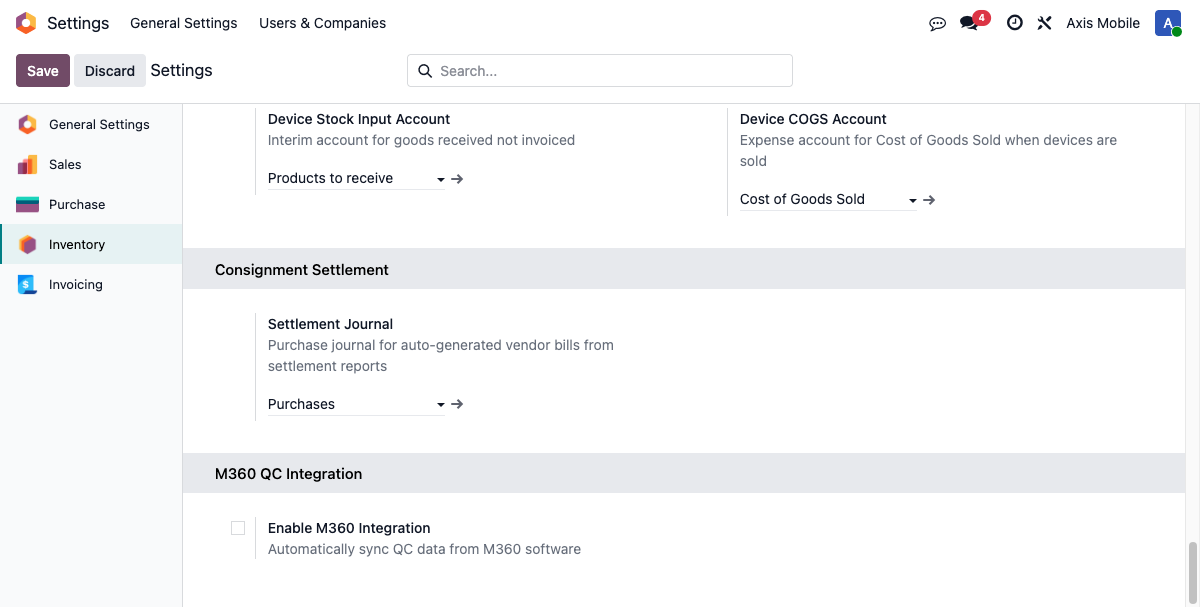
M360 is the third-party QC grading service used to automatically grade device condition before allocation.
| Setting | Description |
|---|---|
| Enable M360 Integration | Master toggle. When checked, the QC handoff wizard will send devices to M360 for grading. |
| Auth Code | API authentication code provided by M360. |
| Auth Token | API authentication token provided by M360. |
| API Mode | Controls which M360 endpoint is used. Set to test during setup and switch to live for production. |
Configuration Steps
- Go to Settings → Inventory tab → M360 QC Integration.
- Check Enable M360 Integration.
- Enter the Auth Code provided by M360.
- Enter the Auth Token provided by M360.
- Set API Mode to
testto verify connectivity without affecting live data. - Once connectivity is confirmed, set API Mode to
live. - Click Save.
6. Device Grades Configuration
Navigate to: Inventory → Device Inventory → Configuration → Device Grades
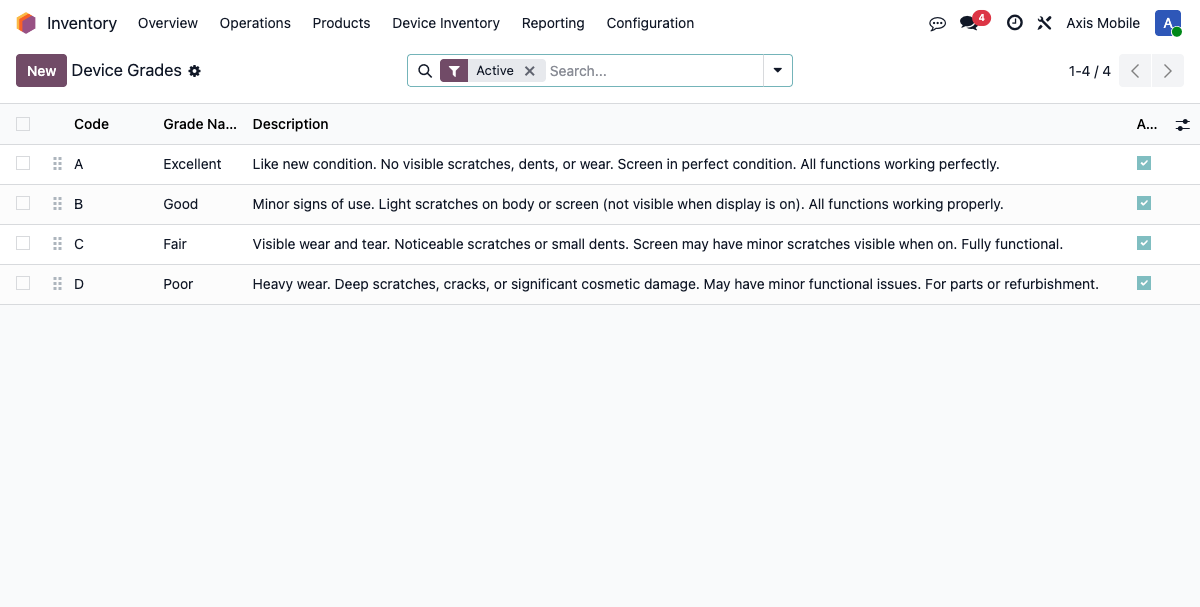
Device grades represent the assessed physical and functional condition of a device. Grades are assigned during the QC step (either via M360 integration or manually).
| Grade | Condition Description |
|---|---|
| Excellent | Device is in near-new condition. No visible scratches, scuffs, or damage. Fully functional. |
| Good | Minor cosmetic wear (light scratches on body or screen). All functions work correctly. |
| Fair | Visible cosmetic damage (scratches, scuffs, possible hairline cracks). May have minor functional limitations. |
| Poor | Significant cosmetic or functional damage. Heavily scratched, cracked screen, or hardware defects. Sold as-is. |
Grades are used to:
- Drive pricing tiers in consignment agreements.
- Appear on owner settlement reports (Axis Mobile sees the grade of each sold device).
- Appear on delivery manifests.
Adding or Editing Grades
- Go to Inventory → Device Inventory → Configuration → Device Grades.
- Click New to add a grade, or click an existing grade to edit it.
- Set the Name (e.g.,
Excellent) and an optional description. - Click Save.
Note: The four standard grades (Excellent, Good, Fair, Poor) are installed automatically with the module. Do not rename or delete them if existing records reference them.
7. User Groups and Permissions
The Device Inventory module adds the following security groups. Assign users through Settings → Users & Companies → Users.
| Group | Technical Name | Capabilities |
|---|---|---|
| Stock User | device_inventory.group_device_user |
Read-only access to devices and manifests. Can receive devices (mark manifest lines as received). |
| Stock Manager | device_inventory.group_device_manager |
Full create/read/update/delete on all device operations. Access to Configuration menus (grades, agreements). |
| Sales Team | device_inventory.group_device_sales |
Can create sales orders and allocate devices to SO lines from the Device Allocation tab. |
| Sales Manager | device_inventory.group_device_sales_manager |
Full access to all sales operations including settlement reports. Can view and confirm settlement reports. |
Multi-Company Access Notes
- Users who belong to only one company (e.g., Axis Mobile only) are restricted by record rules and will not see data that belongs to the other company.
- The Axis Mobile user (
axis_user) should be assigned only to the Axis Mobile company. This ensures data separation: Axis sees only its own settlement reports and never sees Reyder customer data. - The admin user (or any user belonging to both companies) will have expanded access across companies via Odoo's
cidscookie mechanism. Use single-company users for data separation testing.
8. Quick-Start Checklist
Use this checklist when setting up the module in a new environment:
- [ ] Confirm two companies exist: Reyder Enterprises (id=1) and Axis Mobile (id=2).
- [ ] Enable Inter-Company Transactions in General Settings if device transfers are needed.
- [ ] Configure Device Inventory Accounting (journal + 3 accounts).
- [ ] Configure Settlement Journal (purchase journal for vendor bills).
- [ ] Configure Inter-Company Device Transfers (partner, journal, location).
- [ ] Configure M360 QC Integration (enable, enter credentials, set mode to
test). - [ ] Verify Device Grades are installed (Excellent, Good, Fair, Poor).
- [ ] Assign users to appropriate groups (Stock User, Stock Manager, Sales Team, Sales Manager).
- [ ] Create at least one Consignment Agreement (Inventory → Device Inventory → Configuration → Consignment Agreements) before creating consignment SOs.
- [ ] Switch M360 API Mode from
testtolivebefore going to production.