User Handoff Guide
Use this page when training real users. It is the operator-facing handoff: what each team owns, what they should check before moving to the next step, and where they go when something does not look right.
Best training order
Start every new user with Quickstart, then walk one complete example in End-to-End Walkthrough. Use this page as the manager checklist for deciding whether they are ready to work in production.
The operating model
Device Inventory is built around handoffs. One team completes a step, the system creates the next document, and the next team works from that document.
| Team | Owns | Hands off when | Next team sees |
|---|---|---|---|
| Purchasing / Warehouse | PO receipt, intake supplier/PO provenance, and IMEI manifest | Manifest is Complete and devices exist by IMEI |
Sales can use intake evidence as-is, or QC can verify |
| QC | Reyder grade, lock, and diagnostics | Device is Available and QC Complete |
A Reyder Verified sales row can accept it |
| Sales | Customer condition basis, requirements, and price | Selling As, model, storage, color, grade, lock, quantity, and price are correct | Warehouse has one clear Scan IMEIs action |
| Warehouse | Exact IMEI scan and delivery completion | Every row is scanned and the manifest is Complete |
Accounting has the linked invoice and applicable follow-up documents |
| Accounting | Vendor bill reconciliation and settlements | Consignee settlement report is Paid |
Device settlement status is closed |
| Admin / Manager | Setup, users, agreements, exceptions | Controls are configured and exceptions are documented | Everyone works inside guardrails |
The most important rule: do not manually skip the next document. If the system did not create the next document, stop and troubleshoot that transition instead of creating a loose workaround.
First-week training plan
Day 1 — Navigation and vocabulary
Goal: users can find the right menu without help and understand the documents they are opening.
- Open Device Ops.
- Show Receiving → IMEI Manifests, Devices → All Devices, Fulfillment → Customer Manifests, Consignment → Settlement Reports, and Consignment → Agreements. Show Fulfillment → Packing Boxes as an Advanced tool only.
- Explain the core words: IMEI, manifest, QC, scanned/ordered, optional packing box, owner report, consignee report, settlement.
- Show that record numbers in screenshots are examples. Their production record numbers will differ.
User is ready when they can answer:
- Where do I receive phones?
- Where do I check a device's status?
- Where does warehouse scan an outbound order?
- Where does accounting see what Axis is owed?
Day 2 — Receiving and QC
Goal: warehouse preserves inbound truth, and QC records only results it actually verified.
- Open an incoming PO and its Receiving Manifest.
- Ask whether the supplier provided the exact IMEI list. If yes, use Upload Supplier IMEI List → Verify Supplier IMEI List. If no, use Receive Without Supplier IMEI List and select the exact PO row before scanning.
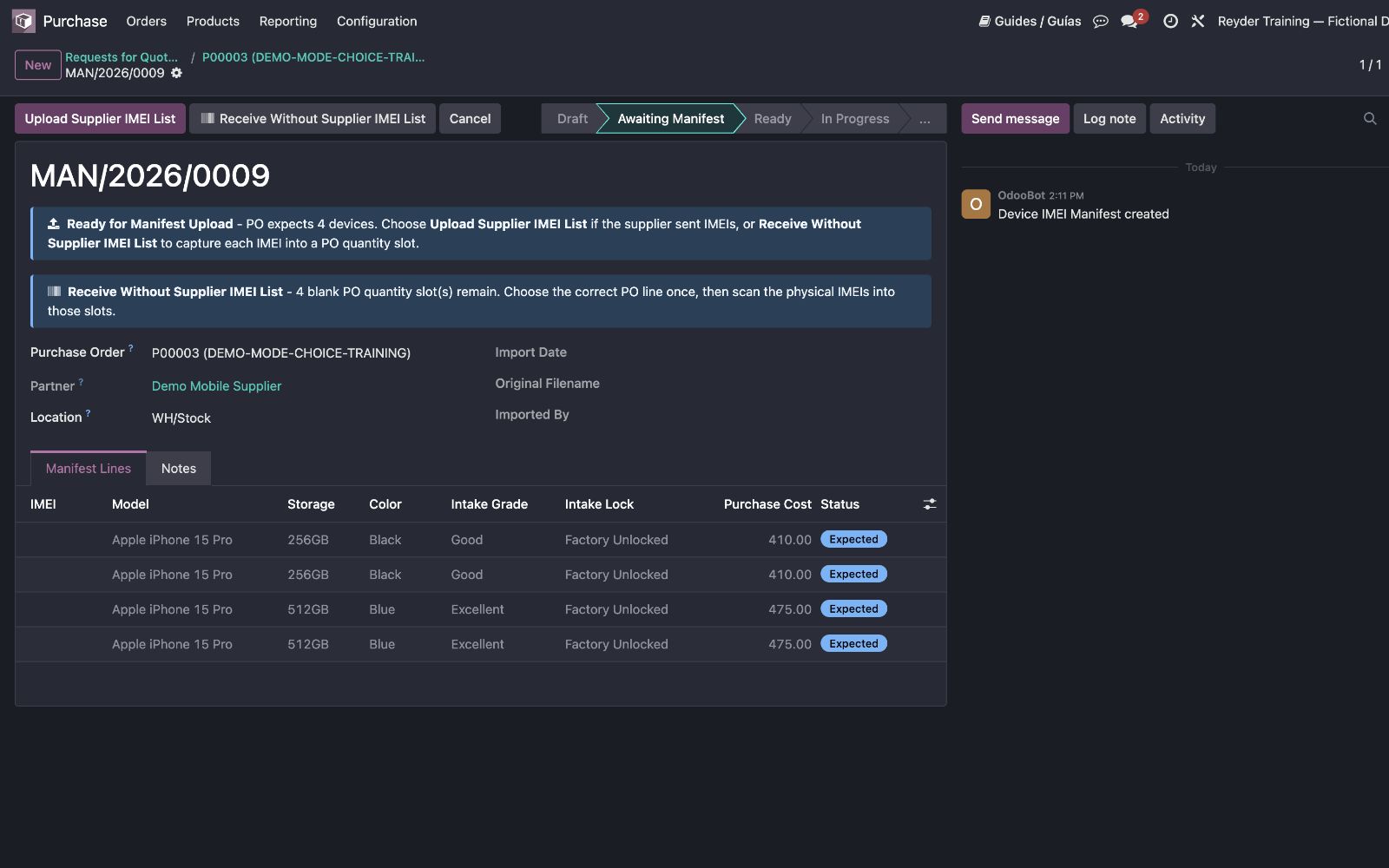
- Click Complete Receiving (or Finish Partial Receipt), review the counts, then click Complete Receipt.
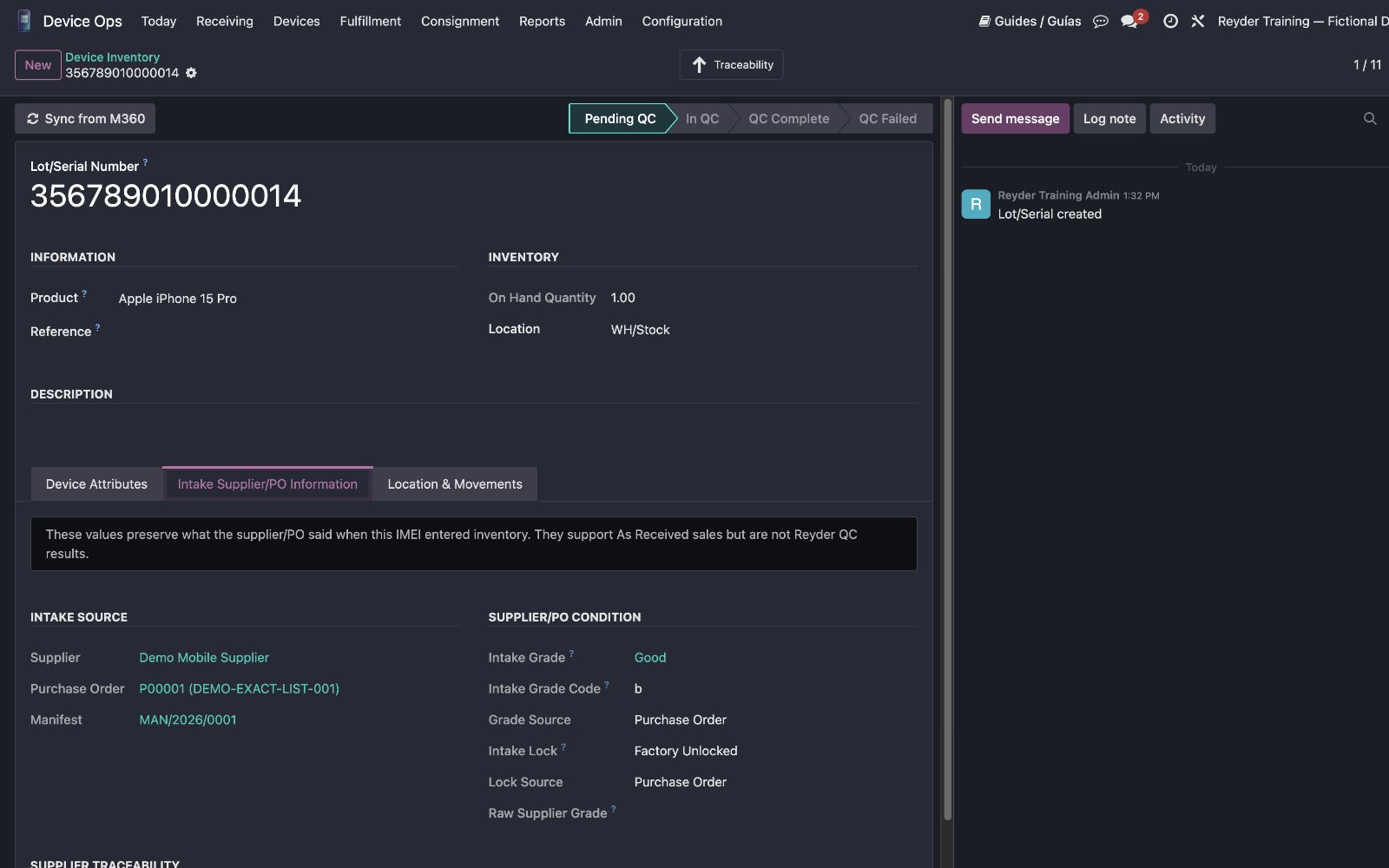
- Show Intake Supplier/PO Information on the received device.
- For a Reyder-verified example, hand the device to QC, assign actual results, and mark QC complete. For an as-is example, leave it Pending QC.
User is ready when:
- They know the difference between
Expected,Received, andComplete. - They can explain why a duplicate IMEI scan is rejected.
- They can explain supplier intake grade versus Reyder verified grade.
- They know As Received may use Pending QC, Verified is meant for phones Reyder actually tested, and QC status — including a known QC Failed result — is recorded but never blocks a wholesale sale.
Day 3 — Sales order entry
Goal: sales users can describe exactly what the customer is buying and open the scanner.
- Create a sales order with Model, Storage, Color, Selling As, Grade, Lock, Qty, and Unit Price.
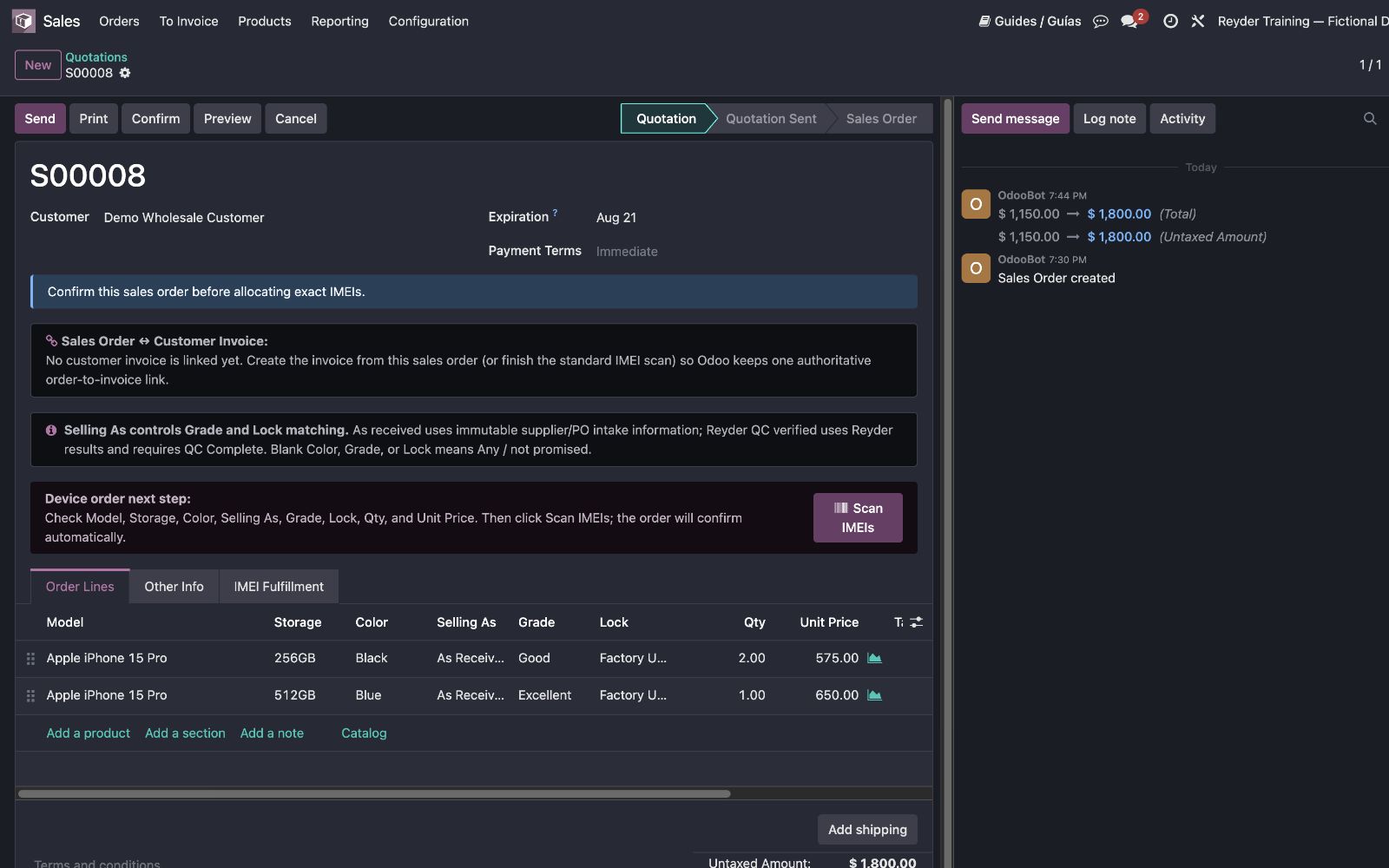
- Use As Received (Supplier/PO Grade) for a supplier-grade/as-is example and Reyder QC Verified for a verified example.
- Click Confirm and choose Link This Invoice or Create New Invoice.
- Post and fully pay the linked invoice, then click Scan IMEIs.
- Reopen the same scanner from the next-step banner or IMEI Manifest smart button.
User is ready when:
- They can explain that an order row is the promise and the scan chooses the exact unit.
- They know blank Color/Grade/Lock means Any/not promised.
- They know which Grade/Lock source each Selling As choice uses.
- They know every external device SO must explicitly link or create its invoice.
- They know fulfillment stays locked until the linked invoice is posted and fully paid.
- They know why unavailable, sold, retail-reserved, or zero-cost devices are blocked (and that zero-cost can be relaxed by a company setting or a manager override), and that grade, lock, and QC status — including QC Failed — never block a wholesale sale.
- They understand Confirm makes the invoice choice and Scan IMEIs creates the manifest after payment.
Day 4 — Outbound scan, completion, and accounting
Goal: warehouse completes the shipment and accounting verifies the financial documents.
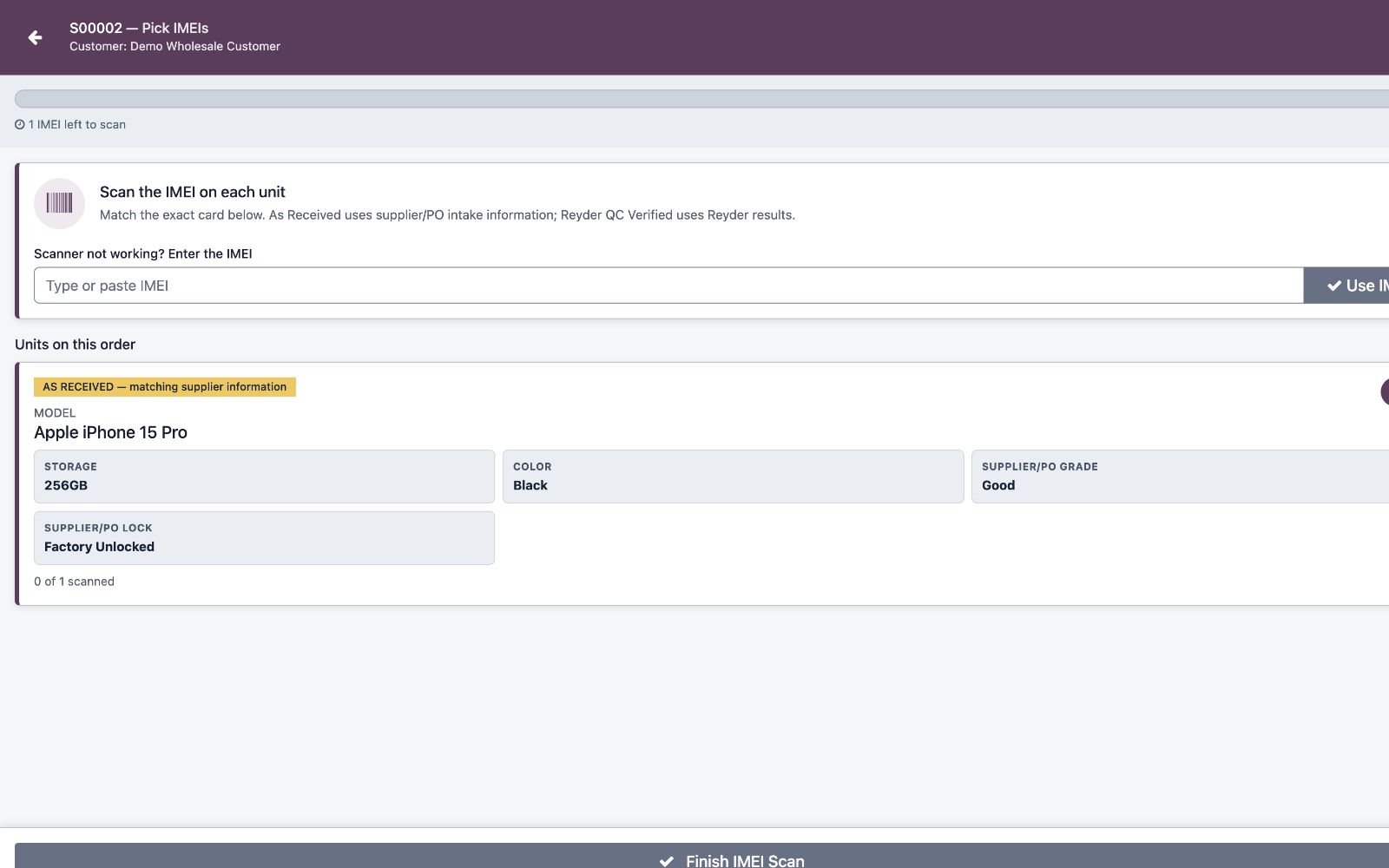
- Open Scan IMEIs from the sales order.
- Scan each physical unit once and watch each row's
scanned / orderedcount. - Click Finish IMEI Scan only after every physical unit is accepted; read the confirmation and click Complete Delivery when the units are actually leaving.
- For the consigned-device example, open the settlement reports and vendor bill. Skip this settlement step when Reyder owns every shipped phone; no owner payout is due.
- For consigned devices only, mark the consignee settlement report paid after its vendor bill is paid/reconciled.
User is ready when:
- Warehouse can explain
scanned / orderedby exact row and identify the condition-basis badge on each scanner card. - Warehouse knows Finish IMEI Scan is a review step and Complete Delivery is the delivery/accounting trigger.
- Warehouse knows Packing Boxes are optional Advanced/container tracking.
- Accounting knows to work from the consignee report, not the owner report.
- Accounting can explain what Axis can and cannot see.
Day 5 — Retail, exceptions, and security
Goal: managers know the non-happy paths.
- Reserve devices for a retail partner.
- Record a retail sale manually or through CSV import.
- Review that QC status remains visible but does not block retail settlement. The manager exception is only for an audited zero-cost case.
- Log in as an Axis-only user and verify data separation.
User is ready when:
- Retail users know a retail reservation is required before a retail sale.
- Managers know QC status does not require an exception; only zero cost uses an audited exception reason.
- Admins know Axis can see Reyder's sale price only on owner settlement reports, but should not see customer names, sale dates, sale orders, or per-device commission.
Role checklists
Warehouse
Use these pages:
Daily checklist:
- Check incoming IMEI manifests for
ReadyorIn Progress. - Scan every physical device by IMEI.
- Resolve unexpected or duplicate scans before marking complete.
- Preserve intake supplier/PO information; move only verification-bound stock into QC.
- Scan normal outbound orders from Scan IMEIs, not a spreadsheet.
- Confirm every sales-order row has
scanned = orderedbefore finishing.
Stop and ask for help when:
- The scanned IMEI is not on the manifest.
- The same IMEI scans twice.
- The delivery scanner says the device belongs to another order.
- Finish IMEI Scan is blocked after all physical units were scanned, or Complete Delivery rejects the final review.
Sales
Use these pages:
Daily checklist:
- Confirm customer, model, storage, color, Selling As, grade, lock, quantity, and price.
- Use a separate row for every different promise; blank Color/Grade/Lock means Any/not promised.
- Click Confirm, then link the correct existing invoice or create a new one.
- Wait until the linked invoice is posted and fully paid unless a manager approves an audited exception.
- Verify commission is populated for consignment devices.
- Use smart buttons to follow downstream documents.
- Cancel the SO only before any outbound scan is accepted. Once outbound scanning starts, stop and use the approved controlled reversal/correction process.
Stop and ask for help when:
- Scan IMEIs is missing or does not open the delivery manifest.
- A matching physical IMEI is rejected by the scanner.
- The commission looks wrong.
- An invoice-first order remains locked after full payment.
Accounting
Use these pages:
Daily checklist:
- Open Settlement Reports and apply the Pending Payment filter.
- Open the
SETTLE/CON/...report for Reyder. - Verify the vendor bill amount equals total owner amount.
- Reconcile the vendor bill payment.
- Mark the consignee report paid after the bill is paid.
- Confirm the consignee report moved to Paid; Odoo synchronizes the owner-side status.
Stop and ask for help when:
- The vendor bill does not match the report.
- The paid button is missing.
- An owner report appears to show customer, sale order, sale date, or commission detail.
- A single-company user can open the other company's settlement report.
Admin / Manager
Use these pages:
Daily checklist:
- Keep company assignment correct for each user.
- Keep the Reyder-Axis consignment agreement active.
- Review exception override reasons.
- Confirm settlement journal and device stock accounts are configured.
- Test Axis visibility after access-rule or view changes.
Stop and investigate when:
- A user can see records from the wrong company.
- An expected GL entry is missing.
- A vendor bill is not created for a consignment sale.
- A manager override is used without a business reason.
Production readiness checklist
Before handing the system to users, confirm:
| Area | Ready when |
|---|---|
| Users | Every person has the right default company, Companies selection, and Inventory/Sales/Accounting groups. |
| Agreements | The active Reyder-Axis agreement has the right owner, consignee, commission type, and rate. |
| Accounting | Device valuation, GRNI, COGS, and settlement journal are configured per company. |
| Receiving | A test PO can create a manifest, receive IMEIs, and post the receiving entry. |
| QC | A received device can become Available and QC Complete. |
| Sales | A quotation can enter Model/Storage/Color/Selling As/Grade/Lock/Qty/Price, explicitly link or create its invoice, and then open Scan IMEIs after payment. |
| Warehouse | The delivery manifest can scan each IMEI once, review Finish IMEI Scan, and post through Complete Delivery. |
| Advanced packing | An explicitly created box can scan, mark ready, and ship without affecting the normal default. |
| Settlement | Manifest completion creates paired statements for consignment devices. AXIS reviews, generates/posts its invoice, records/reconciles payment, then confirms receipt; Reyder manages its bill separately. |
| Security | Axis-only login sees owner reports only; it sees Reyder sale price but not customer, order, date, or commission details. |
What users should not do
- Do not track outbound IMEIs outside Odoo as the source of truth.
- Do not add manual allocation or packing steps to an ordinary external device order.
- Do not create standalone settlement reports manually.
- Do not edit owner report lines to add customer, order, sale-date, or commission data.
- Do not mark a settlement report paid before the vendor bill is actually paid/reconciled.
- Do not treat a manager exception as a general QC bypass. Wholesale and retail sales do not gate on grade, lock, or QC status; the exception only covers a missing/zero-cost device. Reservation, ownership, availability, and sale-price controls still apply.
- Do not fix company-visibility issues by adding broad multi-company access to everyone.
Where to go next
| Question | Page |
|---|---|
| I need the full training path | End-to-End Walkthrough |
| I just need my role's first hour | Quickstart |
| I need to receive a shipment | Purchasing & Receiving |
| I need to sell and scan exact devices | Sales Orders |
| I need to ship an order | Delivery Manifests |
| I need to pay Axis | Settlement Reports |
| Something is blocked | Troubleshooting |