Quickstart — Receive and Sell Phones Correctly
This is the shortest complete training path. It covers the normal case: phones arrive from a supplier and Reyder sells them from inventory.
Never used Odoo before? Read Odoo Basics first.
For decisions and exceptions, follow the links in each checkpoint.
Before you begin
- Work in the correct Odoo company.
- Have the purchase order number and the physical shipment.
- Know whether the supplier provided an exact IMEI file.
- Know exactly what the customer was promised: model, storage, optional color, condition basis, optional grade, optional lock, quantity, and price.
Part 1 — Receive the shipment
- Open the device purchase order and verify its supplier, model, storage, optional color, supplier/PO grade, supplier lock claim, quantity, and unit cost.
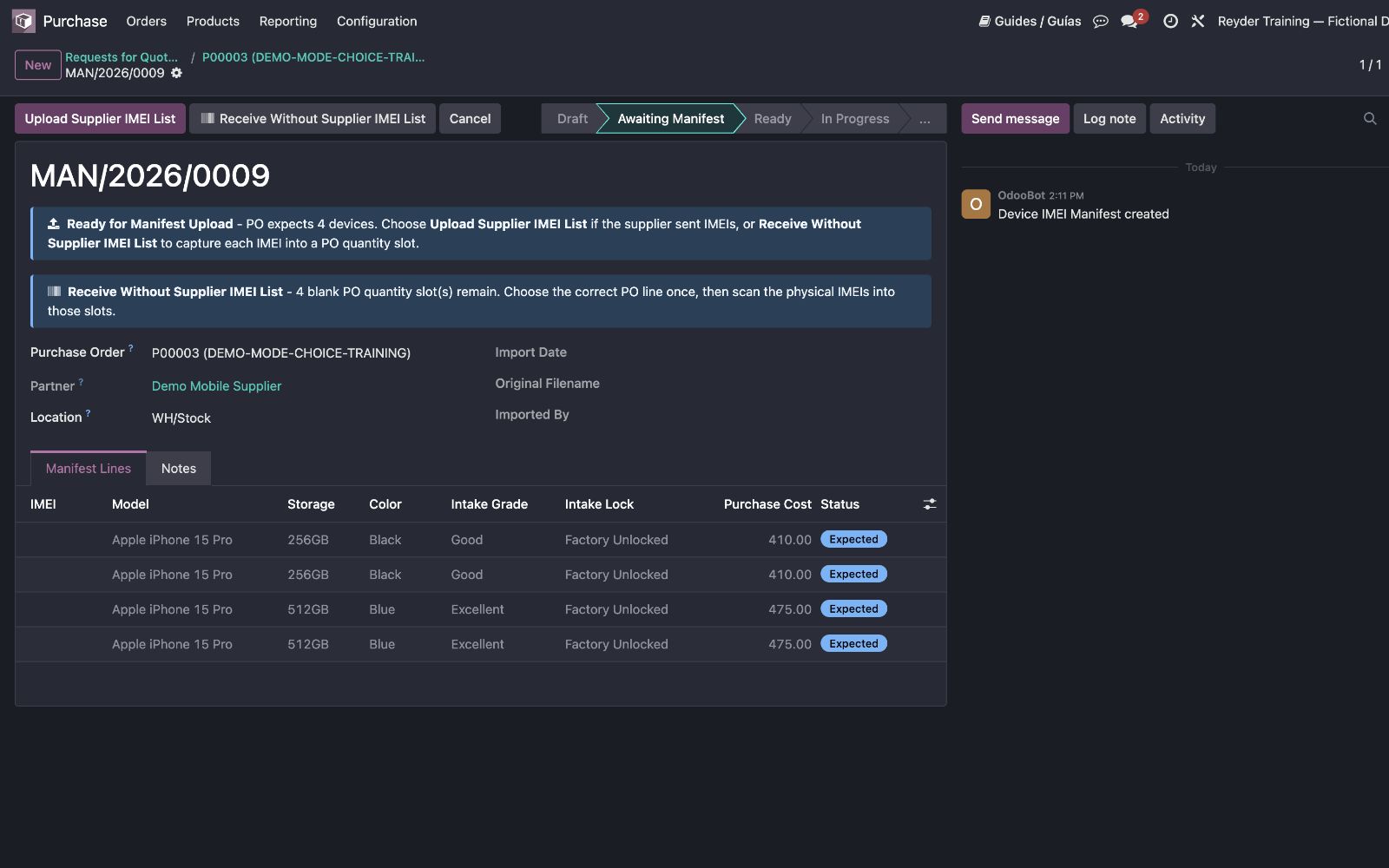
- Confirm the purchase order. Odoo creates its Receiving Manifest; click Open Device Receiving.
-
Decide the receiving mode before scanning:
- Exact supplier IMEI file available → upload it and use Verify Supplier IMEI List.
- No exact supplier IMEI file → use Receive Without Supplier IMEI List, choose the correct PO row, and scan the IMEIs into Odoo.
- Scan each physical unit once.
- Resolve shortages, duplicates, and mismatches. Do not mix the two scan modes.
- When the screen and physical shipment agree, click Complete Receiving. For a short shipment, use Record Short Receipt, select a reason, review the exact outstanding units, confirm the physical count, and use the explicit Record N Missing and Close Receipt action.
An unknown IMEI in exact-list mode is not an automatic extra
Set the phone aside. Verify the box label, supplier file, and purchase order. The strict list-verification flow must not silently add an IMEI that the supplier did not declare.
Receiving checkpoint: the Receiving Manifest is Complete, every accepted IMEI exists in inventory, and every shortage has an open audit/reconciliation item. If a missing phone arrives later, a stock manager uses Reconcile Short Receipt → Late Receipt; never reopen the manifest or directly edit the missing line.
Deep guide: Purchasing & Receiving · Single Scan vs. Batch Scan
Part 2 — Choose how condition will be represented
Receiving preserves the supplier/PO claims separately from Reyder's own results.
- Choose As Received (Supplier/PO Grade) when Reyder is reselling the newly received supplier-grade phones as-is. Pending QC can be valid.
- Choose Reyder QC Verified only when Reyder completed QC and is making its own grade or lock promise — the scan will not stop an incomplete promise, but the promise is false until the device is actually QC Complete.
Phones currently In QC remain held until that test is finished or cancelled. Grade, lock, and QC status — even a known QC Failed result — are recorded facts and never block a wholesale scan or sale. Do not copy supplier claims into verified fields.
Deep guide: Quality Control & Selling As
Part 3 — Enter the sales order
- Open Sales and create a quotation for the correct customer.
- Enter each device row in this order:
Model → Storage → Color → Selling As → Grade → Lock → Qty → Unit Price
- Leave Color, Grade, or Lock blank when that item was not promised. Use separate rows for different promises.
- Save and review the customer, rows, quantities, and prices.
- Click Scan IMEIs in the blue next-step banner.
That action confirms a normal quotation if necessary, creates or reopens the linked Delivery Manifest, and opens the outbound scanner.
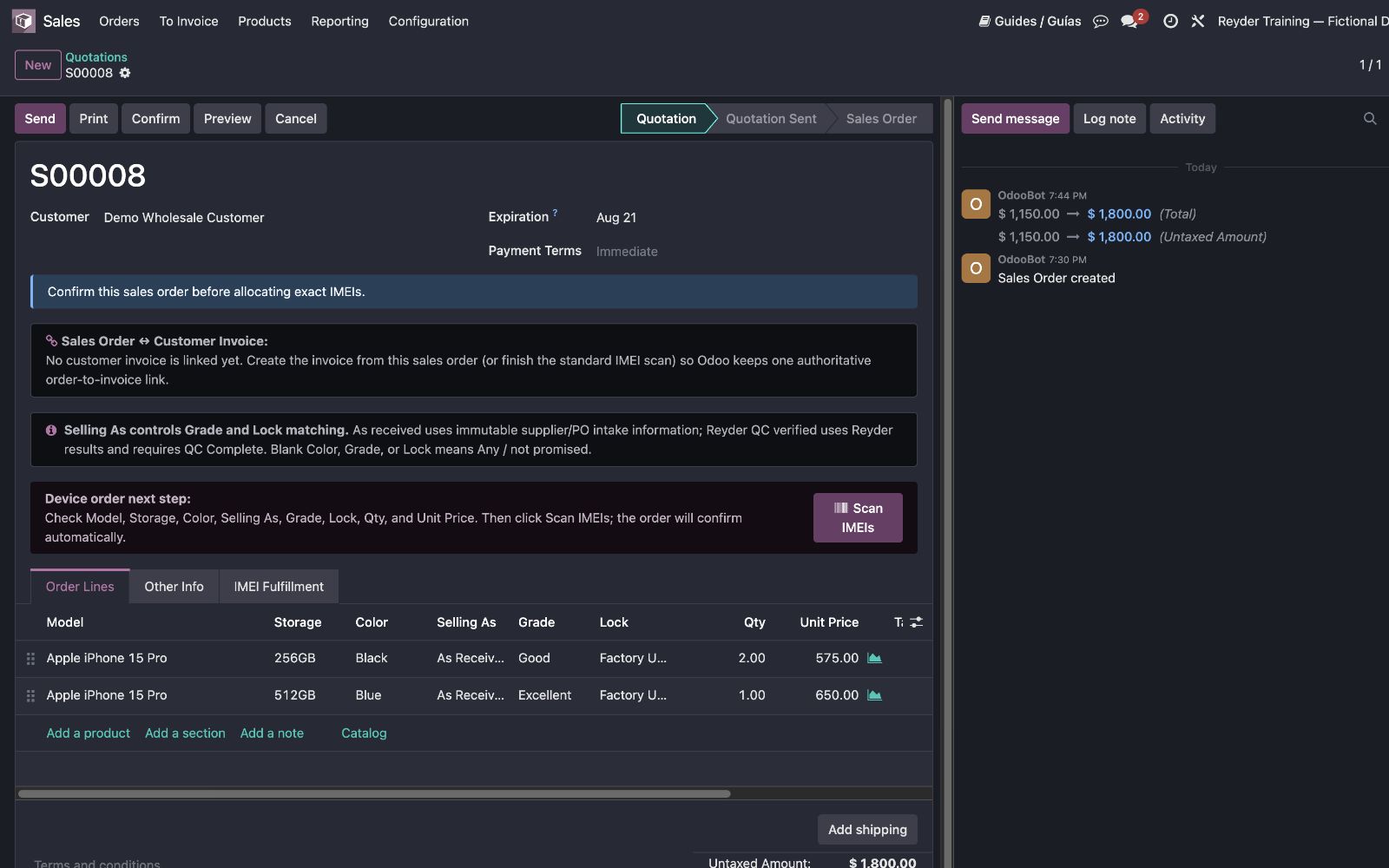
Sales checkpoint: the sales rows describe the deal accurately before any IMEI is assigned.
Deep guide: Sales Orders
Part 4 — Scan and finish the delivery
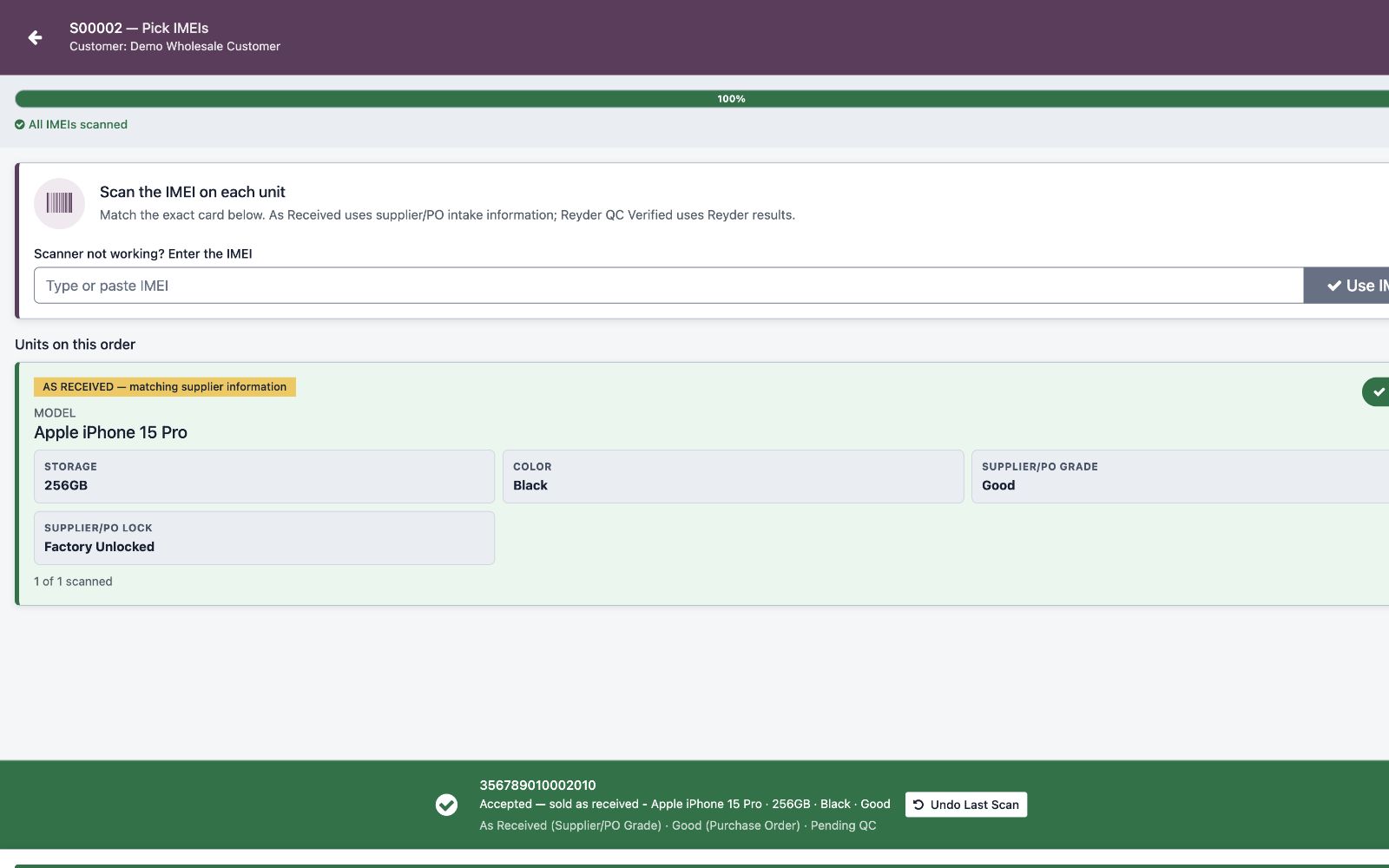
- Confirm the scanner cards show the correct customer requirements and Selling As basis.
- Scan the IMEI on each physical phone leaving the warehouse.
- A green result means the unit was accepted. A red result means it was not added and must not be shipped.
- Use Undo Last Scan immediately if the wrong physical unit was accepted.
- When every row says
Scanned = Ordered, click Finish IMEI Scan and review the confirmation. - Read the confirmation and click Complete Delivery only when the phones are physically leaving inventory.
Completion marks the exact IMEIs sold, posts the delivery COGS entry when accounting is configured and the delivered inventory has non-zero value, and creates/posts linked customer billing when needed. If billing already came from this sales order, Odoo posts valid draft billing and invoices only any real uninvoiced remainder—never the same units twice.
Delivery checkpoint: the Delivery Manifest is Complete and the invoice is reachable from the sales order's Invoices smart button.
Deep guide: Delivery Manifests · Sales Order & Invoice Linkage
The result you should be able to explain
At the end of the normal flow:
- The PO explains why the phones arrived.
- The Receiving Manifest proves which IMEIs were received.
- Each inventory device preserves supplier/PO intake evidence.
- The SO explains what the customer bought.
- The Delivery Manifest proves which IMEIs left.
- The linked customer invoice records the amount billed.
If any link is missing, stop before creating another document and use Troubleshooting.