End-to-End Walkthrough — Receive and Resell As Received
This training scenario follows a supplier-grade shipment that Reyder receives and sells immediately without claiming Reyder QC. It demonstrates the most common wholesale path.
For the process map, read Workflow Map. For field-by-field detail, use the linked deep guides.
Scenario
- Supplier: Demo Mobile Supplier
- Purchase: 2 iPhone 15 Pro 256GB Black/Good and 2 iPhone 15 Pro 512GB Blue/Excellent; all are supplier-listed as Factory Unlocked
- The supplier provides the exact IMEI list for the four received units
- Customer buys 2 of the 256GB units and 1 of the 512GB units at the agreed line prices
- Customer promise includes the listed Color, supplier Grade, and Factory Unlocked status
- Commercial basis: sold as received using supplier/PO grade
The example references below are illustrative. Always use the actual records in Odoo.
Stage 1 — Build and confirm the purchase order
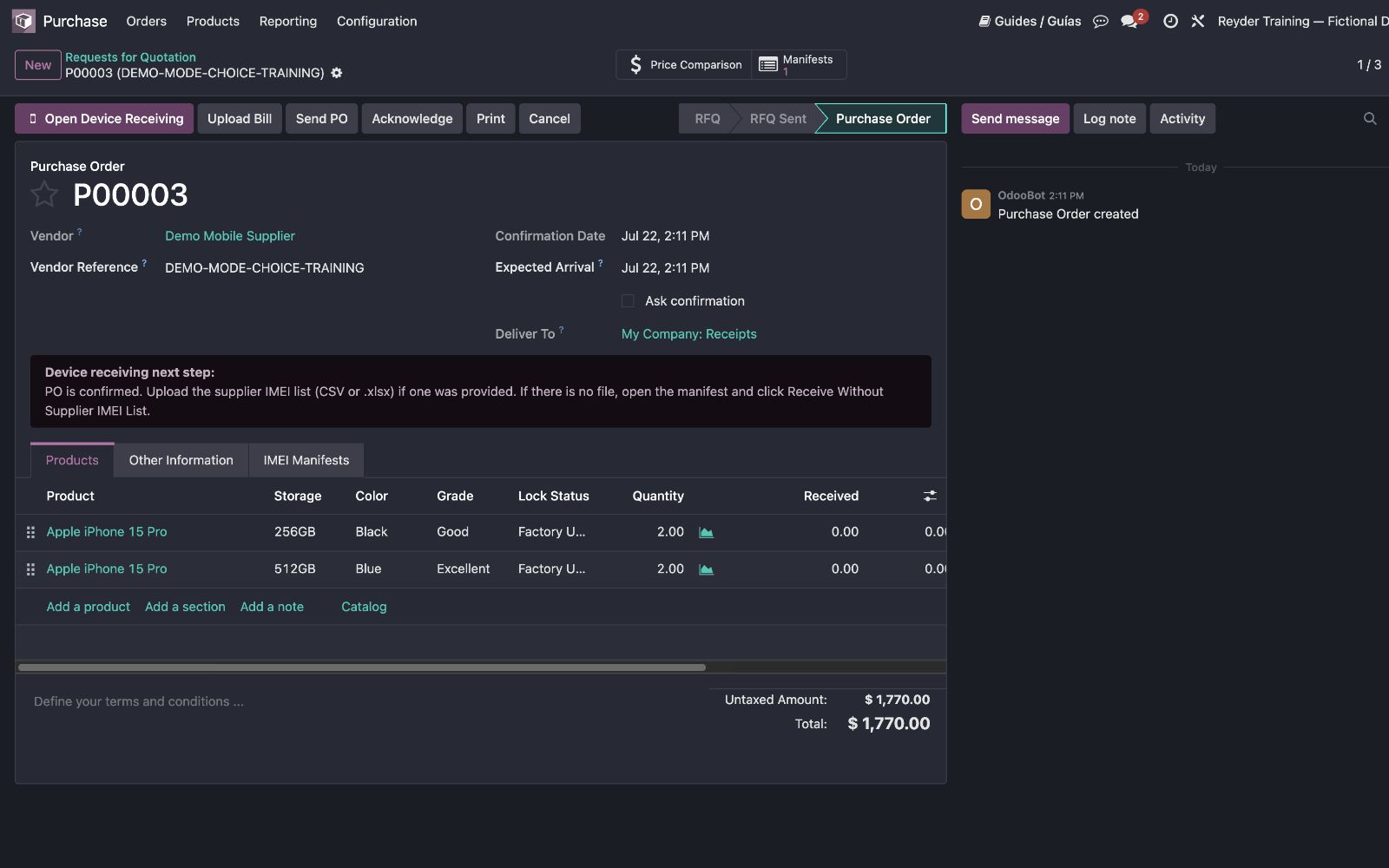
Purchasing creates one PO with separate rows for each storage capacity. Each row records the supplier, model, storage, supplier/PO condition claims, quantity, and cost.
This shipment has explicit Color, Supplier/PO Grade, and Lock claims, so the rows record them. On every device PO row, Storage, Supplier/PO Grade, and Lock are required; only Color may remain blank when the supplier did not state it. Choose Unknown when the supplier did not state Lock. If the grade is missing, stop and resolve it with Purchasing before confirming the PO. Confirming the device PO creates its linked Receiving Manifest.
Checkpoint
The PO describes what Reyder expected and the Receiving Manifest opens from that PO.
Deep guide: Purchasing & Receiving
Stage 2 — Decide how receiving will identify the IMEIs
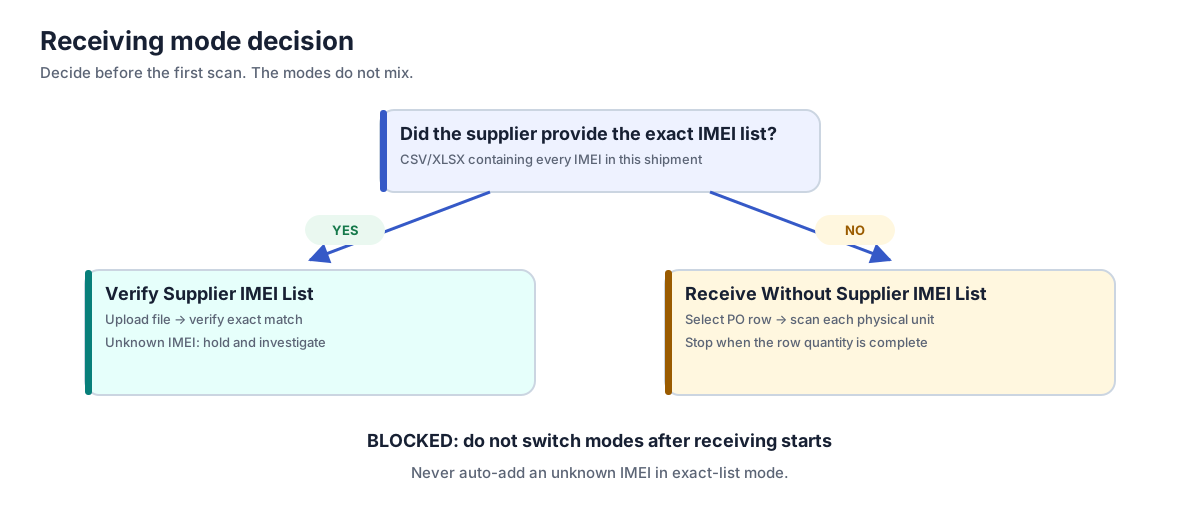
This scenario — the supplier sent an exact IMEI file
Upload the file to the Receiving Manifest. Review its row count and mapping, then open Verify Supplier IMEI List. Each physical scan must match an unreceived IMEI in that uploaded list.
An IMEI that is not on the list is held aside. It is not silently added as an extra.
Alternate route — no exact supplier IMEI file
Do not manufacture a file. Open Receive Without Supplier IMEI List, select the 256GB PO row, and scan those units. Then change to the 512GB PO row and scan those units.
The selected PO row supplies the expected model, storage, condition, lock, and cost.
Never mix modes
A Receiving Manifest uses one evidence path. Do not begin receiving without a list and then upload one, or upload an exact list and use batch assignment around it.
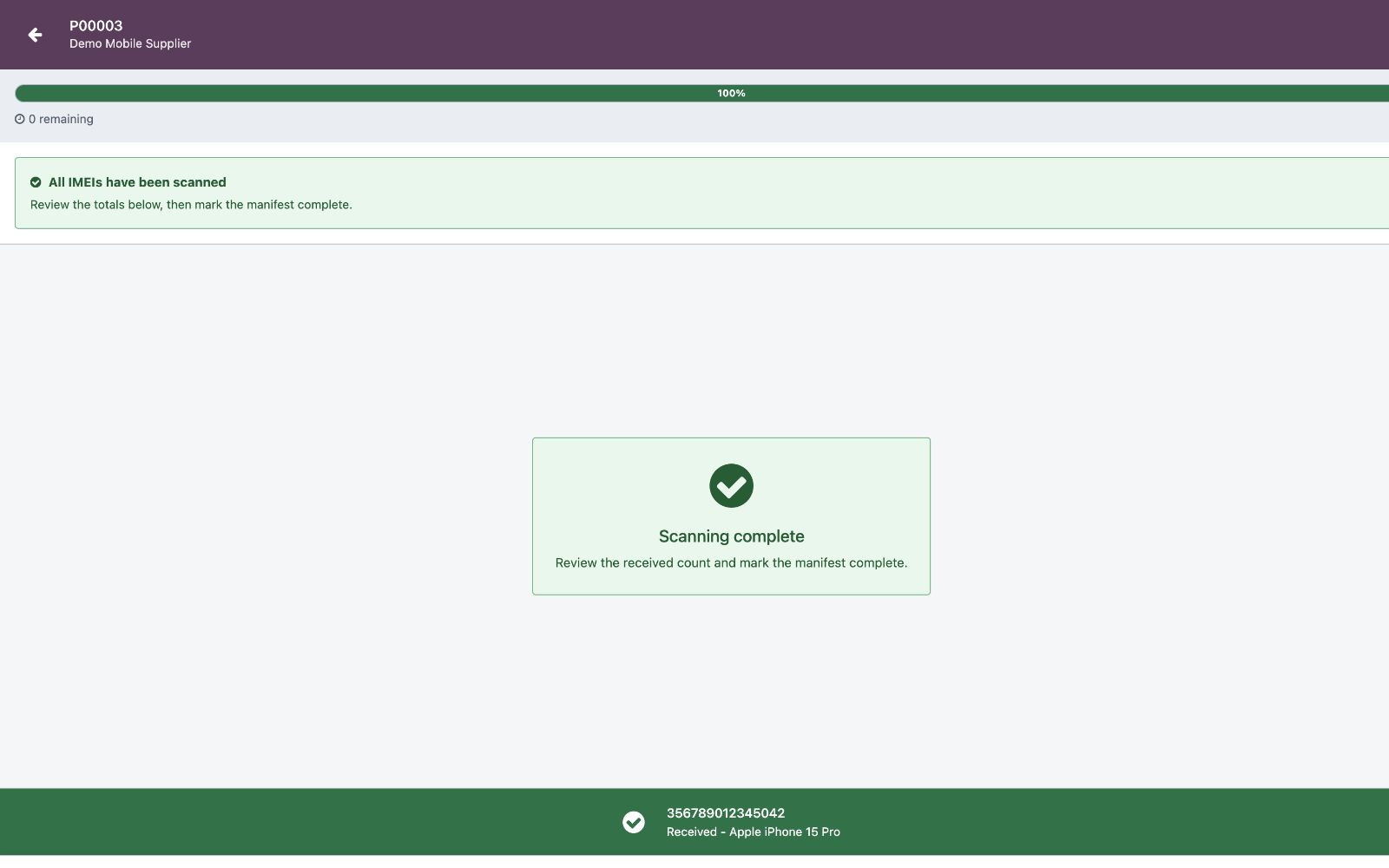
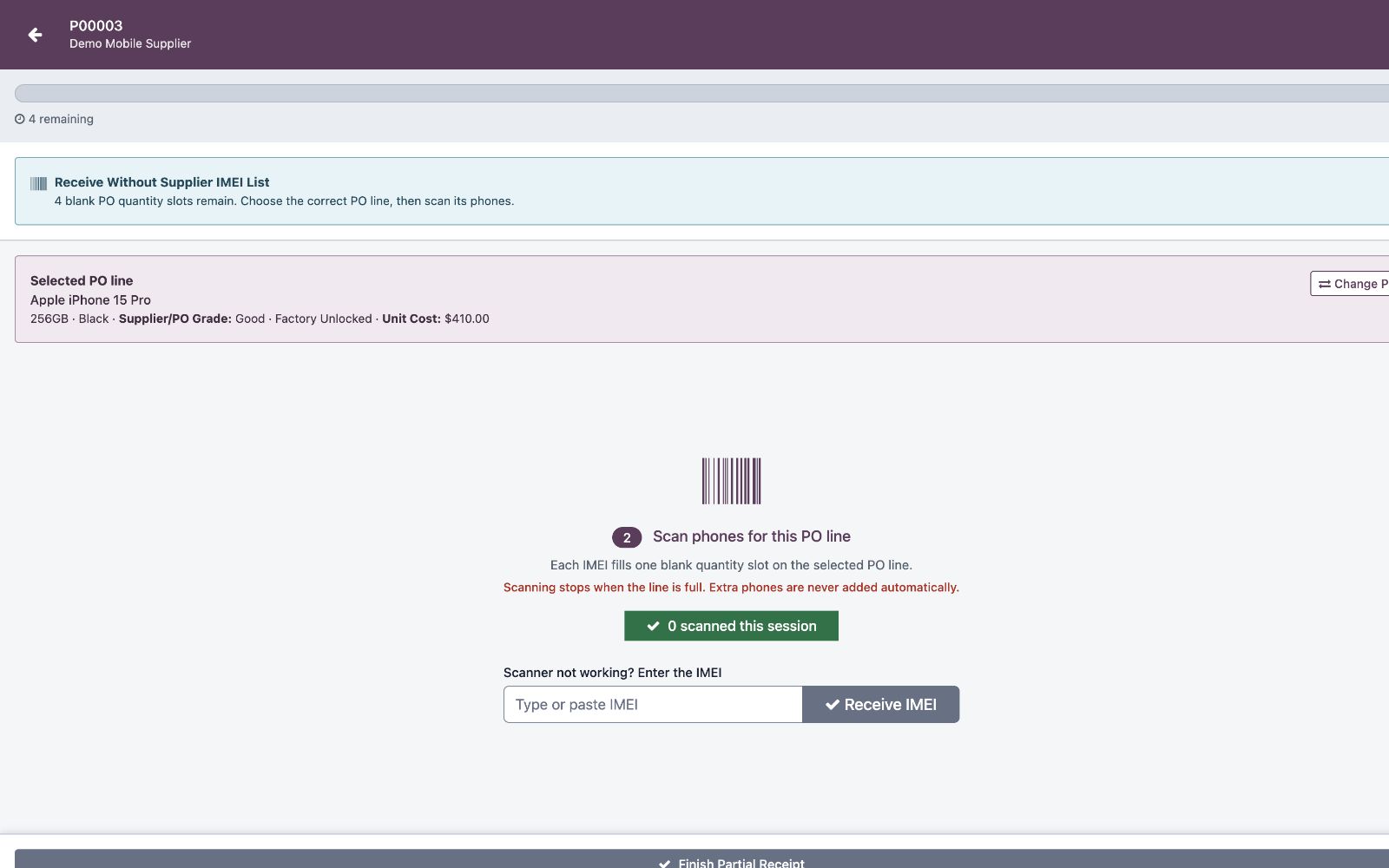
When the physical count and screen agree, click Complete Receiving (or Finish Partial Receipt when accepting a shortage), review the discrepancy dialog, and click Complete Receipt.
Checkpoint
Four accepted IMEIs exist in inventory. The Receiving Manifest is Complete and each IMEI retains its supplier/PO intake evidence.
Deep guide: Single Scan vs. Batch Scan
Stage 3 — Choose As Received instead of fabricating QC
These phones are being sold immediately using the supplier's Good and Excellent grades. Reyder is not promising that it independently tested every unit.
The inventory units may therefore remain Pending QC. Sales will use As Received
(Supplier/PO Grade) and match each row's inbound grade evidence.
Do not copy the supplier grades into Reyder Verified Grade. If later QC discovers a known conflict or failure, that known result is recorded and stays visible — the scanner won't block the sale, so hold the phone and involve a manager instead of shipping it anyway.
Checkpoint
The source of the condition promise is explicit: supplier/PO intake information, not Reyder QC.
Deep guide: Quality Control & Selling As
Stage 4 — Enter the sales order exactly as promised
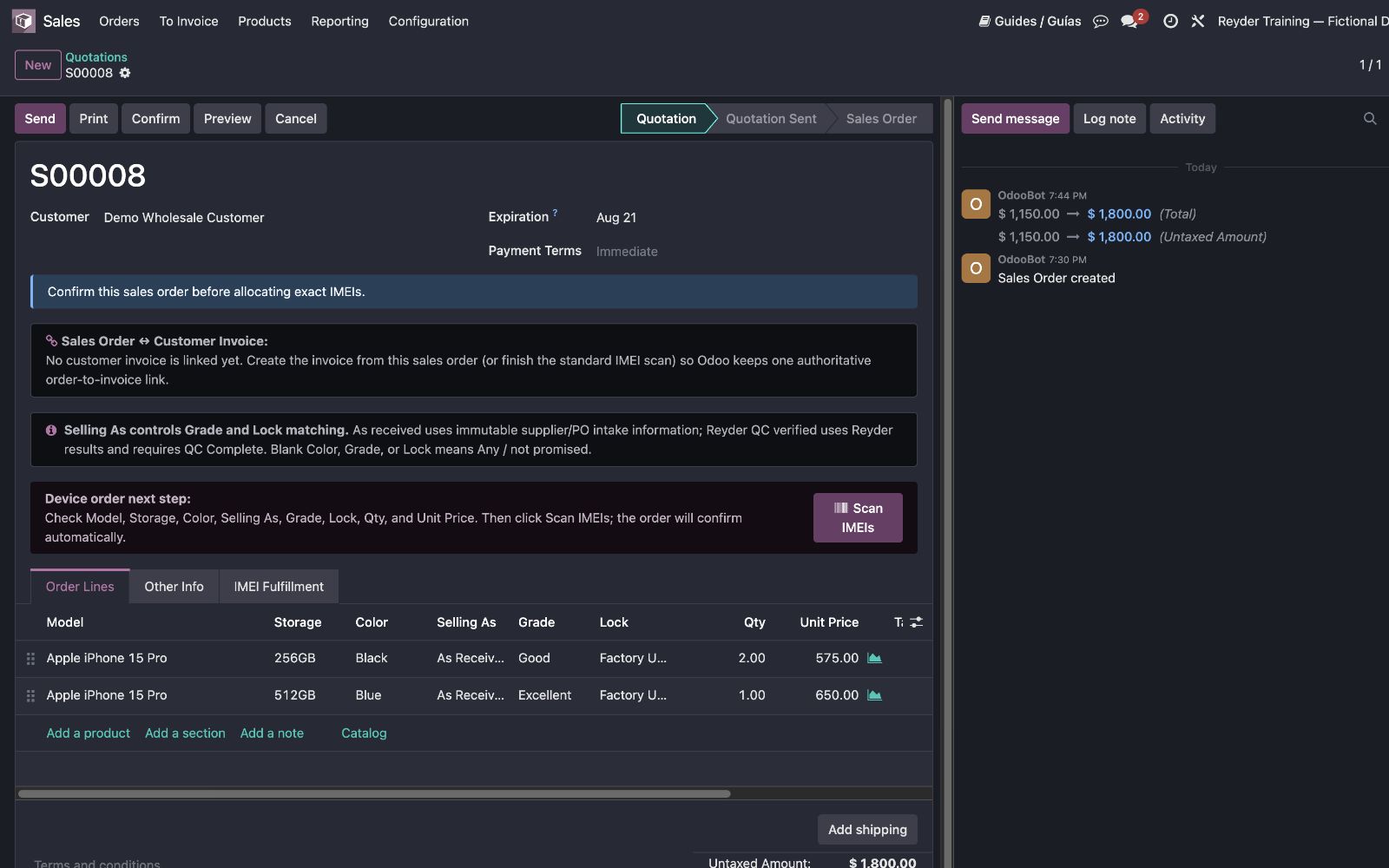
Sales creates one quotation for the customer with two rows:
| Model | Storage | Color | Selling As | Grade | Lock | Qty |
|---|---|---|---|---|---|---|
| iPhone 15 Pro | 256GB | Black | As Received | Good | Factory Unlocked | 2 |
| iPhone 15 Pro | 512GB | Blue | As Received | Excellent | Factory Unlocked | 1 |
This customer explicitly required Color, supplier Grade, and Factory Unlocked, so those fields are populated. If an optional attribute were not promised, it would remain blank and the scanner would treat it as Any / not promised.
Sales reviews the prices, then clicks Confirm. In Choose Customer Invoice, sales links the correct unlinked customer invoice or clicks Create New Invoice. After accounting reviews, posts, and fully pays that linked invoice, sales clicks Scan IMEIs to create/reopen the Delivery Manifest and open its scanner.
Checkpoint
The SO describes the customer promise before any IMEI is assigned.
Deep guide: Sales Orders
Stage 5 — Scan the exact phones leaving
The outbound scanner shows two requirement cards, each labeled AS RECEIVED — matching supplier information. The warehouse scans each physical unit once.
Every accepted scan checks the exact inventory IMEI, model, storage, selected optional requirements, supplier-grade basis, availability, ownership, company, reservation, and known-failure controls. The 256GB and 512GB counts remain separate.
If the wrong phone was accepted, use Undo Last Scan immediately. If a scan is red, set the phone aside and read the message; a rejected phone is not in the shipment.
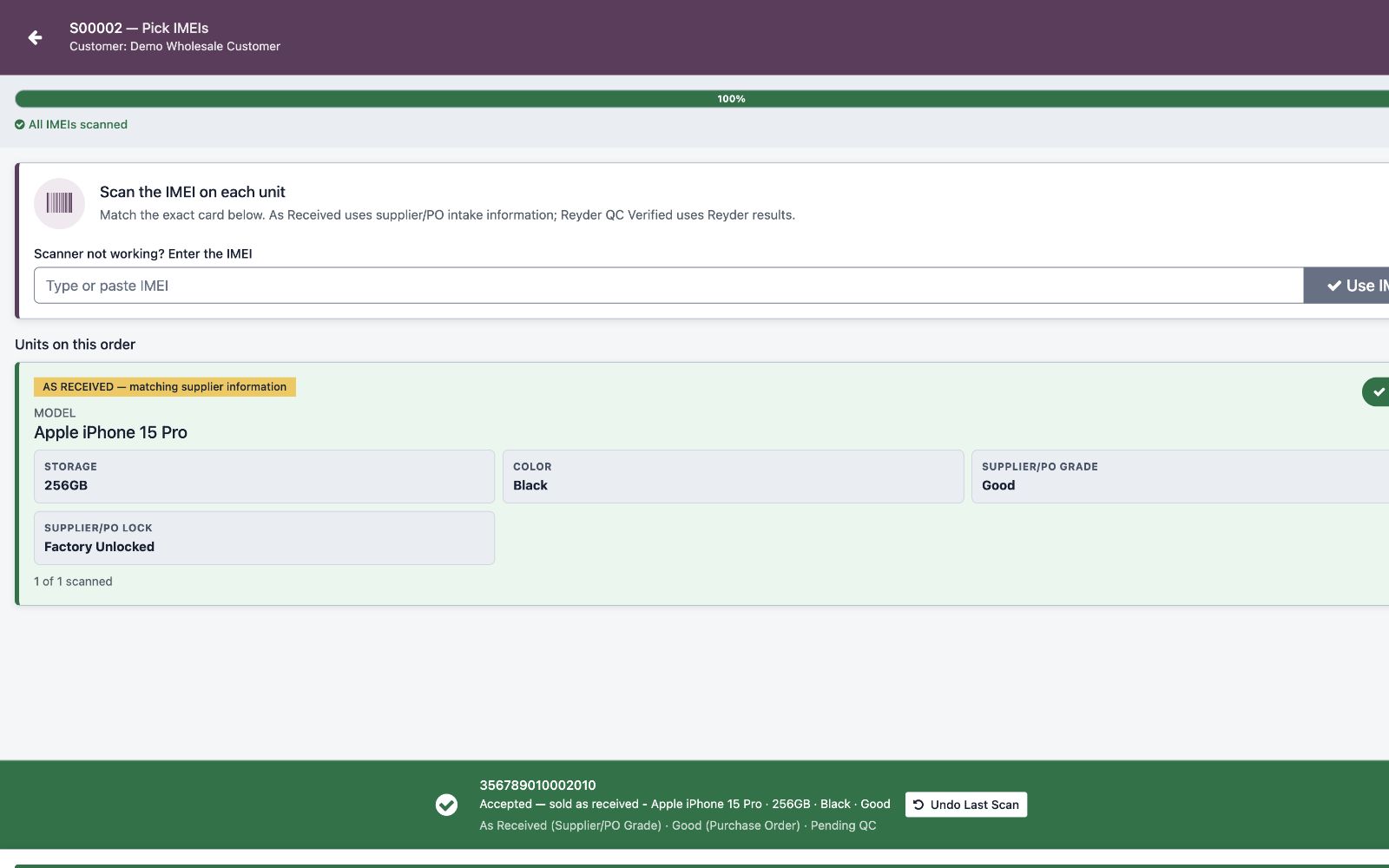
At 2 / 2 and 1 / 1, click Finish IMEI Scan, review the confirmation, and
click Complete Delivery when the phones physically leave. Scanning alone does not
post the shipment.
Checkpoint
The Delivery Manifest is Complete and all three exact outbound IMEIs are sold. The fourth received unit remains available inventory.
Deep guide: Delivery Manifests
Stage 6 — Verify the invoice link
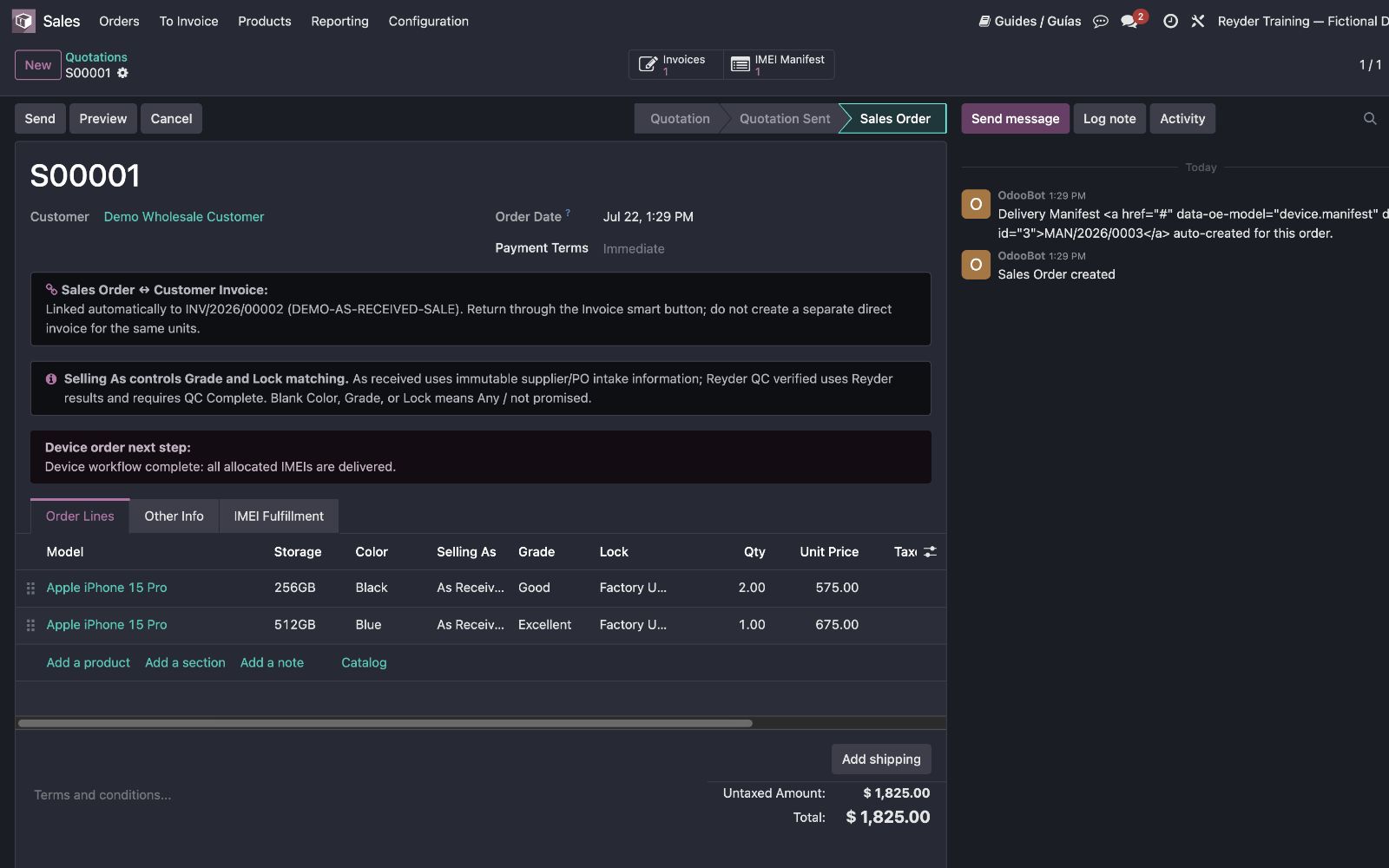
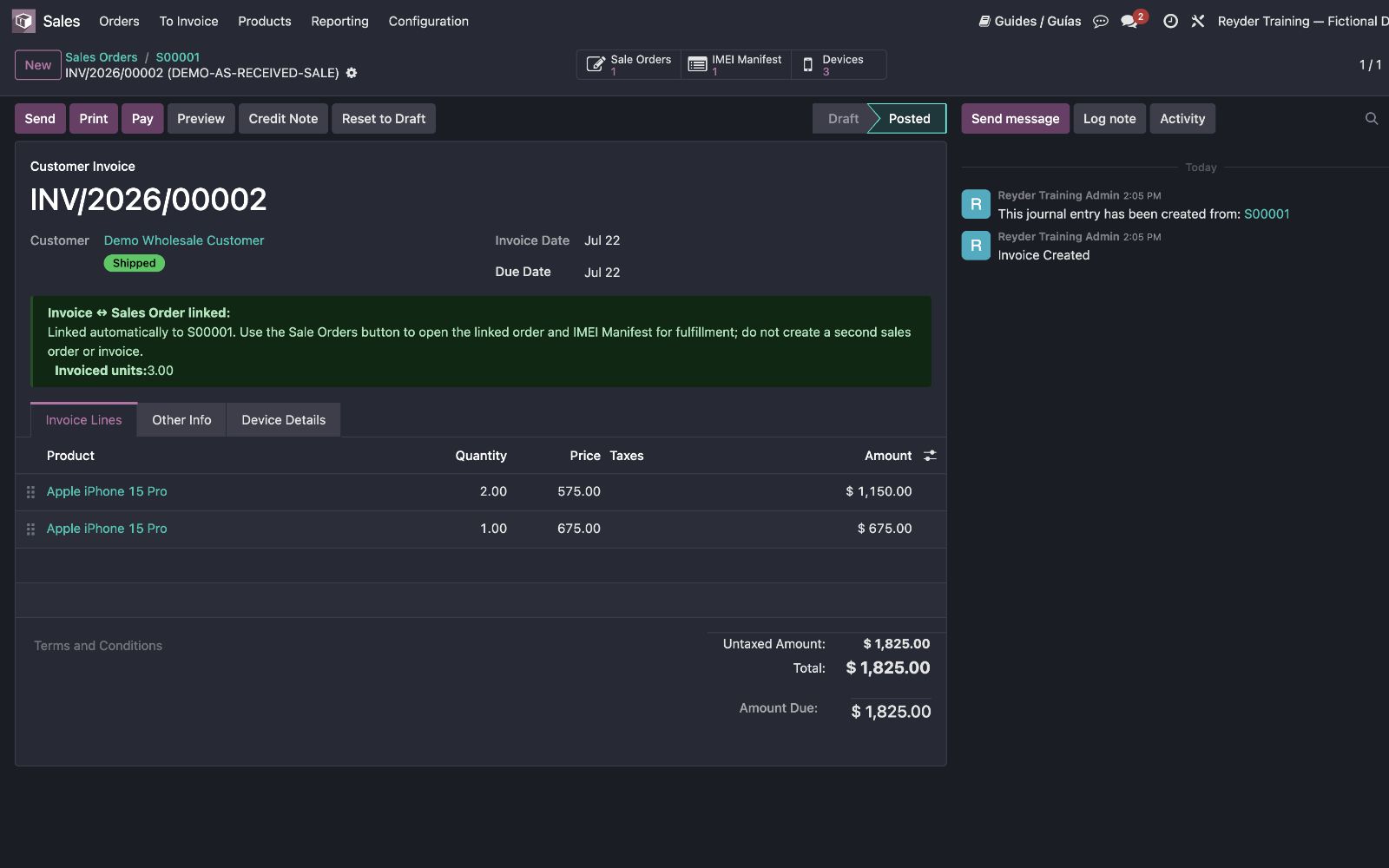
The invoice was explicitly linked or created before fulfillment. Delivery completion must reuse that billing relationship and must not create a duplicate invoice.
Open Invoices on the SO. On the invoice, verify the Sale Orders and IMEI Manifest links, customer, quantities, and prices. Do not create a second invoice.
Final checkpoint
PO → Receiving Manifest → inventory IMEIs → SO → Delivery Manifest → Customer Invoice can all be followed in Odoo without a side spreadsheet.
Deep guide: Sales Order & Invoice Linkage
Alternate branches
- If Reyder promises its own grade or unlock result, complete QC first and select Reyder QC Verified.
- If the transaction begins as a direct prepaid invoice with no SO yet, use New Prepaid Device Invoice.
- If a shipment needs container labels, use the optional Advanced packing-box workflow.
- Retail reservation, inter-company transfer, and consignment settlement are separate specialized workflows linked from the navigation.