Receiving — Exact Supplier IMEI List or No List
The two receiving modes solve different evidence problems. They are deliberately mutually exclusive.
| Who | Inbound warehouse operator |
| Use when | Receiving from an outside supplier; inter-company receipts use the third branch below |
| Have ready | Correct Receiving Manifest, physical phones, and supplier file if one exists |
| Done when | Every accepted physical IMEI is counted and the manifest is Complete |
| Stop if | The available mode disagrees with the evidence or an exact-list IMEI is rejected |
| Next handoff | QC or Sales, according to the customer promise |
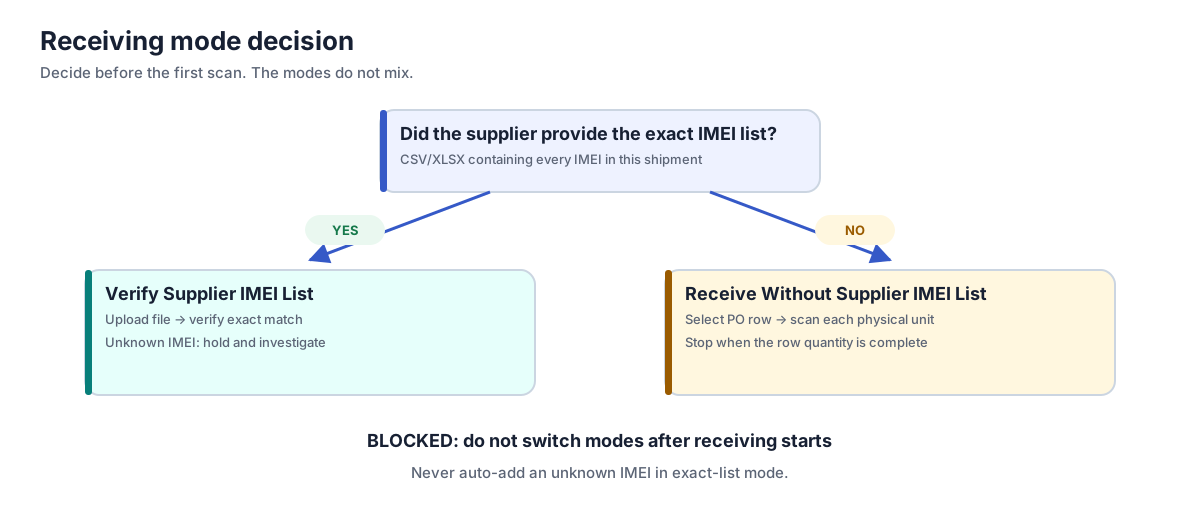
The decision
Did the supplier give Reyder an exact list of the IMEIs in this shipment?
- Yes: upload that list and use Verify Supplier IMEI List (Single Scan).
- No: use Receive Without Supplier IMEI List (Batch Scan) and select the PO row before scanning.
“Batch” does not mean pasting many IMEIs without control. The receiver still scans each physical phone once; the selected PO row supplies the attributes for successive scans.
Third branch: inter-company buyer receipt
The Yes/No choice above is for an outside supplier. On the buyer-side PO of an inter-company transfer, do not upload a new file and do not create IMEIs. Wait for the source company to complete its delivery. Odoo then loads the exact handoff list; the buyer verifies those physical IMEIs and completes the receipt.
Mode comparison
| Verify Supplier IMEI List | Receive Without Supplier IMEI List | |
|---|---|---|
| Supplier exact IMEI file | Required | Must not exist |
| Training shorthand | Single Scan | Batch Scan |
| Match basis | Exact unreceived IMEI in uploaded list | Receiver-selected PO row |
| Product choice before each scan | Determined by uploaded row/mapping | Select a PO row before scanning its group |
| Unknown IMEI | Block and set aside | Can be assigned only within the selected PO row and remaining quantity |
| Purpose | Verify supplier declaration against the box | Create inventory IMEIs when supplier supplied no list |
The server enforces the mode as well as the screen. Changing tabs, refreshing, or calling the scanner another way must not turn one workflow into the other.
Mode A — Verify Supplier IMEI List (Single Scan)
Use this when the supplier provided the exact IMEIs.
A1. Upload the file
On the Receiving Manifest, click Upload Supplier IMEI List. Choose the file in Manifest File (CSV/.xlsx), verify the PO and receiving location, then click Parse File. CSV and Excel files are supported. IMEI is the only essential source column; additional columns can preserve model, storage, color, supplier grade, supplier lock, SKU, or carton data. Unit cost always comes from the approved PO row; a cost column in the supplier file is ignored.
Need a clean starting format? Download the fictional supplier IMEI CSV template. Replace every example row with the supplier's actual shipment data; never upload the training IMEIs.
Review the upload preview carefully:
- correct file and sheet;
- IMEI column mapped correctly;
- row count reasonable for the PO;
- duplicates and blank values resolved;
- product/PO row mapping understood; and
- every Selected PO Promise matches the model, storage, color, Supplier/PO Grade, lock, unit cost, and remaining/ordered quantity you intend to receive.
Preview row meaning:
- Valid — ready to import.
- Warning — review the issue and PO-row mapping before importing.
- Error — must be corrected or deliberately marked Skip; it cannot import.
Not selected means stop and resolve the row
Open that row's PO Line selector and choose the full PO promise that matches the supplier evidence. The option spells out model, storage, color, Supplier/PO Grade, lock, unit cost, and Remaining / Ordered quantity so two similar rows are not interchangeable. If any value is wrong, stop and have Purchasing correct the PO.
Use Bulk Resolve only when every unresolved IMEI belongs to that exact same promise. Odoo blocks Bulk Resolve or Import when the selection would exceed the PO row's remaining quantity; do not work around that guardrail by choosing a similar row.
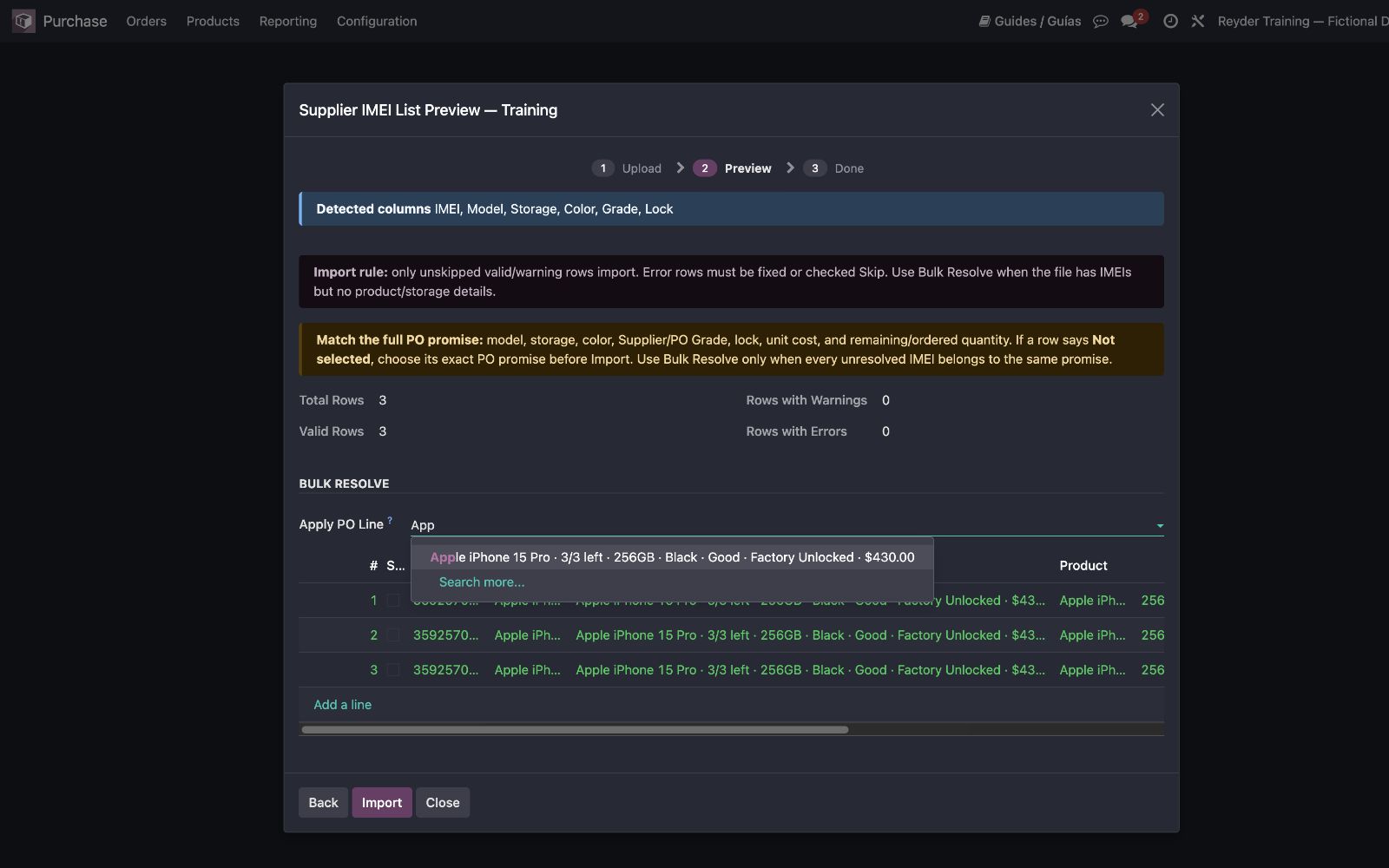
When the unskipped counts and mappings are correct, click Import. Odoo returns directly to the Receiving Manifest. Confirm its state is Ready, its Original Filename is the file you reviewed, and its expected count is correct; then open Verify Supplier IMEI List.
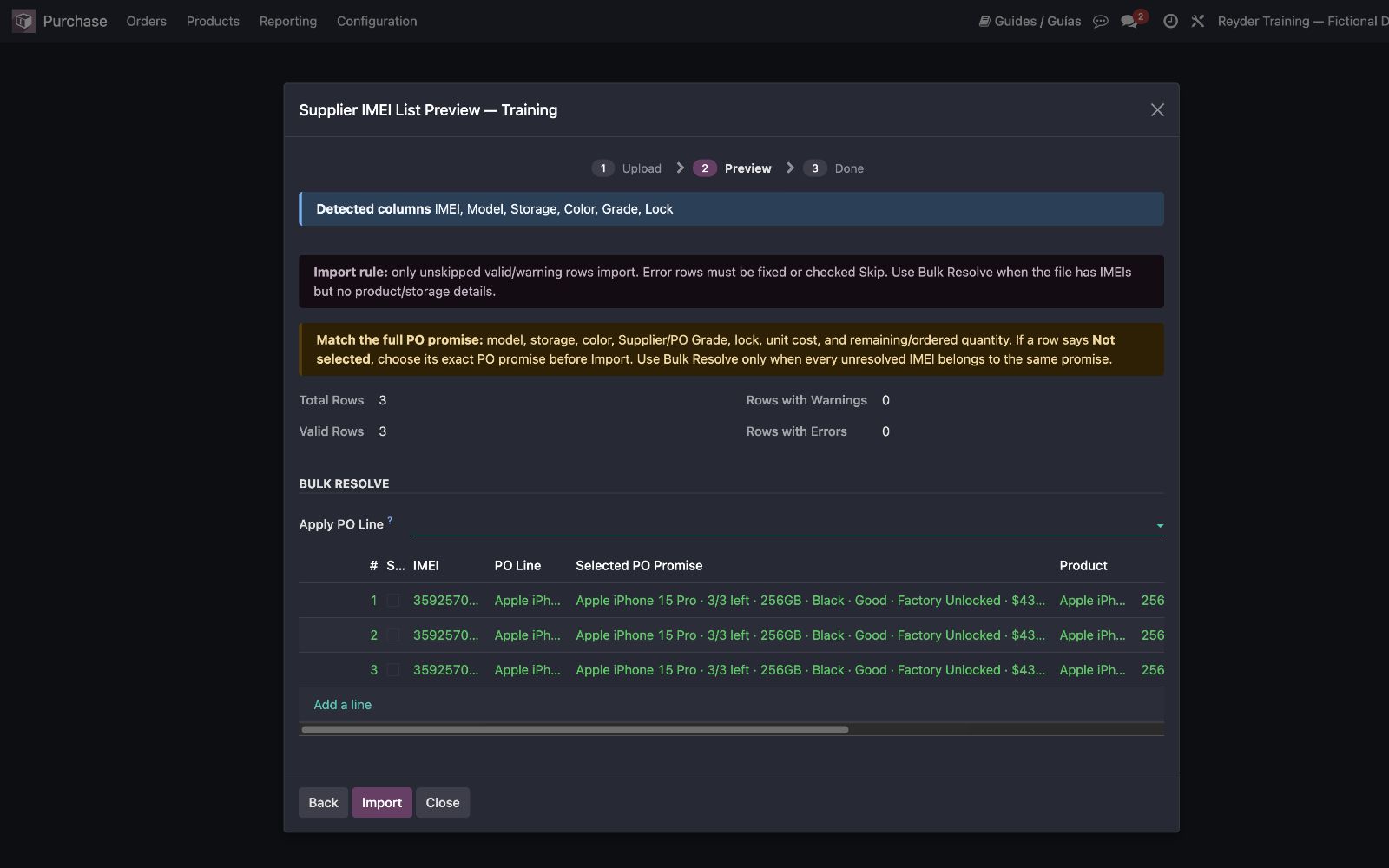
A2. Open exact-list verification
Click Verify Supplier IMEI List. The scanner should show the uploaded filename and remaining exact-list count. The no-list mode is unavailable for this Receiving Manifest.
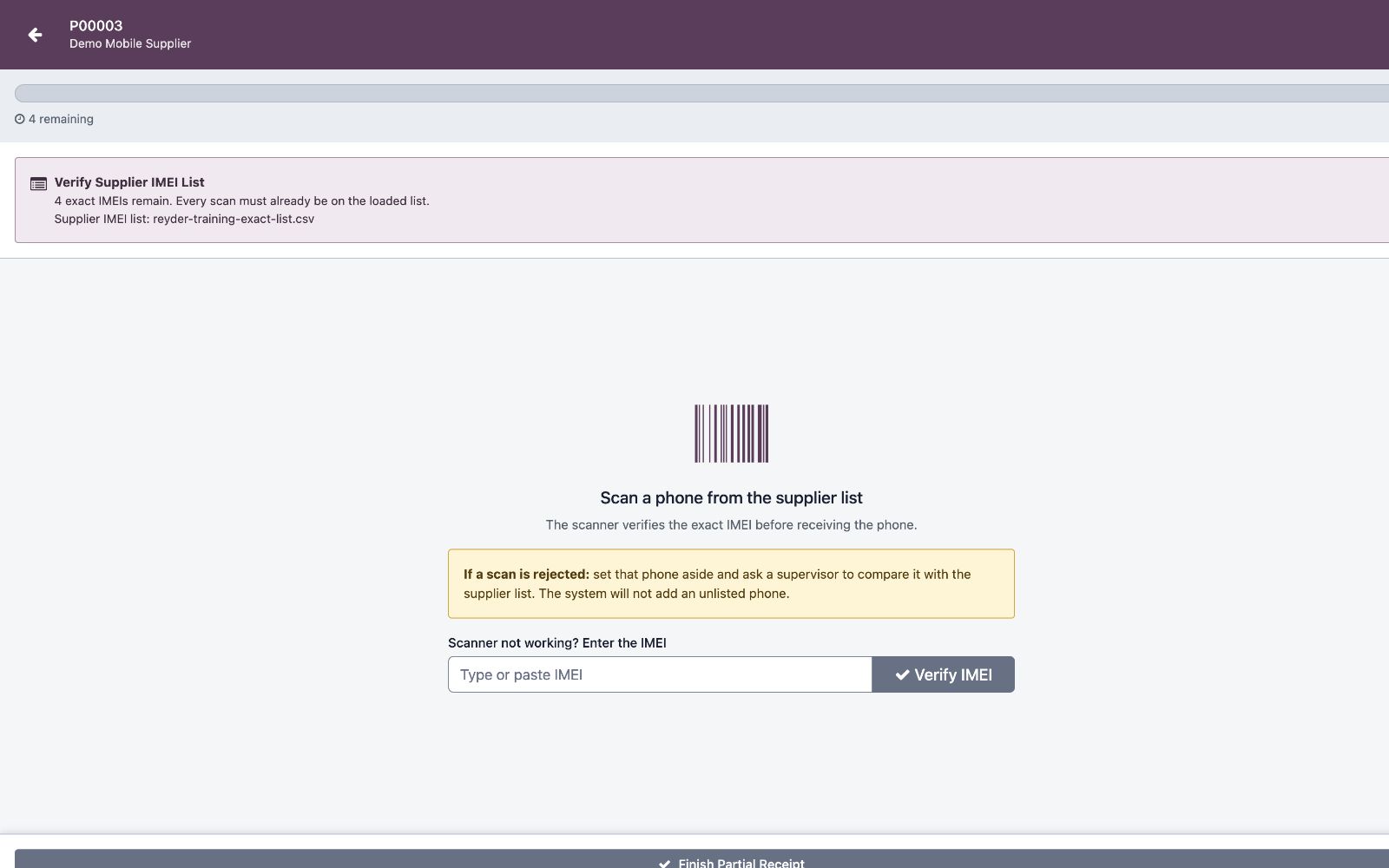
A3. Scan each physical phone
Each successful scan:
- normalizes and validates the IMEI digits;
- finds the exact unreceived line from the uploaded supplier file;
- resolves it to the correct PO row when needed;
- creates the inventory IMEI with preserved intake evidence; and
- marks that exact list row Received.
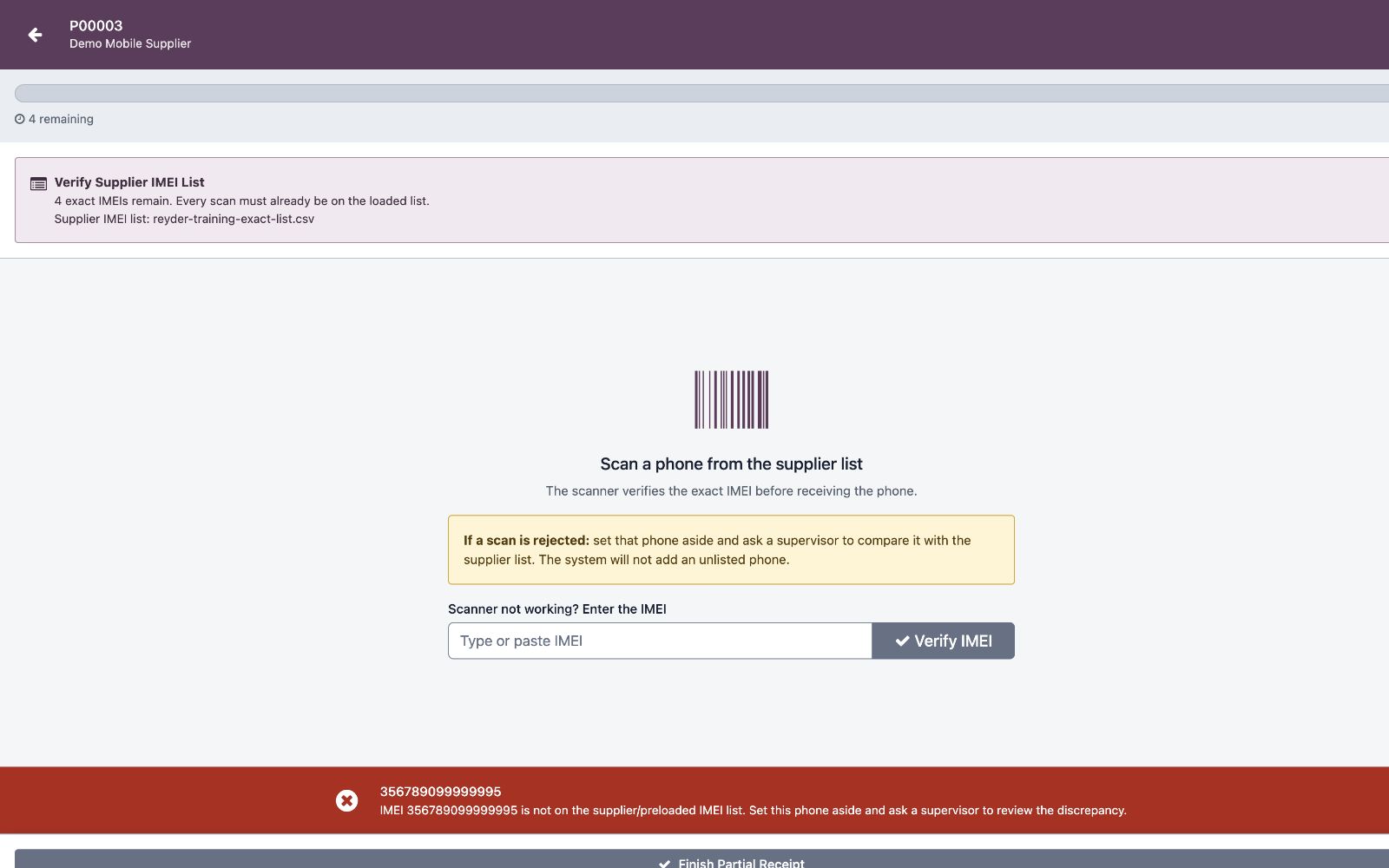
A green result is positive proof for that unit. A red result means the phone was not received.
A4. Handle an IMEI that is not on the list
Do not select a product and add it as an unexpected phone. Instead:
- place the phone in a clearly marked hold area;
- scan/type the label into a neutral text field to confirm the gun did not add extra characters;
- check both IMEI labels if the device supports dual SIM;
- search the supplier file and Odoo for the exact digits;
- verify the correct shipment and PO; and
- ask purchasing to resolve the supplier discrepancy.
Resume only with an IMEI declared on this exact list. A manager can handle a true overage through a separately reviewed correction; strict receiving must not auto-add it.
A5. Finish exact-list verification
When the list and physical box are reconciled, return to the Receiving Manifest, review Received/Missing, and complete it. An unscanned list row represents a shortage, not an invitation to substitute a different IMEI.
Mode B — Receive Without Supplier IMEI List (Batch Scan)
Use this only when the supplier did not provide exact IMEIs.
B1. Start without uploading a file
On the Receiving Manifest, click Receive Without Supplier IMEI List. This guide calls that pattern “Batch Scan,” while the actual scanner heading remains Receive Without Supplier IMEI List. It requires a PO row before accepting an IMEI; exact-list verification is unavailable because there is no supplier list to verify.
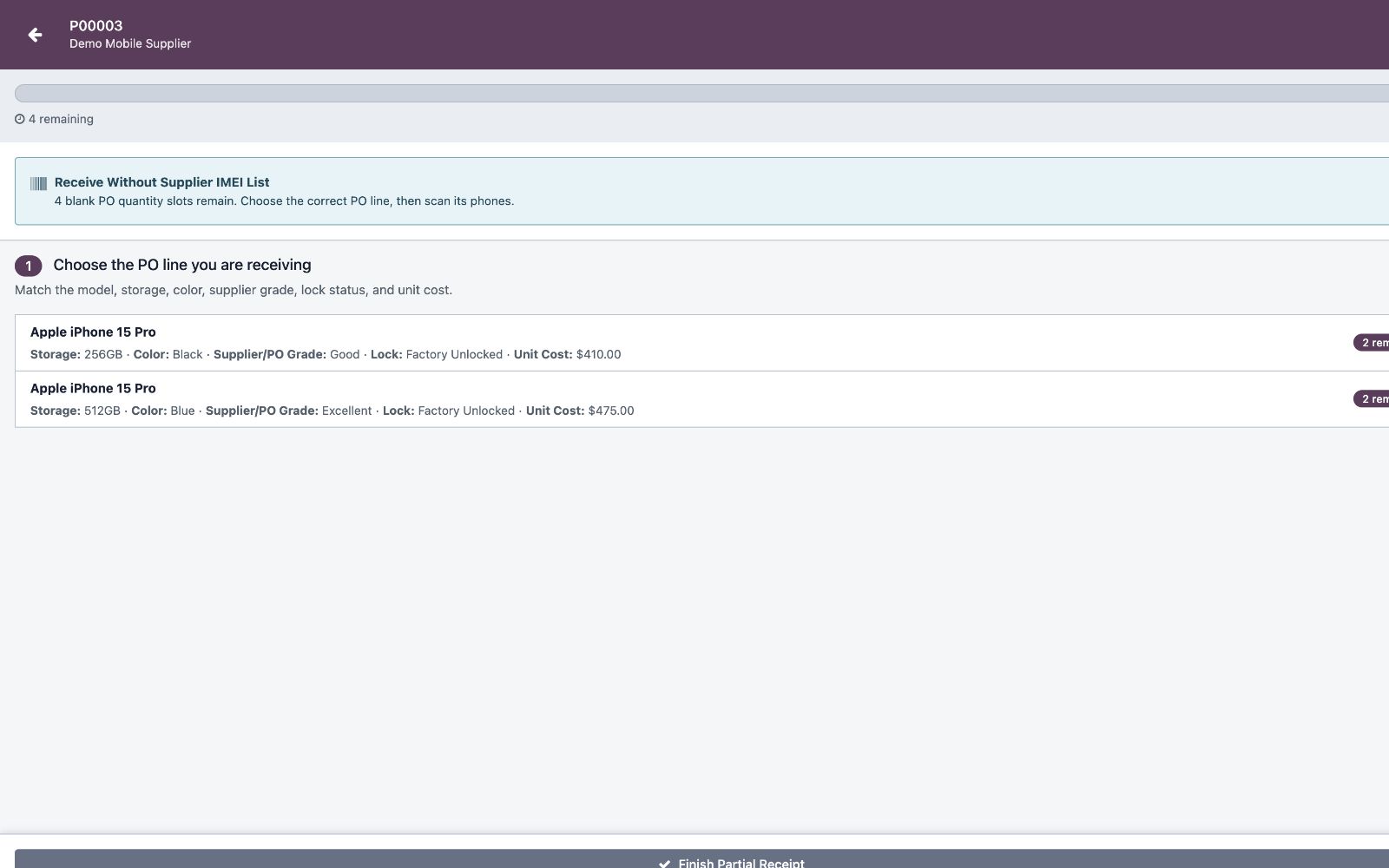
B2. Select the PO row
Before the scanner accepts an IMEI, choose the correct PO row/group. Confirm its:
- model;
- storage;
- supplier/PO grade;
- optional color;
- supplier/PO lock, using Unknown when the supplier did not state it;
- remaining quantity; and
- unit cost.
B3. Scan that physical group
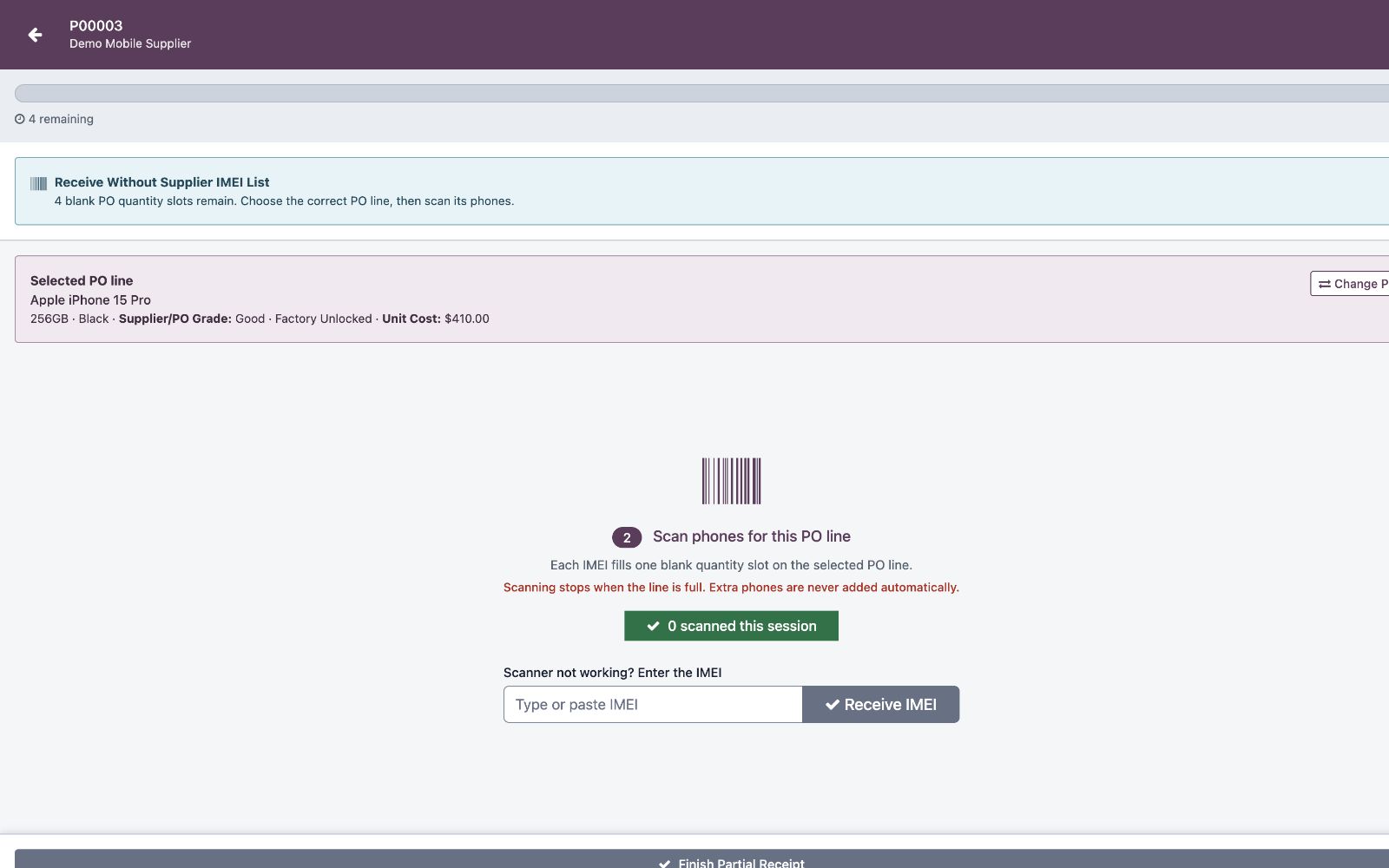
Keep only phones matching the selected PO row in the work area. Every successful scan creates a new inventory IMEI and consumes one remaining slot in that group.
When switching from 256GB to 512GB, click Change PO Line, physically clear the work area, and select the 512GB row before scanning again.
B4. Stop at the ordered quantity
Do not continue simply because more phones are in the box. An exhausted row or overage requires purchasing review. Confirm whether the PO should be corrected before accepting additional inventory.
B5. Complete and preserve provenance
No-list receiving still preserves supplier/PO attributes and cost from the selected PO row. It does not create Reyder verified condition results.
When the physical shipment and screen agree, click Complete Receiving. If units are still expected, the button is Finish Partial Receipt instead. Read the review dialog, then click Complete Receipt; that second action posts the receipt.
Mixed-mode protection
A Receiving Manifest must not change evidence modes after receiving begins.
| Situation | Correct action |
|---|---|
| Uploaded exact list, then someone wants Batch Scan | Continue exact-list verification; do not switch |
| Began no-list receiving, then supplier sends a file | Finish/resolve the controlled session; do not upload over received work |
| Wrong file was uploaded before any scans | Correct/re-upload only while the manifest permits it and Received is zero |
| Wrong PO row selected in no-list mode | Stop immediately; do not keep scanning; correct the affected unit through the reviewed workflow |
Fast error guide
| Message/symptom | Meaning | Next safe action |
|---|---|---|
| Single Scan unavailable | No exact supplier IMEI list is uploaded | Use no-list mode; do not fabricate a file |
| Batch Scan unavailable | An exact supplier list controls this manifest | Verify that list |
| Not on supplier IMEI list | Physical phone was not declared in this list | Hold it and investigate |
| Select a PO row first | No-list mode has no attribute source yet | Select the exact physical group |
| Already scanned / IMEI exists | Duplicate in this manifest or system | Search before retrying |
| Selected row has no remaining units | Ordered quantity is exhausted | Stop and review the overage |
For more detail, use Troubleshooting.