Sales Order & Customer Invoice Linkage
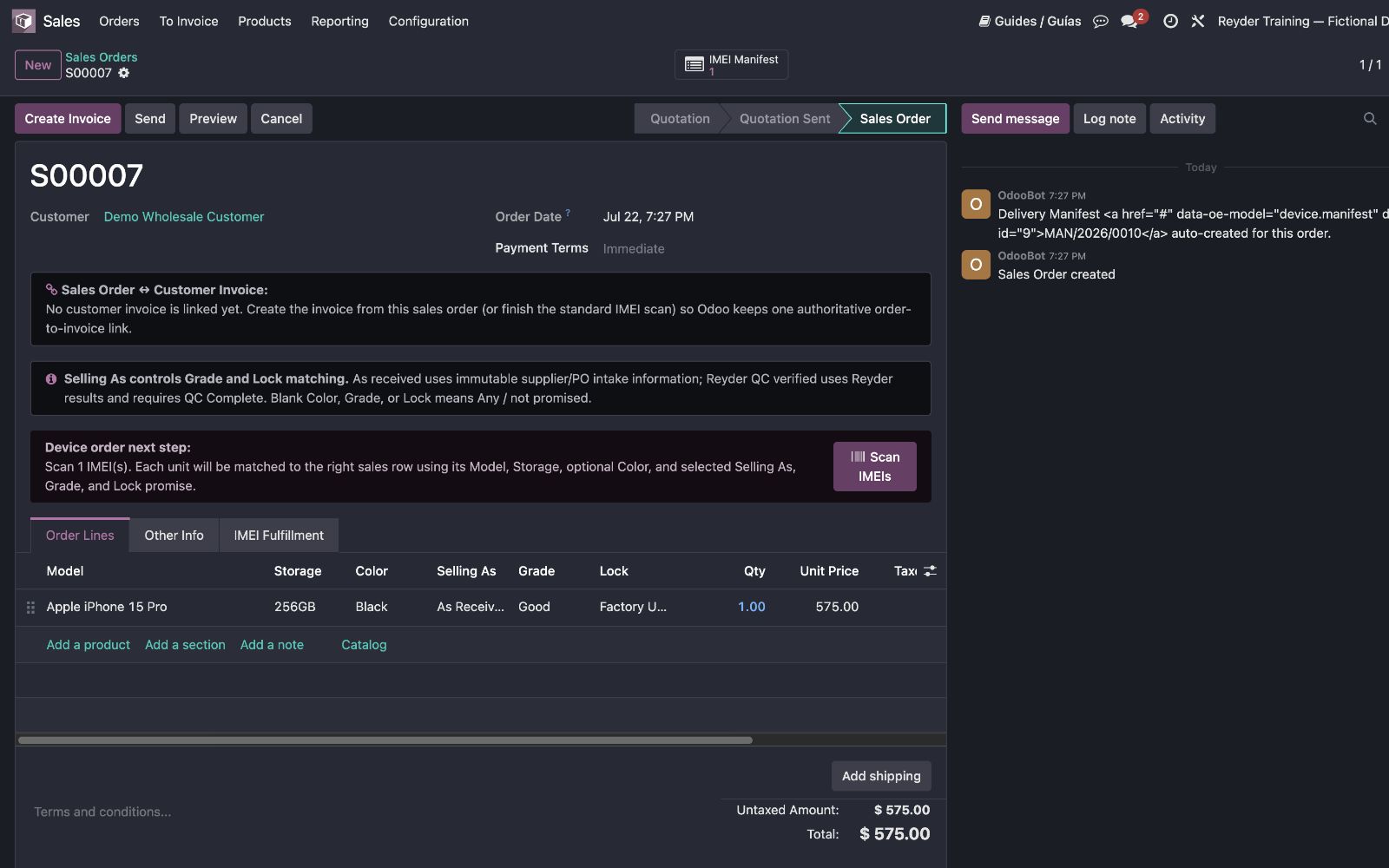
Every external device sales order must choose its customer invoice before Odoo confirms the order. This prevents a sales order from silently creating a second invoice when accounting already entered one first.
| Who | Sales or accounting creating an external device sale |
| Use when | Confirming a new device quotation or invoicing a confirmed device order |
| Have ready | Correct customer, company, products, quantities, prices, taxes, and any existing invoice |
| Done when | One invoice is linked to the SO, the SO is confirmed, and no duplicate invoice was created |
| Stop if | Odoo says the selected invoice does not cover the SO exactly |
| Next handoff | Accounting posts and fully pays the invoice, then warehouse scans IMEIs |
The standard choice
After reviewing the quotation, click Confirm or Choose or Create Invoice. Odoo always opens the same choice:
- Link This Invoice beside an existing unlinked invoice; or
- Create New Invoice from the sales order.
The list deliberately shows all active, unlinked customer invoices for the same commercial customer and company. It does not hide invoices because the date, reference, amount, or products look different. This keeps the operator's choice simple and visible.
Odoo performs the strict check only after Link This Invoice is clicked. The invoice must have the same company, customer, currency, products, aggregate quantities, net unit prices, product subtotals, taxes, and total as the sales order or its live uninvoiced remainder. If not, Odoo rejects the link and changes nothing.
Important
Seeing an invoice in the list does not mean it matches. It means only that it belongs to this customer and is still unlinked.
Path A — Link an invoice accounting entered first
Use this when the customer invoice already exists:
Create SO → Confirm → choose invoice → Link This Invoice
          → post/pay invoice → Scan IMEIs → Complete Delivery
- Review the SO's customer, rows, quantities, prices, and taxes.
- Click Confirm.
- Find the existing invoice in All Unlinked Invoices for This Customer.
- Click Link This Invoice on that row.
- If Odoo rejects it, correct the source clerical error or choose another invoice. Do not force the relationship with free text.
- If accepted, Odoo links the existing invoice, confirms the SO, and creates no new customer invoice.
An invoice may use one aggregate row while the SO has several fulfillment rows for the same product. Odoo records the exact quantity coverage internally without rewriting the accounting invoice.
Storage must match too: a 256GB invoice cannot cover a 128GB sales row just because the model, price, and total match. If the invoice specifies storage, fill that same storage on the SO before linking; split mixed-capacity demand into separate rows. Once linked, the invoice's storage is locked and the SO cannot change or clear that promise. Cancel or fully reverse incorrect billing through Accounting before replacing it; do not change a physical IMEI's capacity to make it scan.
Path B — Create a new invoice
Use this when no listed invoice is the correct one:
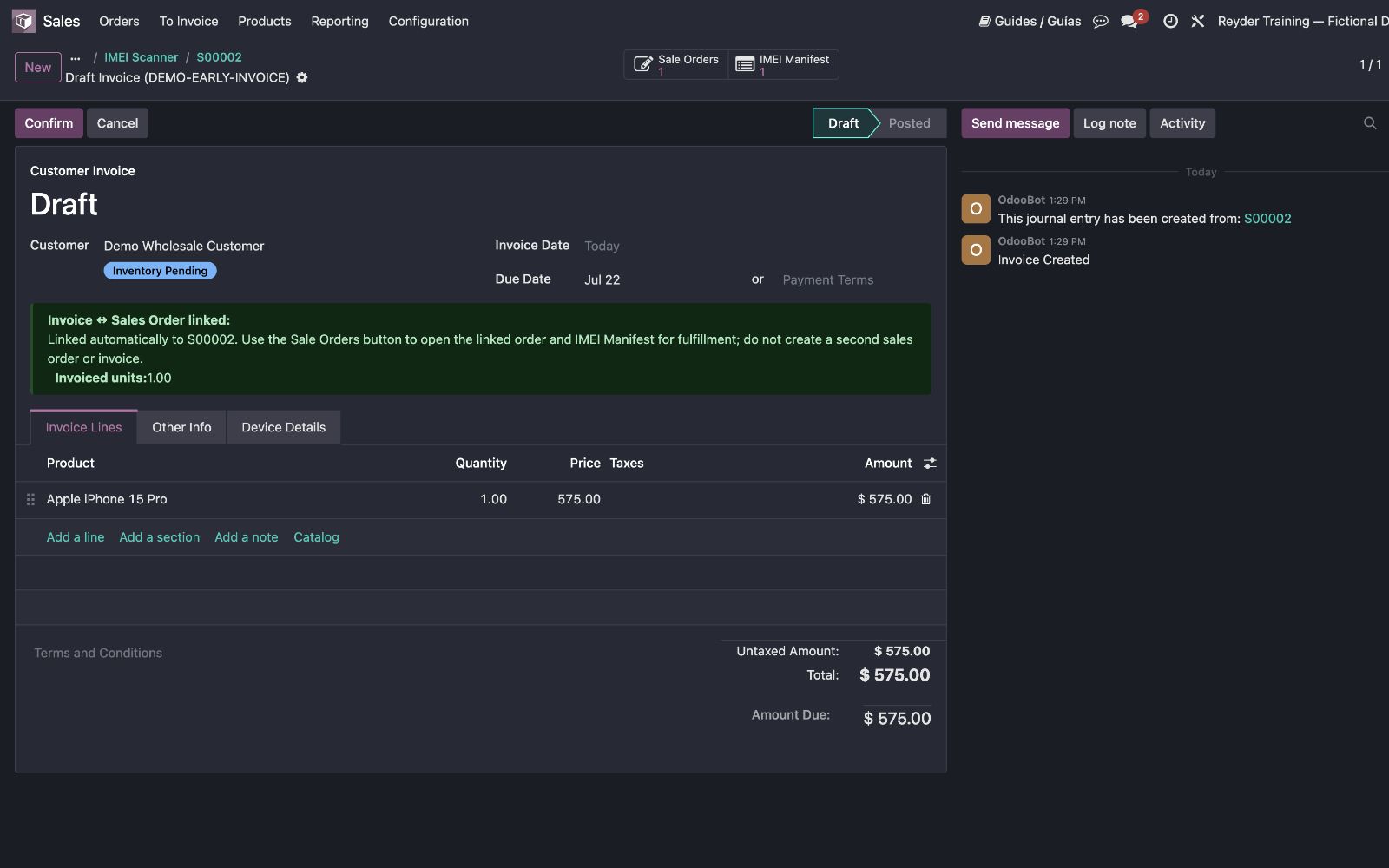
Create New Invoice is always visible, even when the customer has no unlinked invoices or the sales user cannot read accounting records. Odoo confirms the SO and creates its linked draft invoice. Review that invoice, post it, and register full payment before warehouse scans or ships the devices.
If a confirmed order later gains a real uninvoiced quantity, click Choose or Create Invoice again. The same choice appears: link an unlinked invoice that exactly covers the remainder, or let Create New Invoice create only that remaining quantity.
Starting from the invoice instead
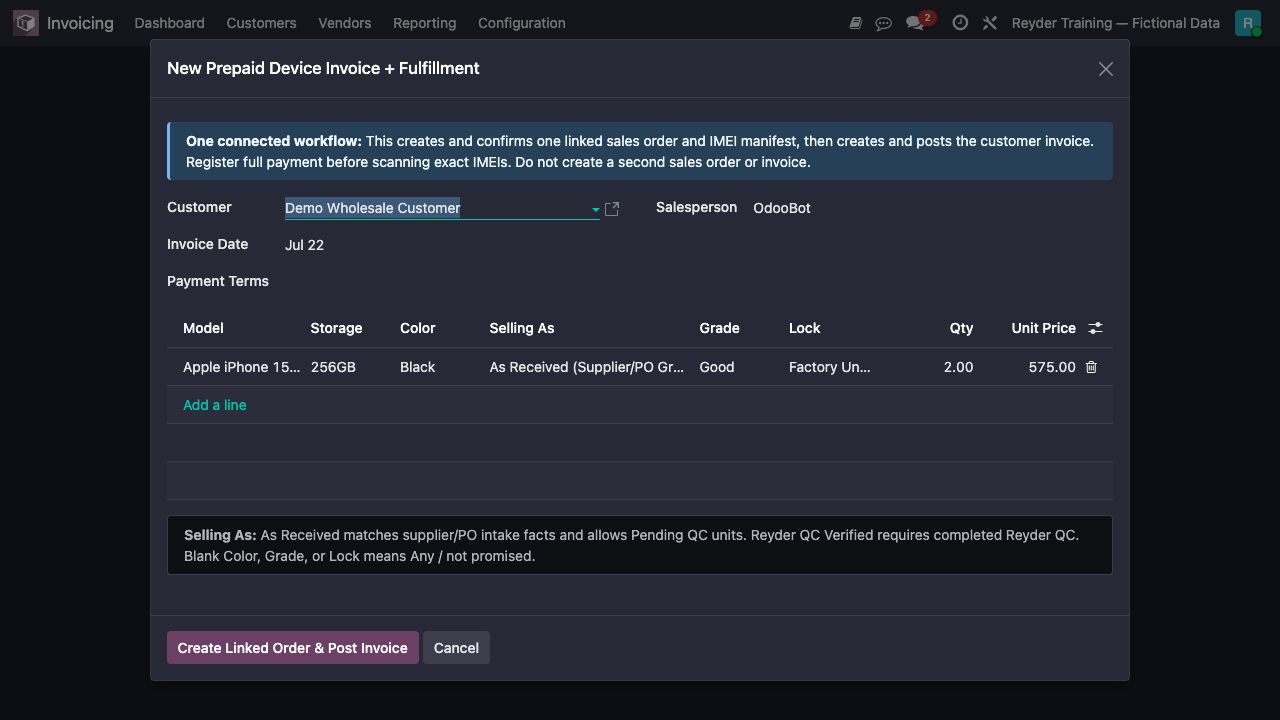
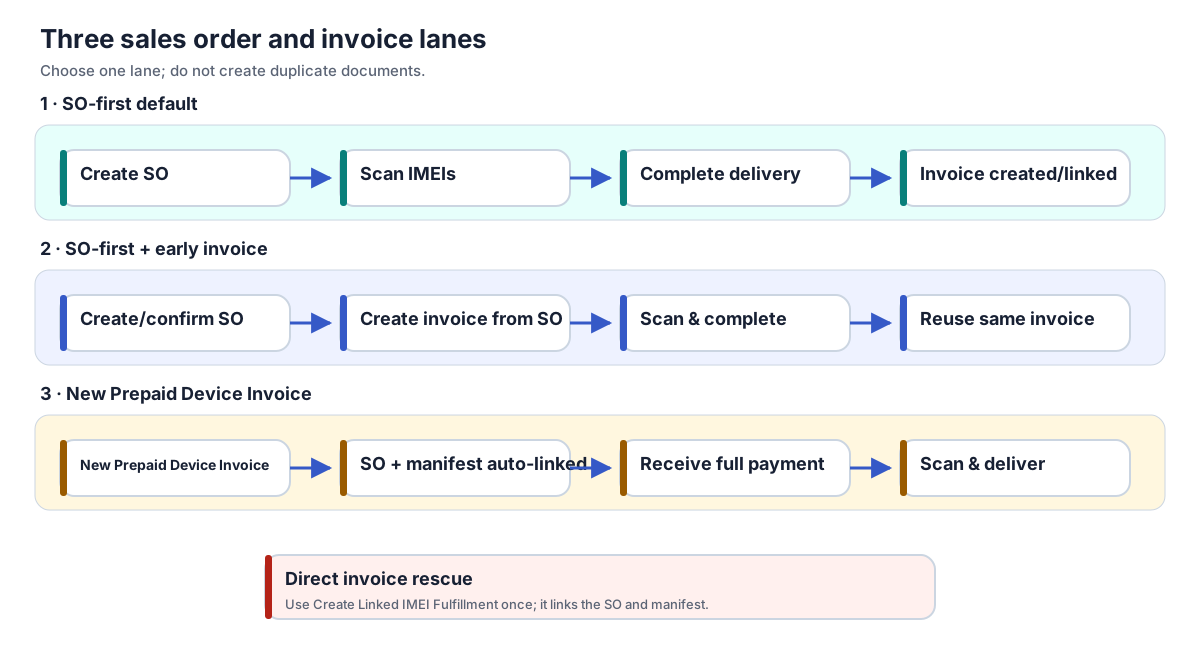
For a brand-new prepaid transaction that has no SO yet, use Invoicing → Customers → New Prepaid Device Invoice. That wizard creates and links the SO, invoice, and Delivery Manifest together.
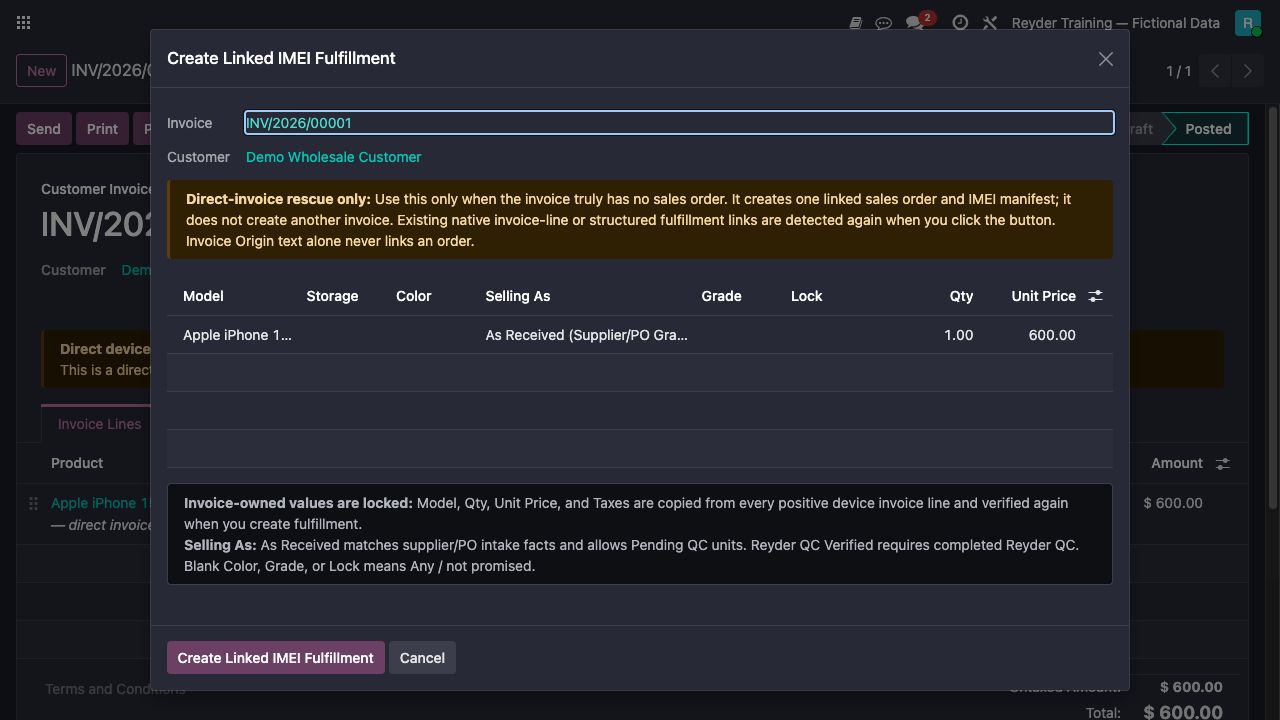
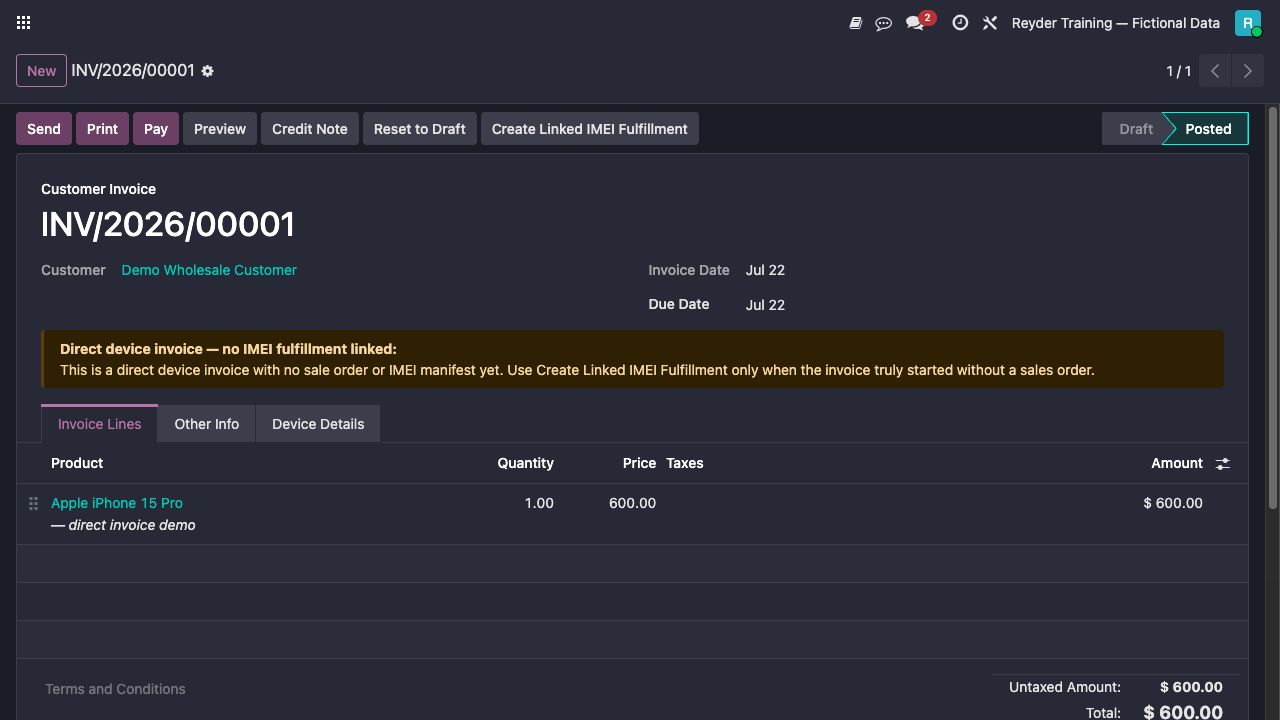
If somebody already created a genuine direct device invoice and there is still no SO, a manager/accounting user may open it and use Create Linked IMEI Fulfillment once. Do not manually create a second SO and do not use this rescue after the invoice was linked through the standard choice.
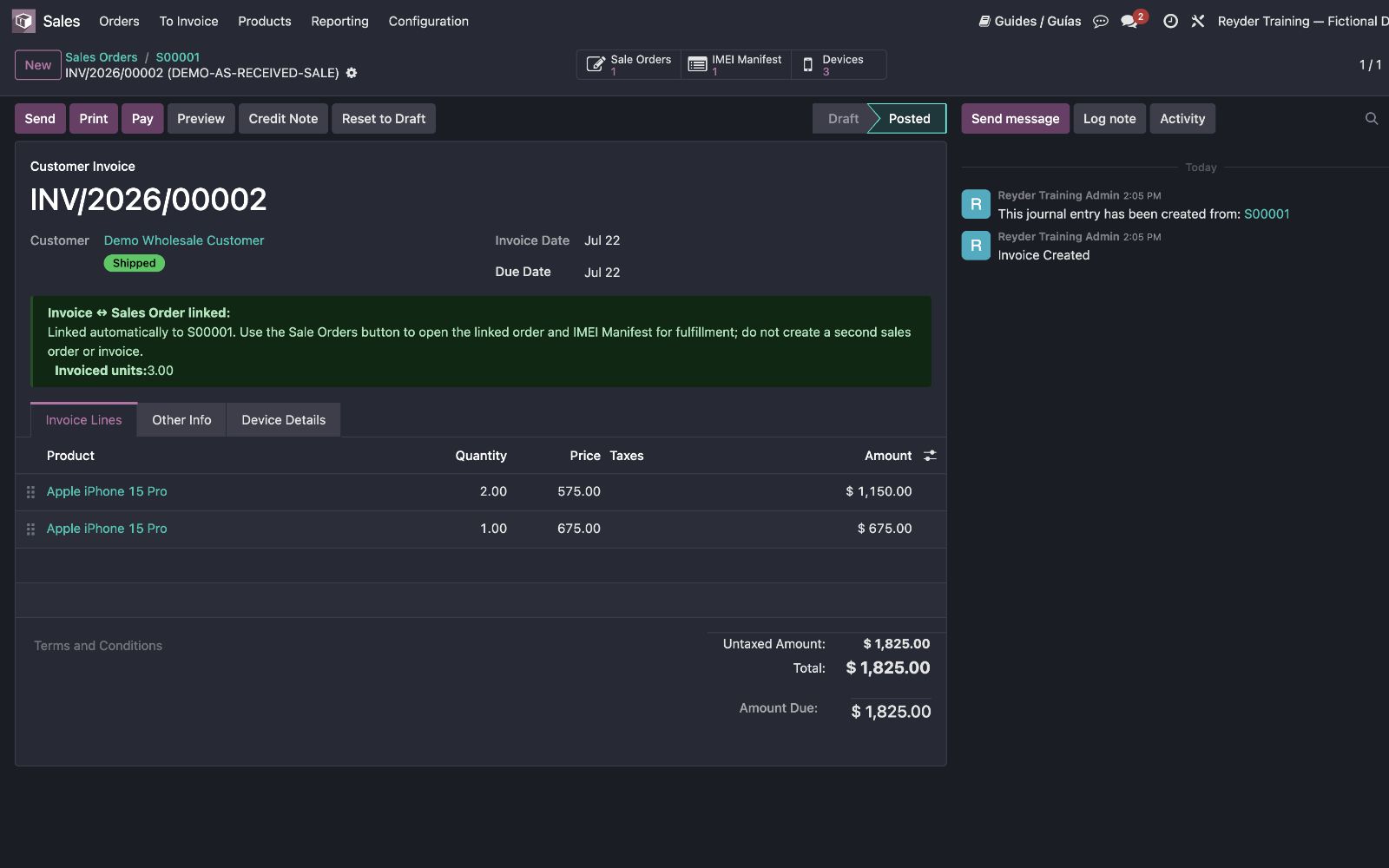
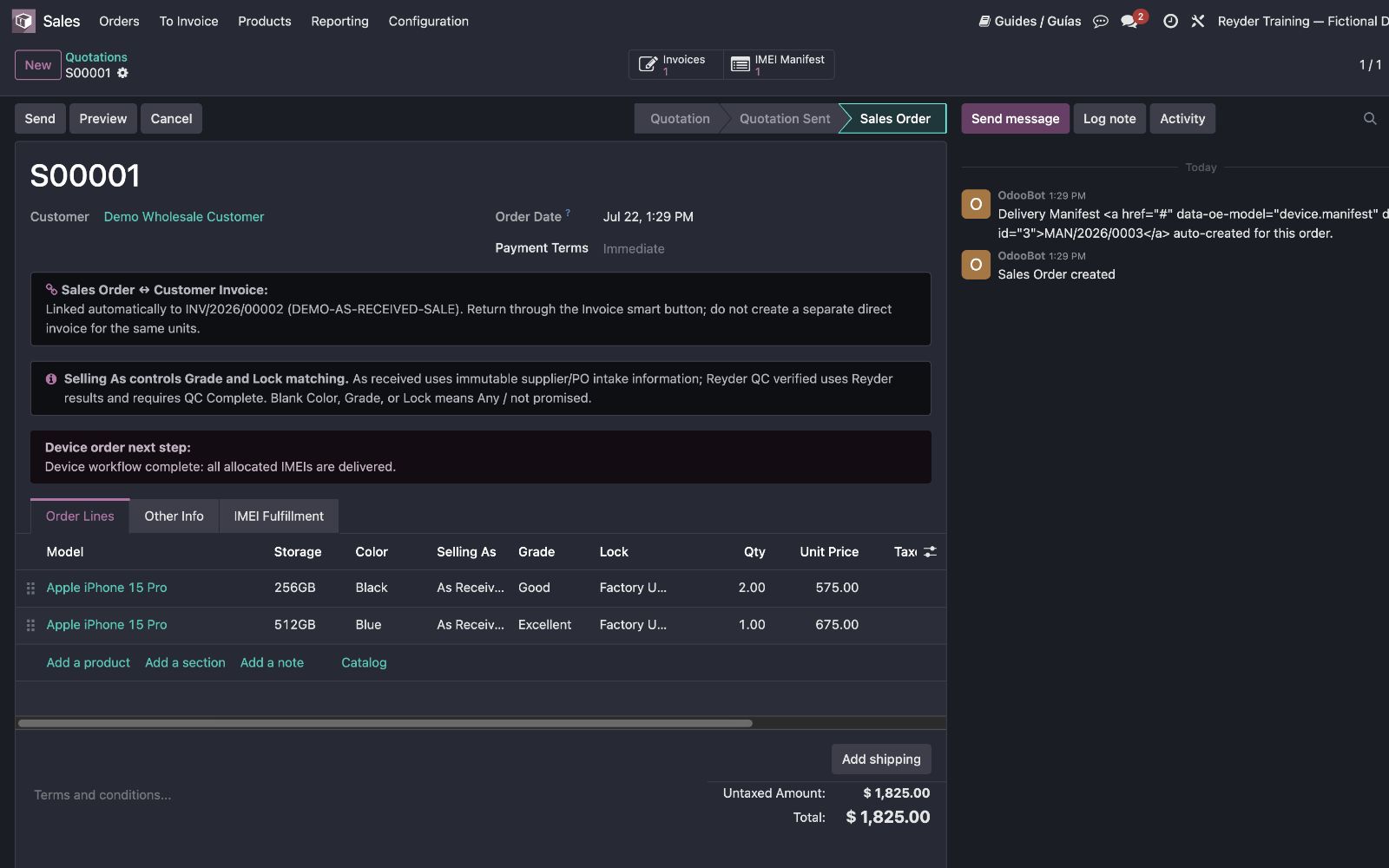
How to prove the link
From the sales order:
- Invoices opens its linked customer invoice(s).
- IMEI Manifest opens the outbound Delivery Manifest.
From the customer invoice:
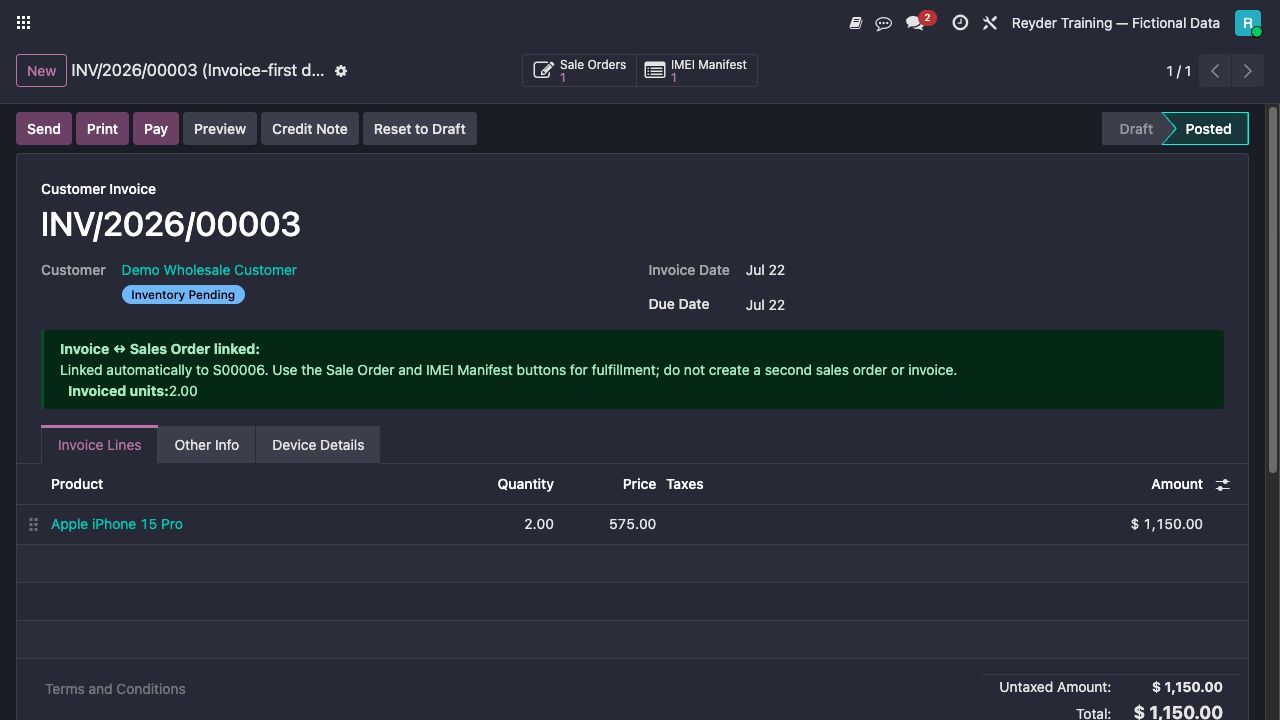
- Sale Orders opens the linked fulfillment SO.
- IMEI Manifest opens the related manifest.
Invoice Origin or a typed SO number is not proof. The relational smart buttons are.
Never do these
- Do not create a second invoice because the existing one has a clerical error.
- Do not create a second SO because an invoice already exists.
- Do not type an SO number into free text and assume that links the records.
- Do not reduce billed quantities or alter a covered row's product, price, or taxes. Add a genuine extra quantity through the same link-or-create remainder choice.
- Do not cancel or recreate posted accounting documents without accounting approval.
Common questions
Why can I see an invoice that does not match this SO?
The list intentionally shows every active unlinked invoice for the customer. Odoo validates exact commercial coverage only when you click Link This Invoice.
What happens when the selected invoice is wrong?
Odoo explains the mismatch and makes no link, confirmation, allocation, or new invoice. Choose another invoice or use Create New Invoice.
Can one aggregate invoice row cover several SO rows?
Yes, when the same product, net unit price, tax treatment, total quantity, subtotal, and document totals agree exactly. Odoo records the split coverage internally.
Can two people choose at the same time?
Odoo locks the order during the decision. The second user is told to reload rather than creating or linking a duplicate.
Older labels you may see during rollout
Older screenshots below use Create Invoice or show the pre-choice linkage screens. After this upgrade, use Choose or Create Invoice; the prepaid and one-time rescue paths remain available only for the special cases described above.